Close Menu
Gadget Guide News
  • Home
  • News
  • Features
  • Reviews
  • Best Stuff
  • Buying Guides
  • Deals

Subscribe to Updates

Get the latest tech news and updates directly to your inbox.

Trending

Unihertz’s new QWERTY phone is even more like a Blackberry

March 3, 2026

Apple’s website leaks MacBook ‘Neo,’ which could be its new cheaper laptop

March 3, 2026

The 6G, modular, robot phones of the future

March 3, 2026
Facebook X (Twitter) Instagram
Gadget Guide News
Subscribe
  • Home
  • News
  • Features
  • Reviews
  • Best Stuff
  • Buying Guides
  • Deals
Gadget Guide News
  • Best Stuff
  • Buying Guides
  • Reviews
  • Deals
  • Features
Home»Features»How to customize the iPhone Action Button and make it work better for you
Features

How to customize the iPhone Action Button and make it work better for you

News RoomBy News RoomJanuary 27, 2026033 Mins Read
Share Facebook Twitter Pinterest Copy Link LinkedIn Tumblr Email Telegram WhatsApp
Follow Us
Google News Flipboard
Share
Facebook Twitter LinkedIn Pinterest Email Copy Link

Apple replaced the traditional ring/silent switch with the Action Button on the iPhone 15 Pro/Pro Max flagship phones and has featured it on each model since, rolling it out across all new iPhones starting with the iPhone 16 range which also featured the Camera Control button for the first time.

But what does the Action Button do – and how can you customize what it does?

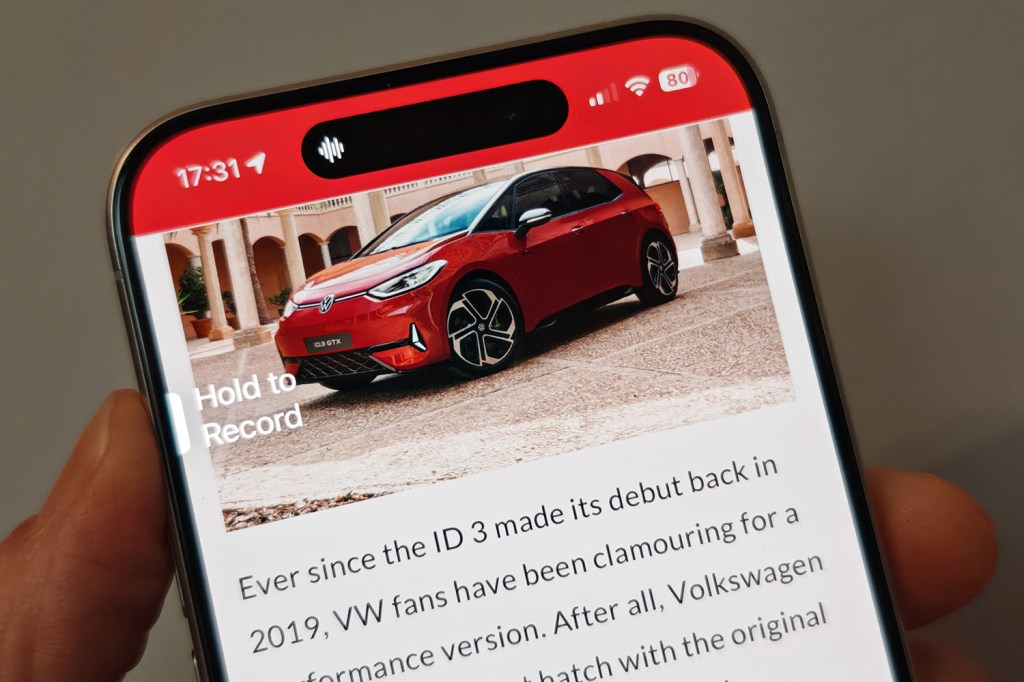
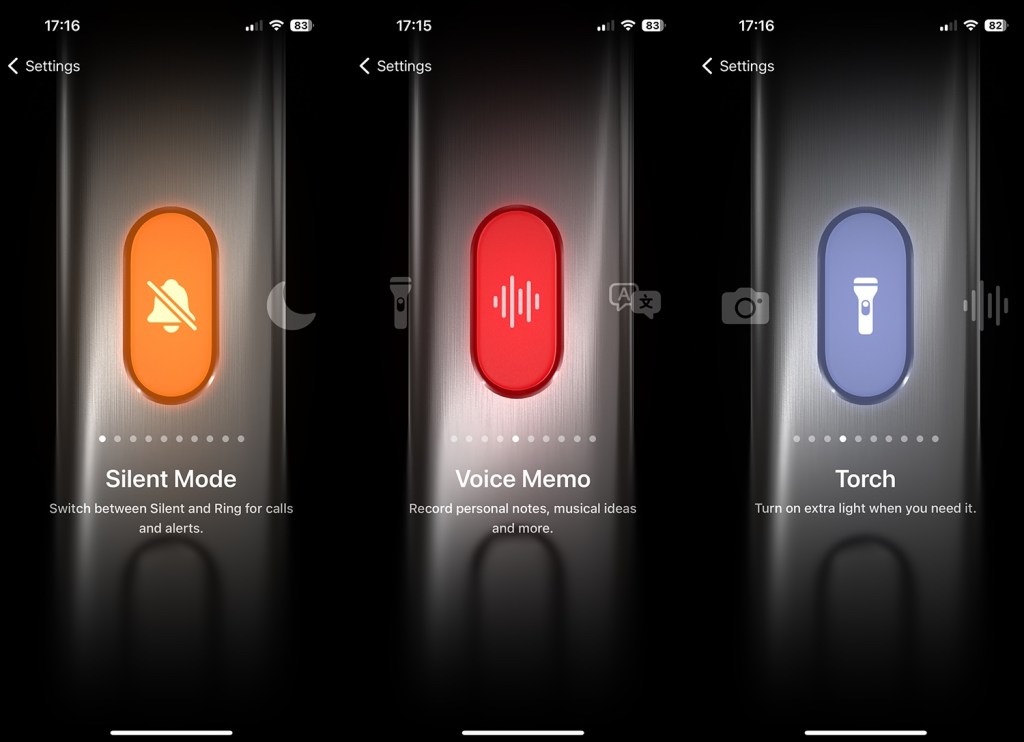
Instead of flicking a switch to set your phone to silent, you now press and hold the button for a haptic feedback response. This is all done via a bespoke interface that’s part of the Settings app. As you can see below, it’s an unusual and quite different design to other settings on the iPhone (it’s the same in iOS 17, iOS 18 and the latest iOS 26).

By default, the iPhone Action button sets your phone to silent (or ring) but you can customise what it does really easily, using pre-determined actions such as opening the camera or the Shortcuts app. Or you can specify your own should you wish.
iPhone Action Button

The button is designed to either enable the Action in question or disable it – there’s no other way to press it for different capabilities. You’ll see an on-screen indication that the Action has taken place around the Dynamic Island as well as getting the haptic feedback.

How to customise the iPhone Action Button

  1. Go to the Settings app
  2. Select Action Button (you can also search for it anywhere on your phone of course).
  3. Swipe across to the Action you want to choose. The pre-determined ones are listed at the bottom of this article.
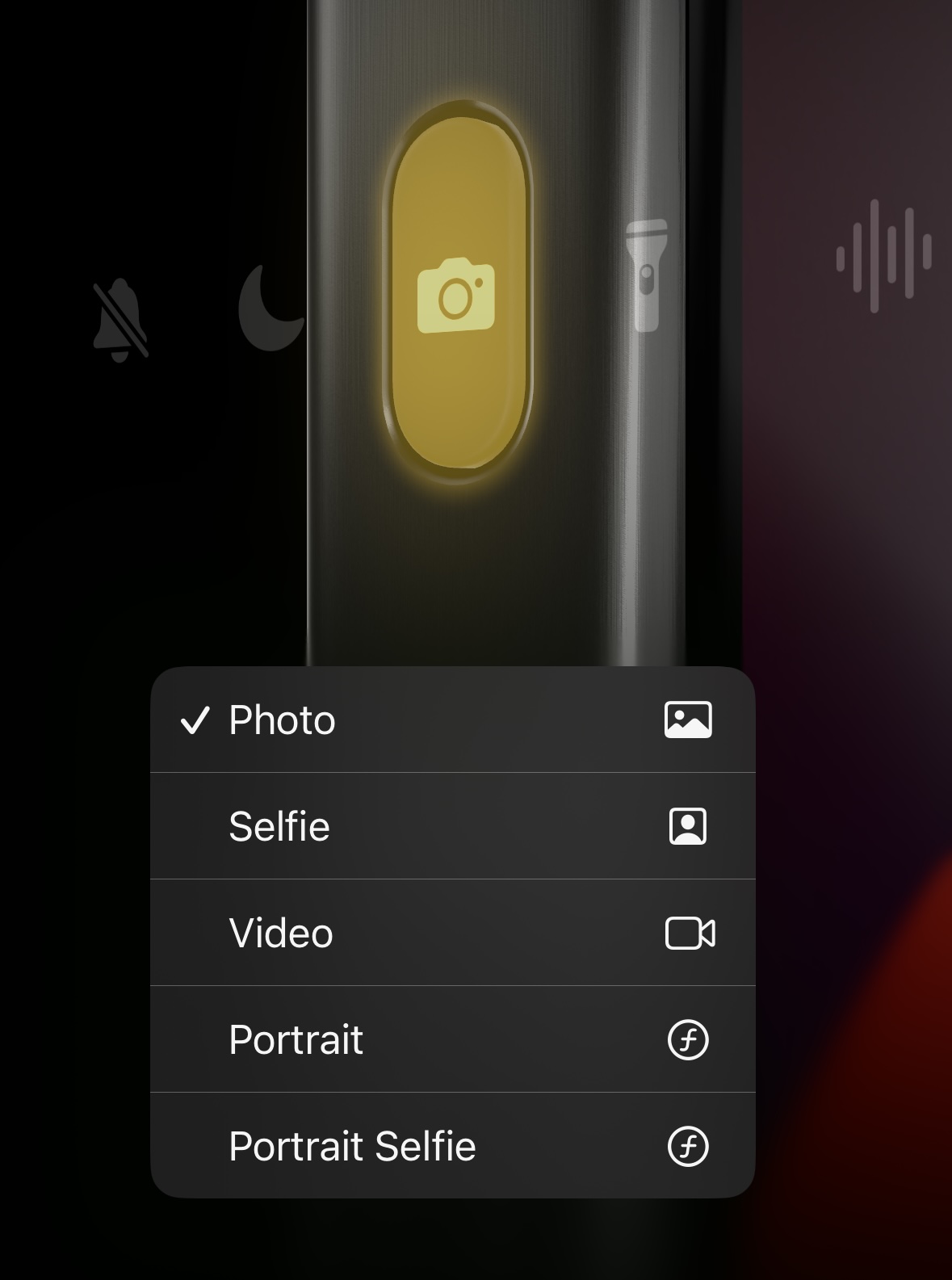
  4. Some Actions like the Camera button have more specific settings that you can select at the bottom of the screen using the arrows. So, for example, under Camera you can choose what option you want such as a selfie or a video.
    iPhone Action ButtoniPhone Action Button
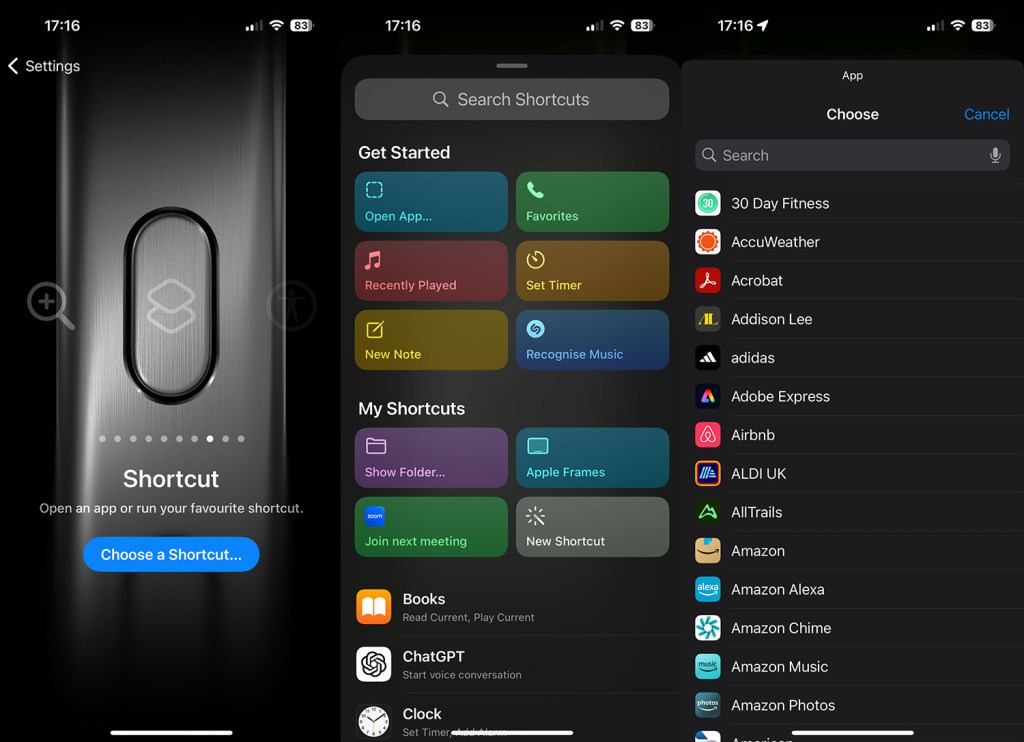
  5. There are two options – Shortcuts and Accessibility – where you need to tap the blue button below the action to select a more specific option (otherwise pressing the Action button won’t do anything). Shortcuts is how you get the Action Button to open a specific app – so you could pop open WhatsApp for example.
iPhone Action ButtoniPhone Action Button

What Action Button options are available?

Action State 1 State 2
Silent Mode Turn silent mode on. Turn silent mode off.
Focus Turn a specified (by you) Focus on. Turn the specific Focus off.
Camera Open the Camera app to take a photo, selfie, video, portrait, or portrait selfie. You can set this yourself. N/A
Flashlight Turn the flashlight on. Turn the flashlight off.
Voice memo Start recording a voice memo. Stop recording a voice memo.
Magnifier Open the Magnifier app. N/A
Translate Start translating speech (you can’t currently specify which language, it uses the last one in the Translate app) Stop translating.
Shortcuts Open an app or run your favourite shortcut. N/A
Accessibility Access a specified accessibility feature. N/A
No action Do nothing. N/A
iPhone Action ButtoniPhone Action Button
  • Best iPhone: every available Apple smartphone compared

Read the full article here

Follow on Google News Follow on Flipboard
Share. Facebook Twitter Pinterest LinkedIn Tumblr Email Copy Link
News Room
  • Website

Related Posts

The next iPhone could borrow a serious trick from professional cameras. Here’s why it could be game-changing

February 24, 2026

Best Fire Tablet 2025: every Amazon tablet ranked

February 23, 2026

Best tablets in 2026 for all budgets

February 23, 2026
Add A Comment
Leave A Reply Cancel Reply

Top Articles

Asus now claims it’s not dropping the RTX 5070 Ti amid memory shortages

January 16, 2026

The best earbuds we’ve tested for 2026

January 12, 2026

Instagram says it fixed the issue that sent password reset emails

January 11, 2026
Latest Reviews

Xiaomi’s Leica Leitzphone mostly earns the name

News RoomFebruary 28, 2026

Tenways nearly perfects the shareable city e-bike

News RoomFebruary 28, 2026

The best instant cameras for 2026

News RoomFebruary 28, 2026

Subscribe to Updates

Get the latest tech news and updates directly to your inbox.

Demo
Most Popular

Naya Connect is a modular mechanical keyboard system for the indecisive

January 14, 2026

Asus now claims it’s not dropping the RTX 5070 Ti amid memory shortages

January 16, 2026

The best earbuds we’ve tested for 2026

January 12, 2026
Our Picks

Xiaomi, unlike Google and Samsung, thinks camera hardware comes first

March 3, 2026

Big Google Home update lets Gemini describe live camera feeds

March 3, 2026

Mastodon now has a button for sharing content from other websites

March 3, 2026

Subscribe to Updates

Get the latest tech news and updates directly to your inbox.

Facebook X (Twitter) Instagram Pinterest
  • Home
  • Privacy Policy
  • Terms of use
  • For Advertisers
  • Contact
2026 © Prices.com LLC. All Rights Reserved.

Type above and press Enter to search. Press Esc to cancel.