

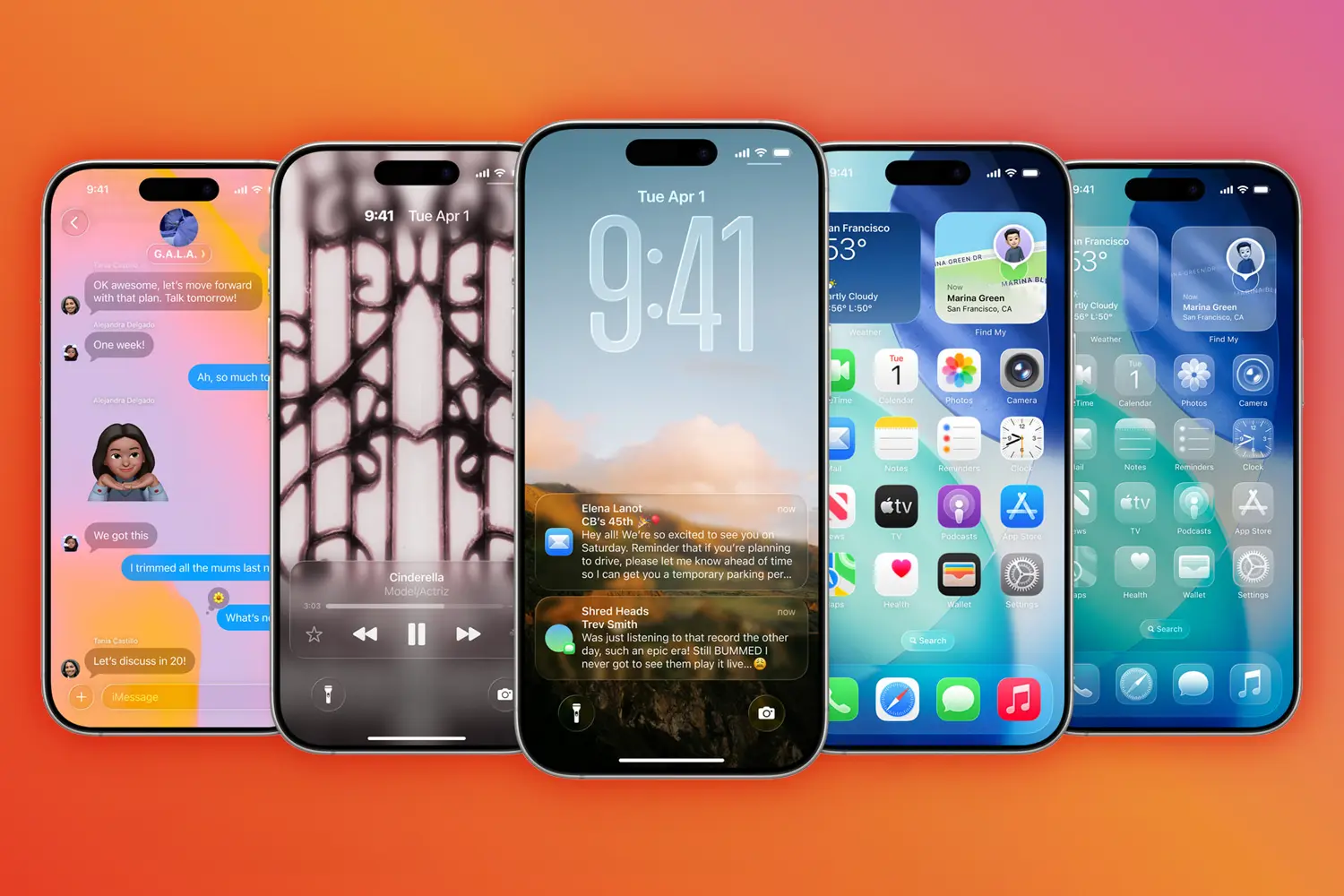
The latest software update for your Apple iPhone is iOS 26.5. I’ve been digging through iOS 26 since its earliest versions to bring you loads of new iOS tips and features – and one absurdly tall clock. Below, you’ll find the best iOS 26 tips I’ve found so far, fully updated.
iOS 26 runs on all iPhones released this decade and some more besides. Read our guide to iOS 26 system requirements if you need to know whether it will work on your iPhone. And if you’re wondering why Apple decided not to call this version iOS 19 (given that it follows iOS 18), read Why Apple skipped iOS 19 and went straight to iOS 26.
Tame Liquid Glass
Add a tint
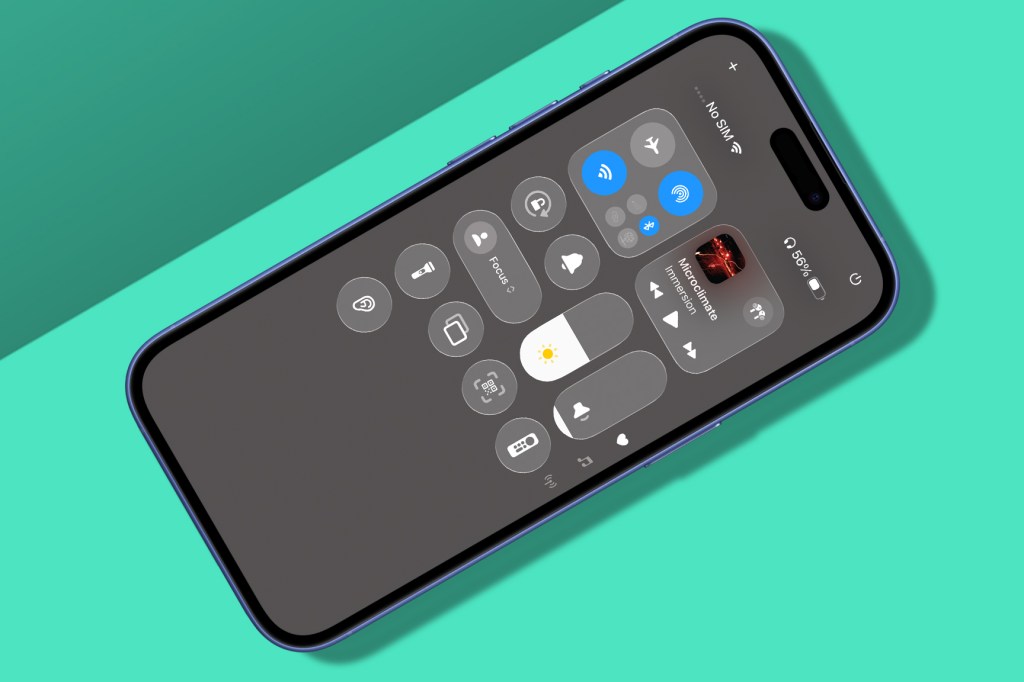
Apple’s Liquid Glass is part Windows Vista, part tech demo, with see-through UI and refracting light. It can also make stuff hard to read. To reduce the effect (which then becomes more Liquid Frosted Glass), open the Settings app, head to ‘Display & Brightness’ > ‘Liquid Glass’ and turn on Tinted.
Take things further
If you still find Liquid Glass an annoyance, it can be further adjusted in the Accessibility area of Settings. Under ‘Display & Text Size’, experiment with ‘Reduce Transparency’. If you’d like even more clarity for UI, turn on ‘Show Borders’. Remove most animation by activating ‘Reduce Motion’ in the Motion section.
Make it your own

Stretch the clock
Tap-hold the Lock Screen and prod Customise. Tap the clock for options to make it solid, not glassy. Then, for reasons known only to Apple, drag the clock’s drag handle downwards to make it ridiculously tall.
Make glass icons
Tap-hold a Home Screen, tap Edit and choose Customise. The new Clear option gives icons a fancy ‘etched glass’ look; Dark improves legibility. But beware: this look leaks into other apps, whether you want that or not.
Power up comms
Block nuisance calls
Tired of unknown callers? In Settings > Apps > Phone, turn on ‘Ask Reason for Calling’. That’ll get you a transcription of why someone’s calling, whereupon you can pick up or ignore. Enable ‘Move to Unknown Callers’ to funnel all missed randos to a holding pen.
Customise Messages
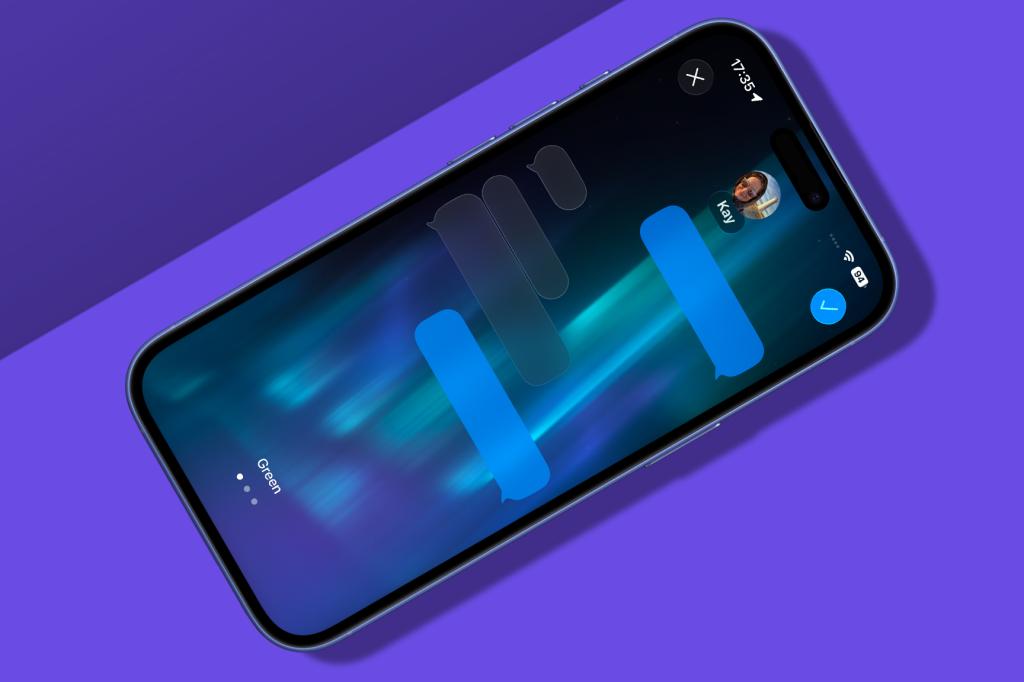
Irritate friends in Messages by tapping the avatar atop a thread, then Backgrounds, then the animated Aurora or a monstrosity from Image Playgrounds. For your next message, tap + and then Polls to ascertain how much everyone now hates you. Then revel in being able to tap-hold a message, choose Select and grab just part of it rather than copying the whole thing.
RCS Message encryption
In iOS 26.5, end-to-end encryption is now available for RCS messages between iPhone and Android devices so you can now have the same security as iMessage but in a text. It’s on by default though there is a toggle for it in Settings > Messgaes.
Be less alarmed
Slide to stop
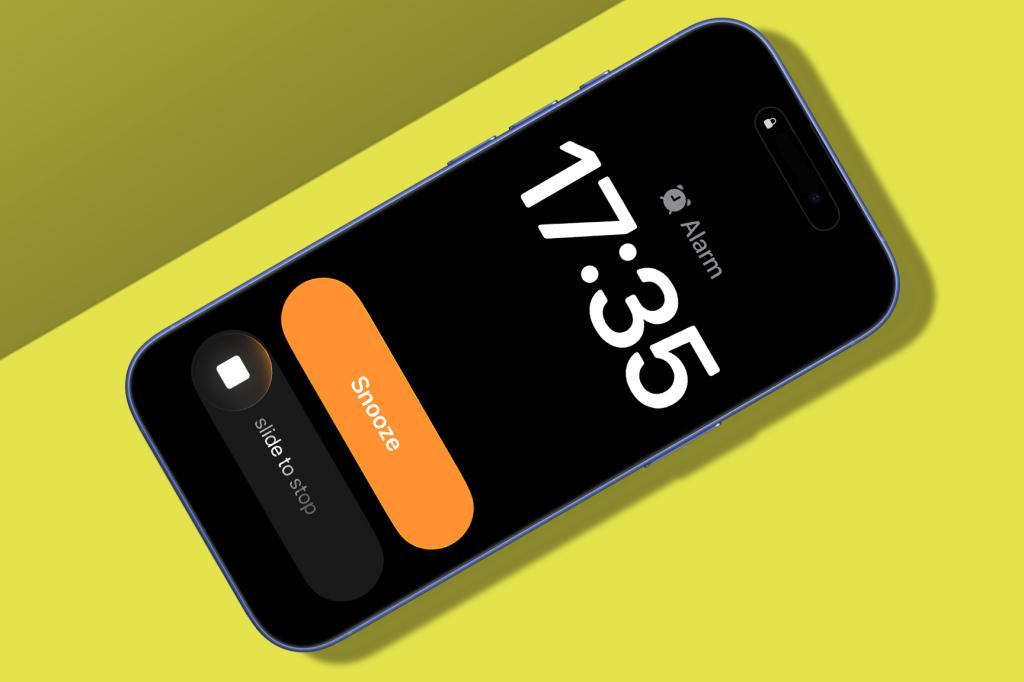
The iOS 26 redesign unwisely put the Snooze and Stop Lock Screen buttons right next to each other, massively increasing the chance of you accidentally turning off your alarm entirely. In iOS 26, Stop now needs a more deliberate slide action. Phew.
Snooze less (or more)
Previously, Apple forced snoozes to be an oddly specific nine minutes long. If you felt that was too much nap, not enough urgency, or actually really stingy, you can now set custom times in the Clock app. Tap an alarm and set ‘Snooze Duration’ to a new value between one and 15 minutes.
Spotlight sounds
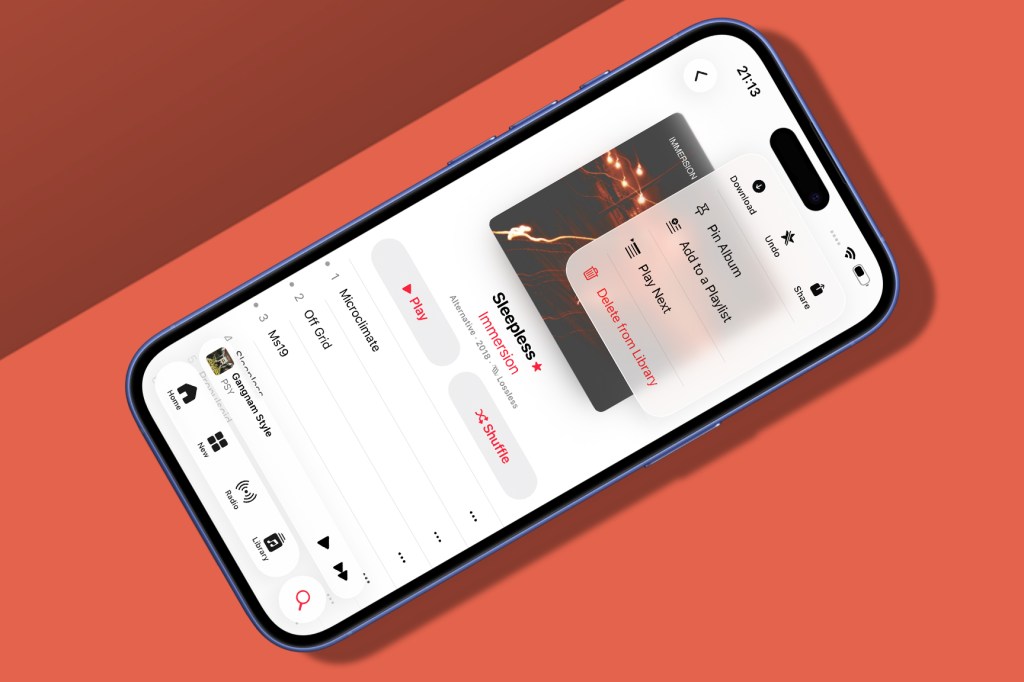
Pin albums
In Music, use the pin option found in a ‘…’ menu to pin the album or any individual song to the top of your Library tab. You’ll be asked if you’d like to auto-download pinned items. Do so and you’ll always have offline access to your favourites.
Gawp at art
When playing a song in Music, lock your iPhone and then bring up the Lock Screen. In iOS 26, note how the album art fills much more of the screen, with the playback controls below and the clock now squished above.
Tune controls
Glide through tracks
When a really rubbish track starts playing in Music, you don’t want to battle with Siri to move things on, nor file your finger down to a point to hit the tiny ‘next track’ button. So rejoice that iOS 26 lets you swipe left to play the next track – and the other way if you want to play the previous one.
Fine-tune podcasts
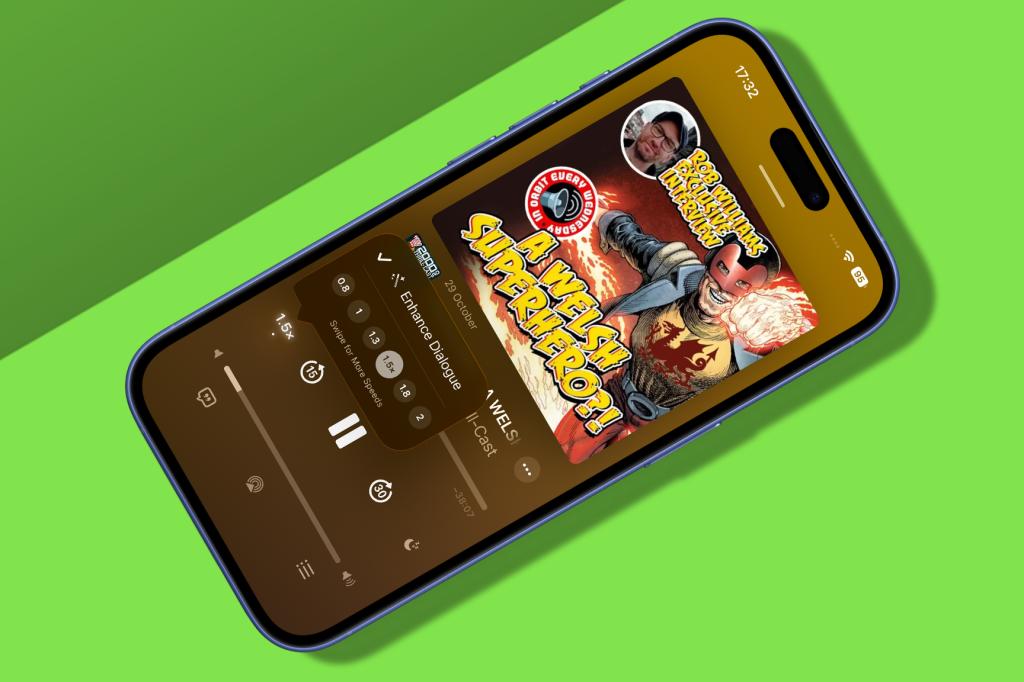
Third-party podcast apps surged ahead of Apple’s by providing all kinds of options to make playback clearer and also faster. Podcasts now gets in on the act. Tap the playback button and use ‘Enhance Dialogue’ to boost voices. You can also drag across the speed options for fine-grained control.
Know it all

Translate everything
Want to chat to someone who doesn’t speak your language? Preload languages with Settings > General > Apps > Translate > ‘Downloaded Languages’. Auto-translate should then kick in for Phone and Messages – albeit between two languages only. Also check out Apple Music’s lyrics view, which is (very) gradually rolling out translation.
Snap and search
Visual Intelligence now identifies what’s in screenshots. Snap one (Power + Volume Up buttons), draw around an object and then tap buttons to run an image search or a ChatGPT query. And, yes, this is Apple playing catch-up with its rivals in surprisingly inelegant fashion. But it’s better than nothing.
Level up play
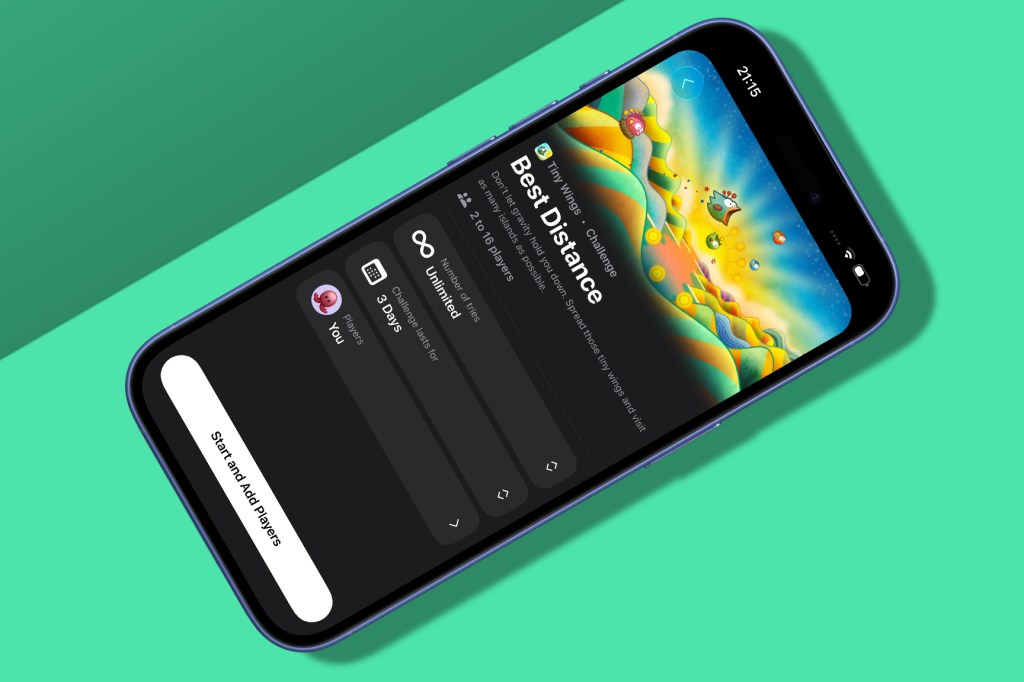
Battle friends
In the Games app, head to Friends, tap ‘Challenge Your Friends’ and pick a game. Choose a challenge, tweak settings (such as the number of tries or days), select players, and try really hard to not start griping when you come last.
View gamepad support
In Library, tap the filter menu next to ‘Your Games’. Select ‘Controller Support’ to filter titles by those you have access to – which you can sort by install date or name – and that work with kit like a GameSir G8 Galileo or a Backbone One.
Make new realities
Add a style
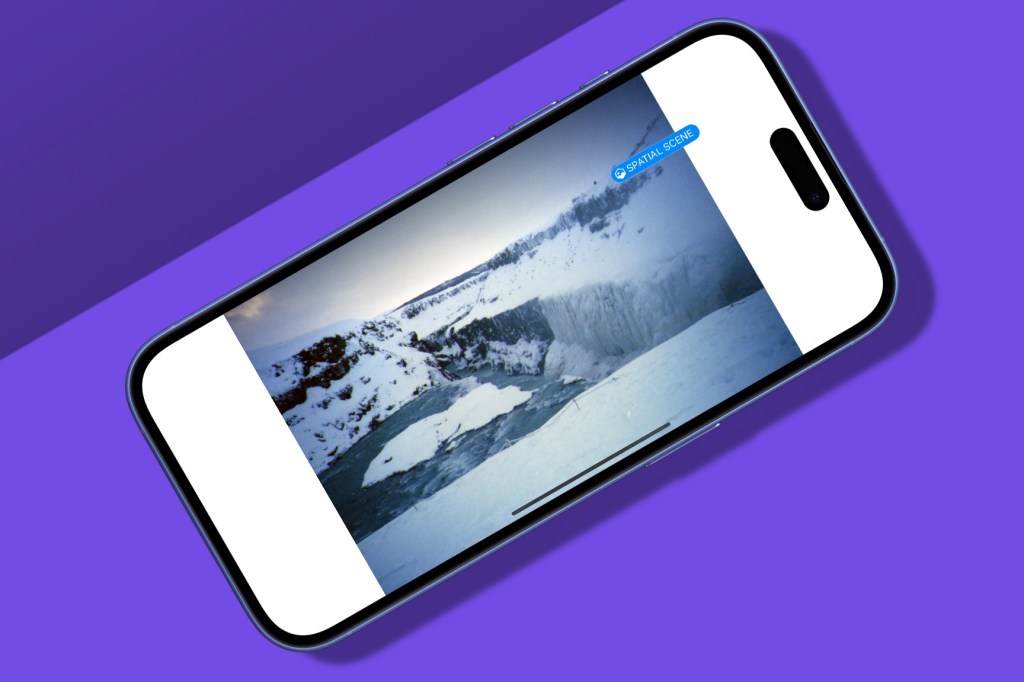
Image Playground now has you pick a style before crafting a tiny image. You can choose from a sketch, a Genmoji (also available in Messages – use + > Genmoji) or somewhat more realistic output courtesy of ChatGPT. Not the most life-changing of iOS 26 tips, but, hey, I got a weird squirrel on a rocket ship out of it.
Make 3D snaps
To bring your own photos to life, tap one in the Photos app, then hit the tiny ‘Spatial Scene’ button. Waggle your phone to animate what’s now a tiny 3D scene with parallax. Note: this works with any photo, not just ones taken with swanky new iPhones.
Migrating to Android
Google and Apple agreed to make switching between platforms a lot less painful at the end of last year. A change debuted as part of iOS 26.3. In the Settings app, you’ll see an option titled Transfer to Android. Just like moving to a new iPhone, you can now move your old iPhone next to your new Android phone, and it’ll transfer your cellular deal/phone number across as well as relevant apps, photos and messages.
Wearable changes in iOS 26.5 in the EU
Because of the EU Digital Markets Act, EU users now have more flexibility when it comes to features with non-Apple smartwatches and earbuds, giving these users some of the same features as Apple Watch and AirPods users. This includes proximity pairing by bringing other earbuds close-by, the ability to see notifications on smartwatches and sharing of Live Activities from your iPhone home screen to a wearable.
Some other quick iOS 26 tips
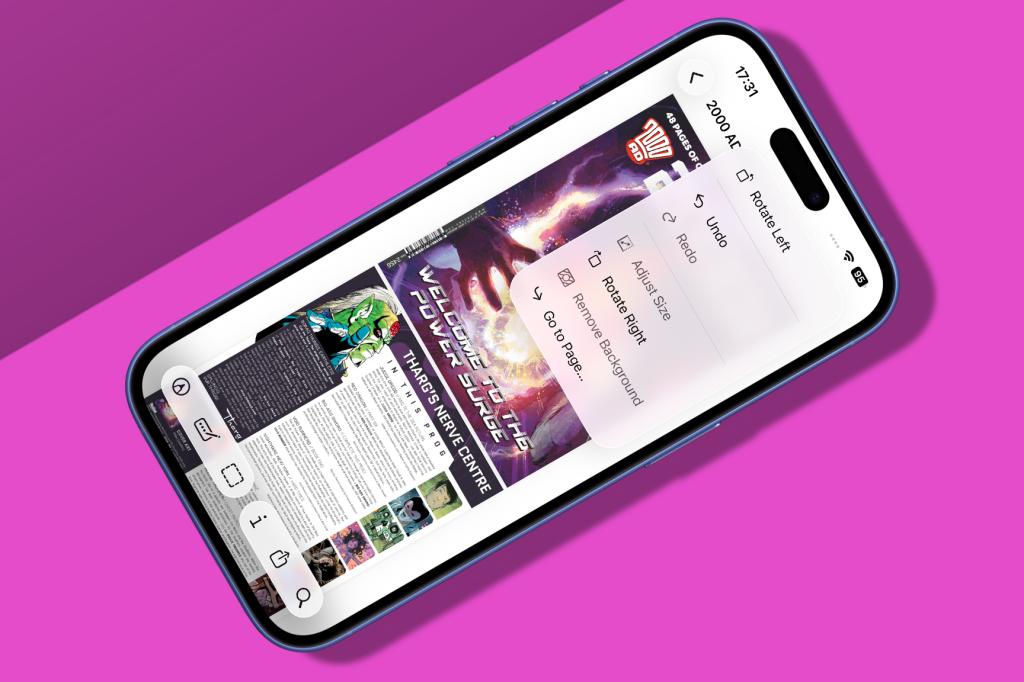
Check out Preview: Use the Preview app to view images and PDFs on your iPhone, just like on Mac. But don’t try to rearrange pages, like on Mac, because you can’t. Boo.
Reduce Lock Screen swipes: Always accidentally opening Camera with a swipe? In Settings, go to Camera and turn off ‘Lock Screen Swipe to Open Camera’. Sorted.
Add custom Fitness workouts: In Fitness, go to Workout and tap +. In ‘Add Workout’, input session details so your efforts don’t vanish into the ether.
View the Home indicator: Finally, the Home indicator in iOS 26 fades after you open an app. You can still use gestures at the bottom of the screen, though, and the indicator will temporarily reappear while you do so.


Read the full article here
