

I was aghast when Apple introduced Liquid Glass. It obliterated clarity and readability, unwisely deciding the floating interface aesthetic from an overpriced headset should be inflicted on everyone using an iPhone, an iPad or a Mac.
Apple claimed Liquid Glass better showed off your content. Mostly, it showed off itself, screaming for attention with every interaction. I disliked it enough that I still haven’t updated my everyday iPhone from iOS 18. But things are changing.
Apple’s imminent ‘27’ updates to iOS, iPadOS and macOS suggest people who understand good design are back in control. The defaults are considerably better than last year’s horror show. Icons are no longer blurry. Mac toolbar buttons and sidebars no longer hover ominously. Good times.
But things still aren’t perfect. So if you want to fix Liquid Glass more thoroughly – like I do – here are the settings worth prodding.
Make Liquid Glass more solid
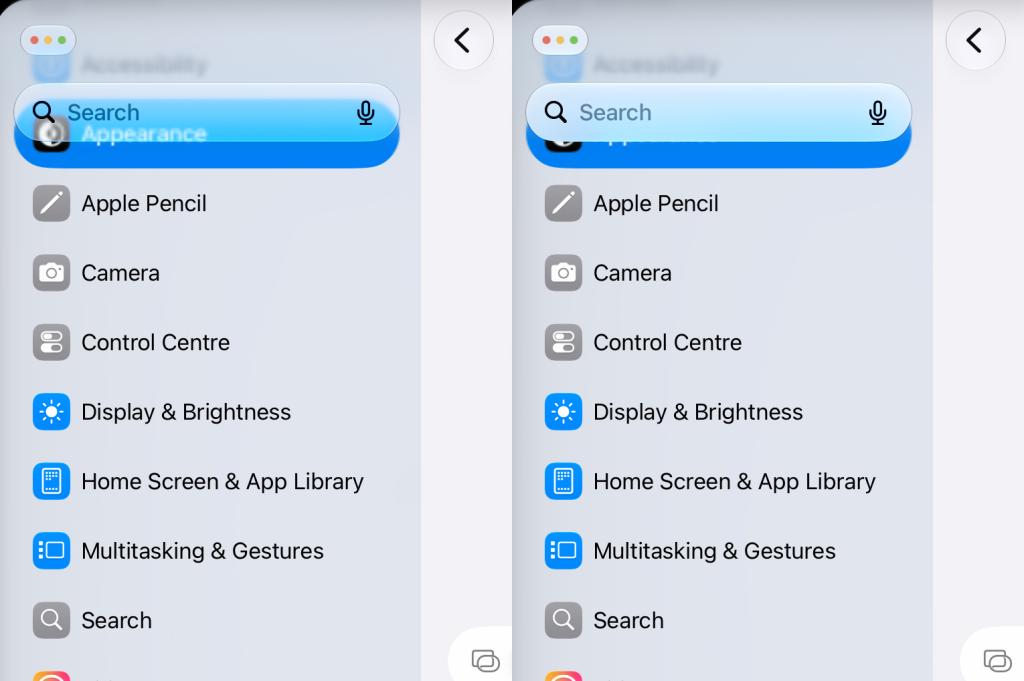
Open Settings (System Settings on Mac) and head to Appearance. On Mac, you’ll find a new ‘Liquid Glass’ section; on iPhone and iPad, it has its own menu. The slider provides two directions from the default: left for ‘More Clear’ and right for ‘More Tinted’. You can probably guess which one I prefer.
‘More Tinted’ makes interface elements more solid, so you’re less distracted by whatever’s behind them. Apple claims loads of people wanted a ‘More Clear’ setting too. Sure. If that’s you, go for it, but I’ve no idea why you’re reading this article.
Slide show
On Mac and iPad, scroll the sidebar until text and icons sit beneath the Search field. Then drag the ‘Liquid Glass’ slider. You’ll soon see how adjustments improve clarity.
Turn on ‘Reduce transparency’
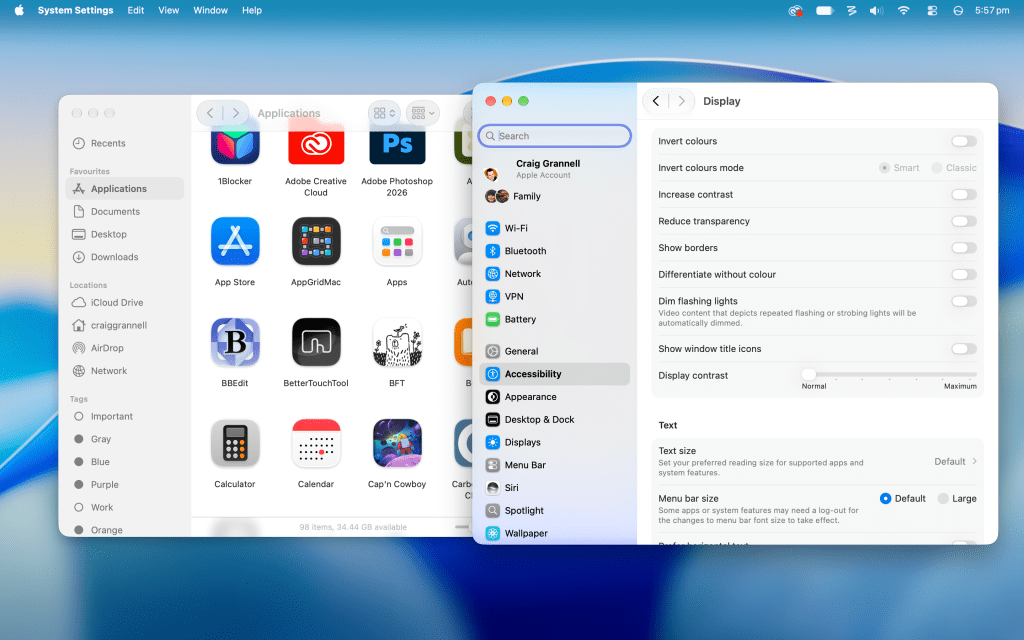
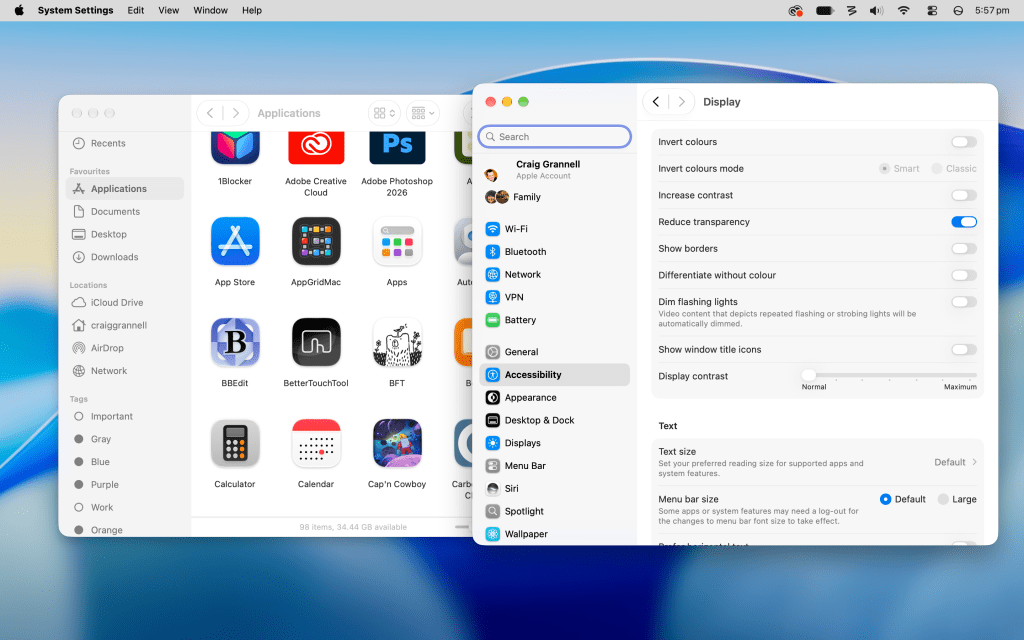
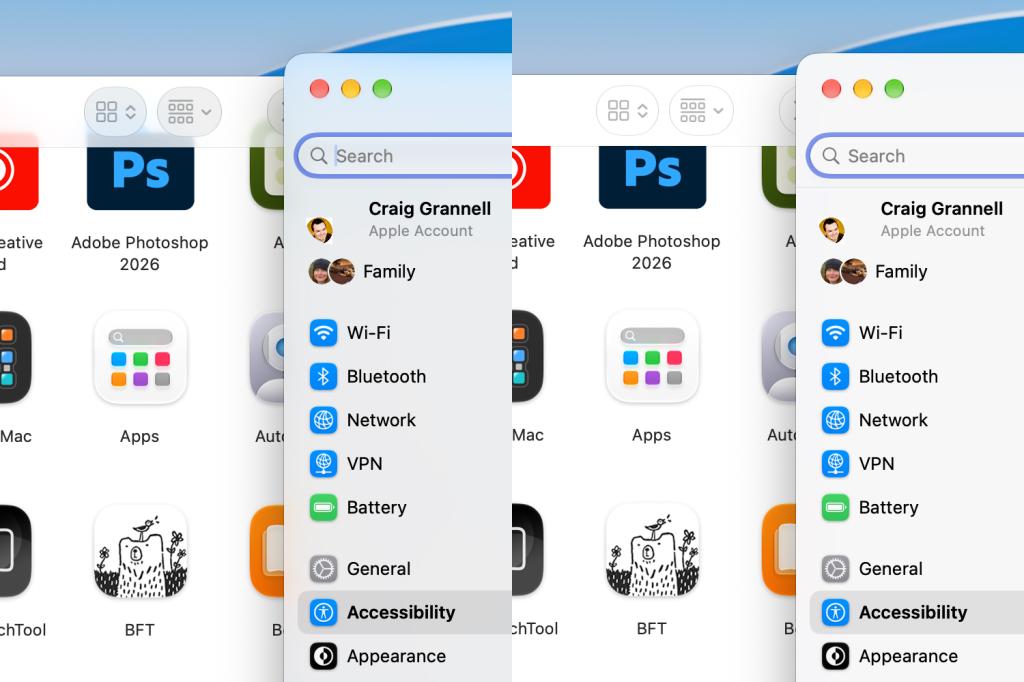
If you’re miffed about the ‘Liquid Glass’ slider lacking an ‘Even More Tinted’ option, visit Accessibility > ‘Display & Text Size’ (just Display on Mac). There you’ll find ‘Reduce Transparency’ (lowercase ‘t’ on Mac, because… I’ve no idea why).
When this setting’s on, sidebars and window chrome get proper solid backgrounds. For reasons best known to Apple’s designers, menus don’t – but they do become more opaque, as does the Dock. On the Mac, this setting also brings back the old-school grey menu bar background, which is visually dull but offers excellent clarity.
Glass ceiling
If you adjust the ‘Liquid Glass’ setting, ‘Reduce Transparency’ will be disabled, because if both were turned on at once, it’d be like crossing the streams and destroy the universe. Or something.
Show interface borders
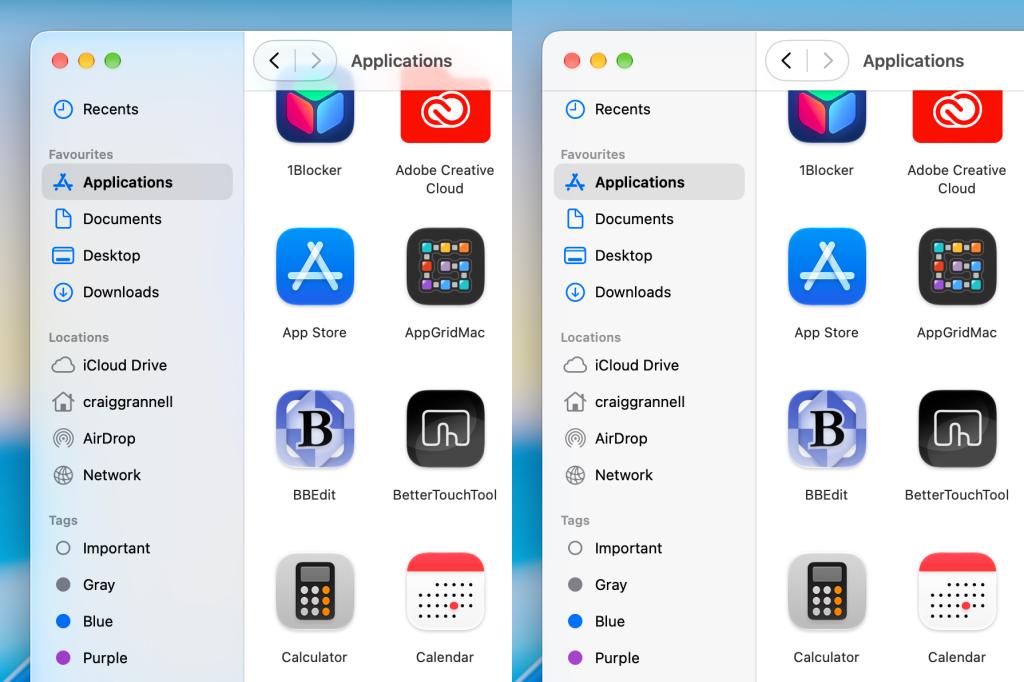
Settings > Accessibility > ‘Display & Text Size’ > ‘Show Borders’ debuted in iOS 26 and iPadOS 26. As of macOS 27, an equivalent setting exists in System Settings > Accessibility > Display > ‘Show borders’.
When active, it adds clearer outlines to buttons, toolbars and sidebars, making it easier to differentiate various bits of interface and tell what’s clickable. It also tones down the Dock’s reflective bits. Neatly, this setting works independently of ‘Reduce Transparency’ so you can use just one or both of them.
Contrast and furious
You may have noticed the ‘Increase Contrast’ (lowercase ‘c’ on Mac, because, etc…) option. That goes much harder in ramping up contrast levels and borders. On Mac, I find it’s too much and can even reduce clarity in some circumstances. It’s better on iPhone and iPad, but I’d recommend trying the other options first.
Adjust even more settings
Finally, here are some other settings you might like to poke with a stick to fix Liquid Glass and improve clarity on your Apple devices.
Reduce Motion: Found under Accessibility > Motion, this setting largely removes gloopy animations that accompany Liquid Glass. It also dramatically tones down animations elsewhere, replacing zooming – and column sliding on iPhone/iPad if ‘Prefer Cross-Fade Transitions’ is turned on – with restrained crossfades.
Folder colour: Folders on Mac automatically take on the colour of your chosen appearance theme. In my case, that means dark purple, which isn’t ideal. I change mine to light blue because folders then stand out better. And totally not because I’m very old and have been used to light blue folders since System 7.
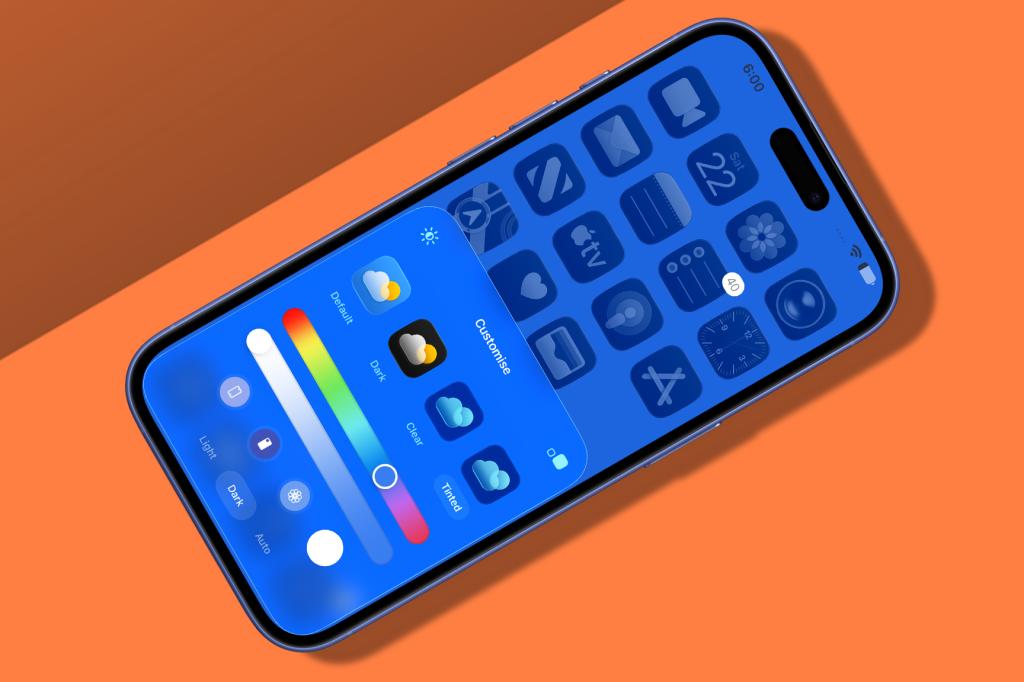
Icon & widget style: On the Mac, this lives in System Settings > Appearance. On iPhone and iPad, you long-press a Home Screen, tap the edit button and choose Customise. Stick with Default. Avoid Clear and Tinted unless you hate easily telling app icons apart.
Show menu bar background: This one’s Mac-only and found under in the ‘Menu Bar’ section of System Settings. It’s way less effective at bringing clarity to the menu bar than ‘Reduce transparency’. But if does at least give the menu bar some separation from your desktop wallpaper.
And that’s about it. With a few minutes of effort, you can use these tweaks to fix Liquid Glass, thereby making it considerably less intrusive and much easier to live with. Which is good, because I’d sooner my Apple device interfaces would prize clarity and usability rather than look like they’re auditioning for spots in Bruce Banner’s lab in the next Avengers movie.


Read the full article here
