

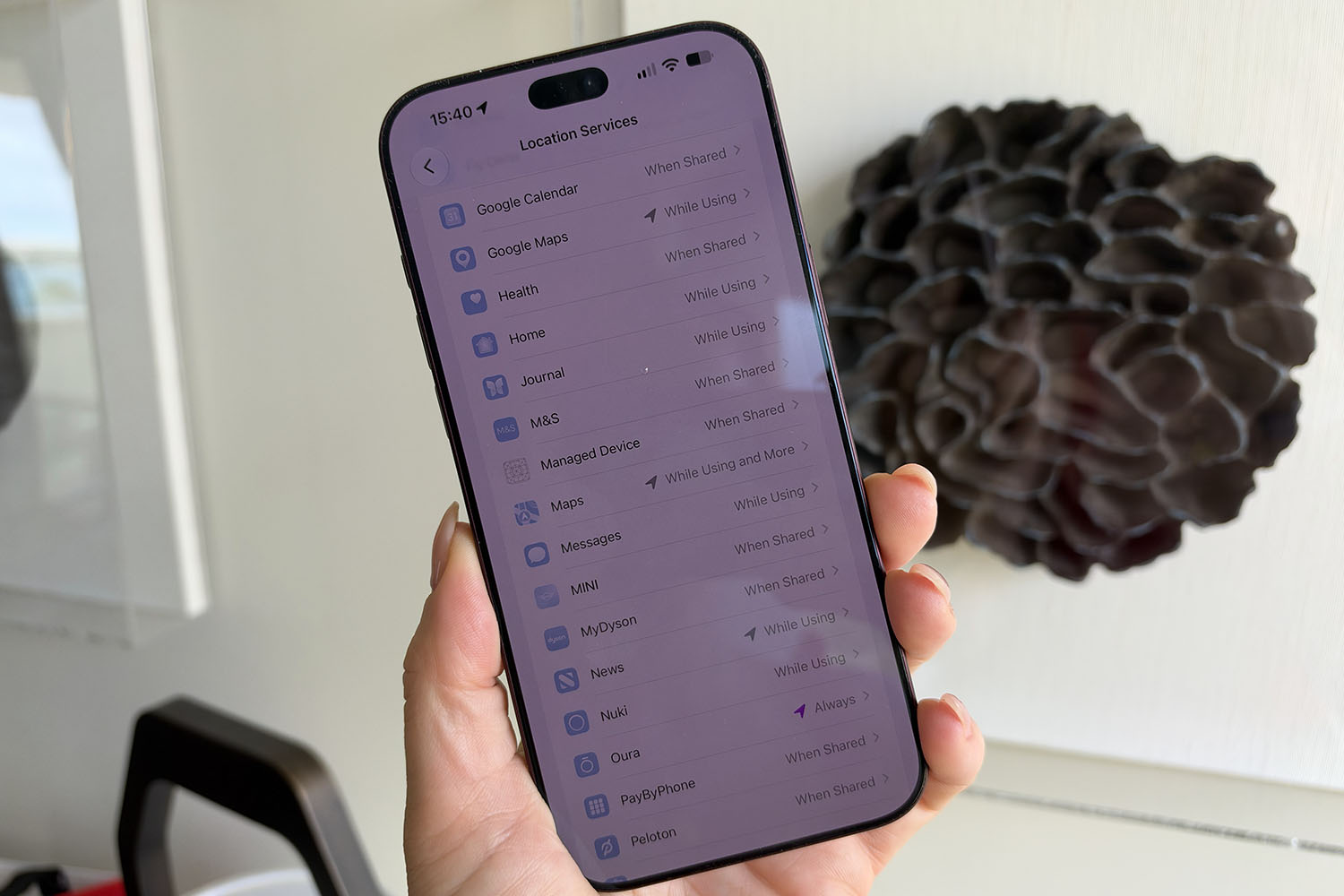
Your iPhone knows where you are, but don’t automatically assume it’s being sinister. Maps can’t give you directions without it, and your weather app would be fairly useless if it thought you lived in Reykjavik (unless of course, you actually do). But somewhere among the dozens of apps cluttering your home screen, there’s a good chance a few are tracking your whereabouts without the best intentions.
That airline app you downloaded in 2015 and have never flown with since? The shopping app you used once for a Black Friday deal? The game you installed to keep your little one entertained while you ate your lunch? Any of them could be pinging your location in the background, and the data could end up anywhere.
The good news is that Apple gives you plenty of control over who can see your location. The bad news is that the settings are buried a few menus deep, and the difference between “Always,” “While Using,” and “Precise Location” isn’t entirely clear. Here’s how to see which apps are tracking you and how to shut them down.
How to see the apps with your location
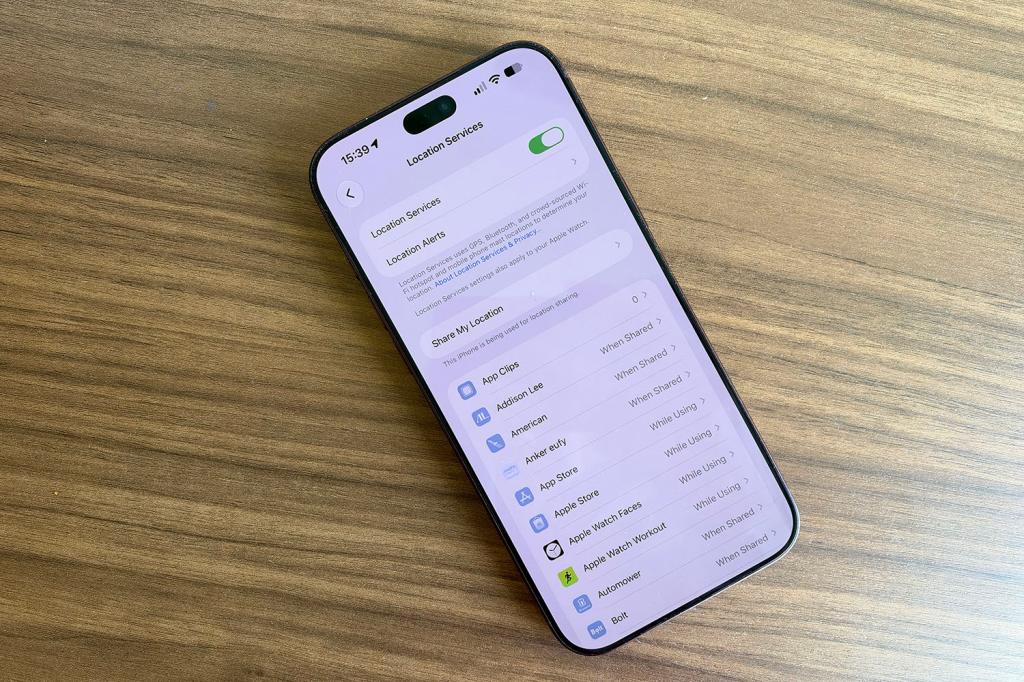
First thing you’ll want to do is check which apps have access to your location. Now, as I said, some of them do need it, so don’t get too trigger-happy and turn them all off. If you do, you won’t be able to rely on your phone to get you out of a pickle when you get lost, and you’re much more likely to get caught in the rain without a brolly.
To see which apps have access and what that access looks like, go to Settings > Privacy & Security > Location Services. Here, you’ll see a list of every app that has asked for your location, with its current setting alongside each one.
Keep an eye out for the small arrows next to some apps, too. A purple arrow means the app has used your location very recently, while a grey arrow means it’s done so in the last 24 hours. A hollow, outlined arrow means the app has set up a geofence, which allows it to be triggered when you arrive at or leave a particular place, even if you haven’t opened it.
What the location settings mean
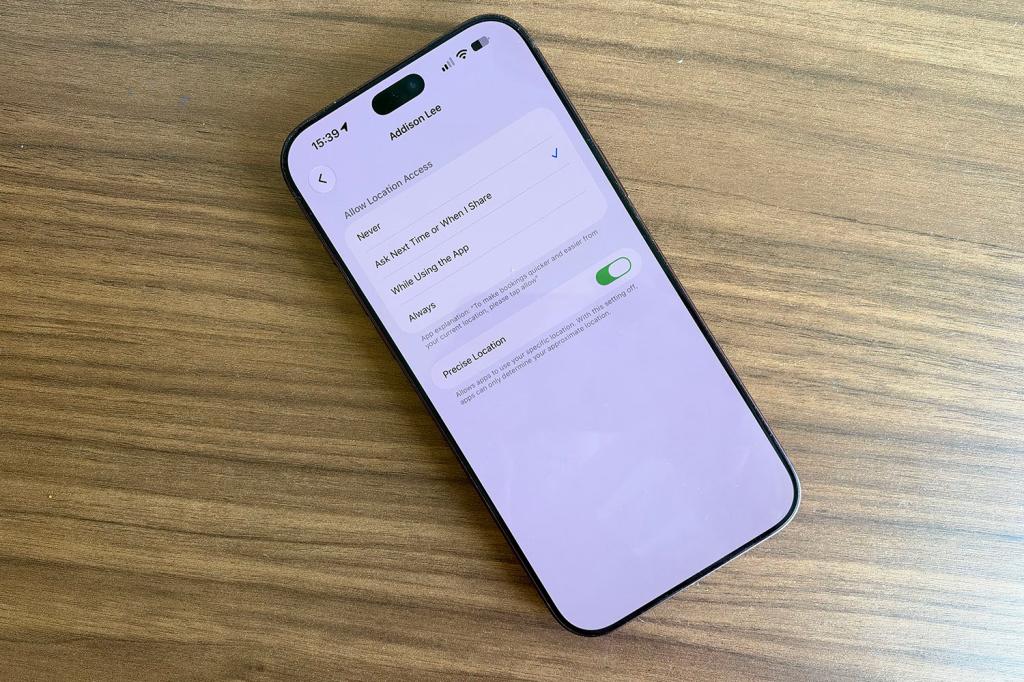
Tap on any app within those settings I mentioned above and you’ll see up to four options. Here’s what each one means so you know what settings you’re choosing and what you’re letting yourself in for when you choose each one.
“Never” blocks the app from seeing your location entirely.
“Ask Next Time Or When I Share” makes the app ask for permission each time it wants your location, so you can decide in the moment whether you want to give it access.
“While Using the App” only lets the app see where you are when it’s open and on screen. For most apps, this is the sweet spot.
“Always” lets the app access your location even when it’s closed and running in the background. Very few apps need this, so be mindful when you grant this.
Below these options, you’ll find the Precise Location toggle. With it switched on, the app knows exactly where you are. Switch it off, and the app only gets your approximate location, which is plenty for things like weather or local news.
How to see which apps are actually using your location
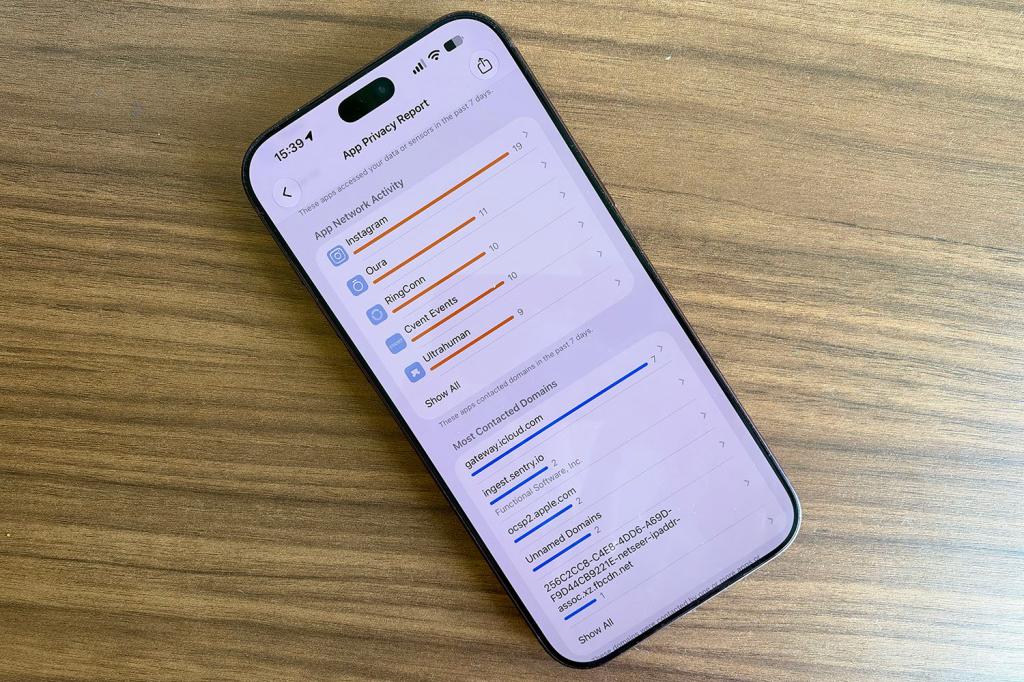
Ok so here is the caveat. Just because an app has permission to use your location doesn’t mean it’s using it, and some apps that do use it are might use it more than you’d expect. To find out which ones are checking in, turn on App Privacy Report. Head to Settings > Privacy & Security, scroll to the bottom and tap App Privacy Report, then switch it on.
Once it’s been running for a while, it’ll show you how often each app has accessed your location (along with your camera, microphone, contacts and more) over the past week. It’s a great way to catch the apps that are pinging your whereabouts more than you might expect. Cheeky buggers.
How to turn off location access to apps
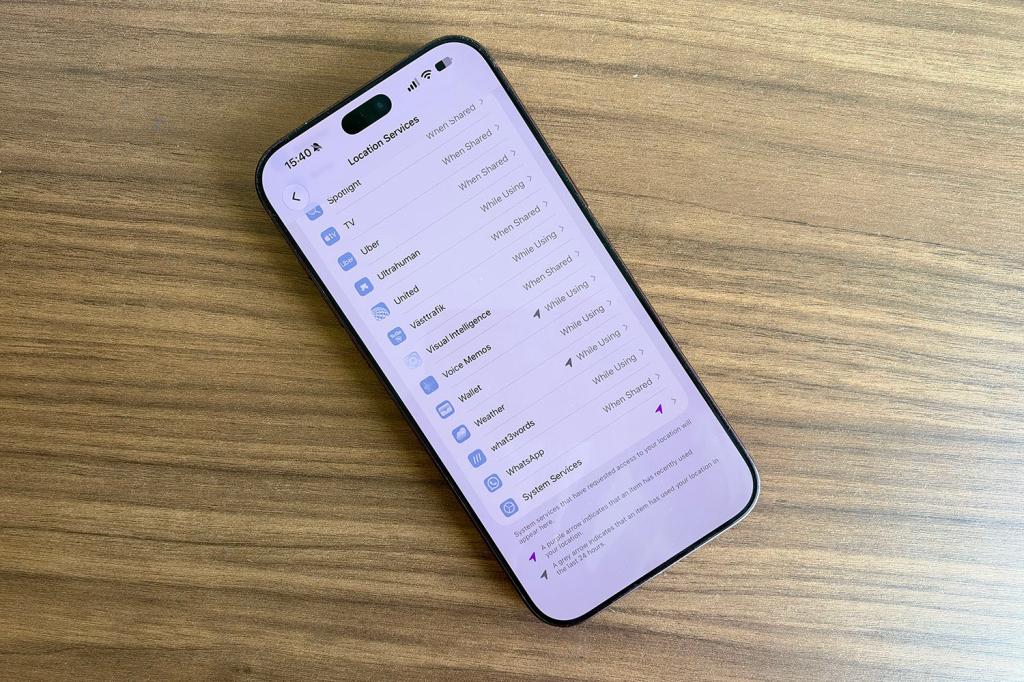
You’ve made it this far so you now know which apps have location access. The next step is turning that off or changing the setting depending on the app. Not all apps need access to your location all the time in order to work, but others will, so you are going to have to be a little open-minded here depending on which apps you aren’t happy to do without.
Same process as above: Head to Settings > Privacy and Security > Location Services, then tap on each app individually and choose the setting that suits it. While you’re there, decide whether to leave Precise Location on. Your navigation apps will need it, but most others won’t.
A couple of final tips
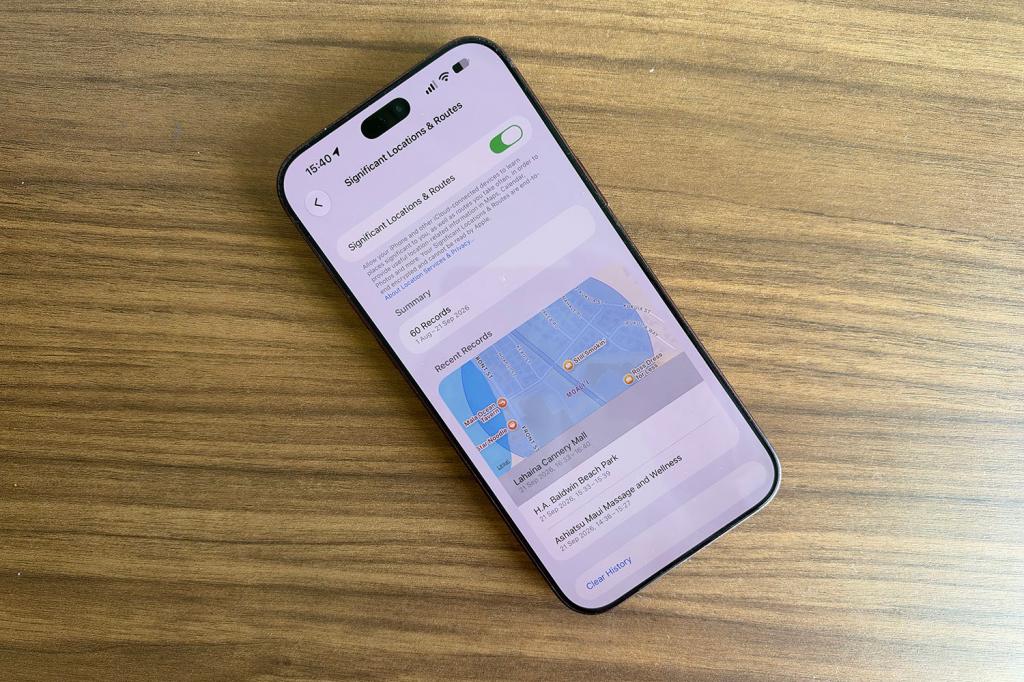
It’s not just third-party apps that use your location. Scroll to the very bottom of the Location Services page and tap System Services, and you’ll find a list of the ways Apple’s iOS software itself uses where you are.
The one worth paying particular attention to is Significant Locations. This keeps a record of places you visit often so your iPhone can offer location-based suggestions in apps like Maps, Calendar and Photos. The data is encrypted and Apple says it can’t read it, but if you’d rather your phone didn’t keep a diary of your movements (depends if you go anywhere you shouldn’t go), you can view the history, clear it and switch the feature off here.
The simplest fix of all is if an app is sitting on your phone doing nothing but tracking you, get rid of it. Deleting unused apps frees up storage, declutters your home screen, and means one less app keeping tabs on where you are.
Read more: Our favourite 13 Apple Watch complications to make your watch face even more useful


Read the full article here
