

Logitech’s productivity-minded MX Master series has consistently been the top mouse choice for office workers. That blend of comfort, connectivity and an ability to spool through spreadsheets at the pace of an Olympic sprinter hasn’t gone anywhere for the MX Master 4 – but now there are a bunch of creator-friendly functions also in the mix.
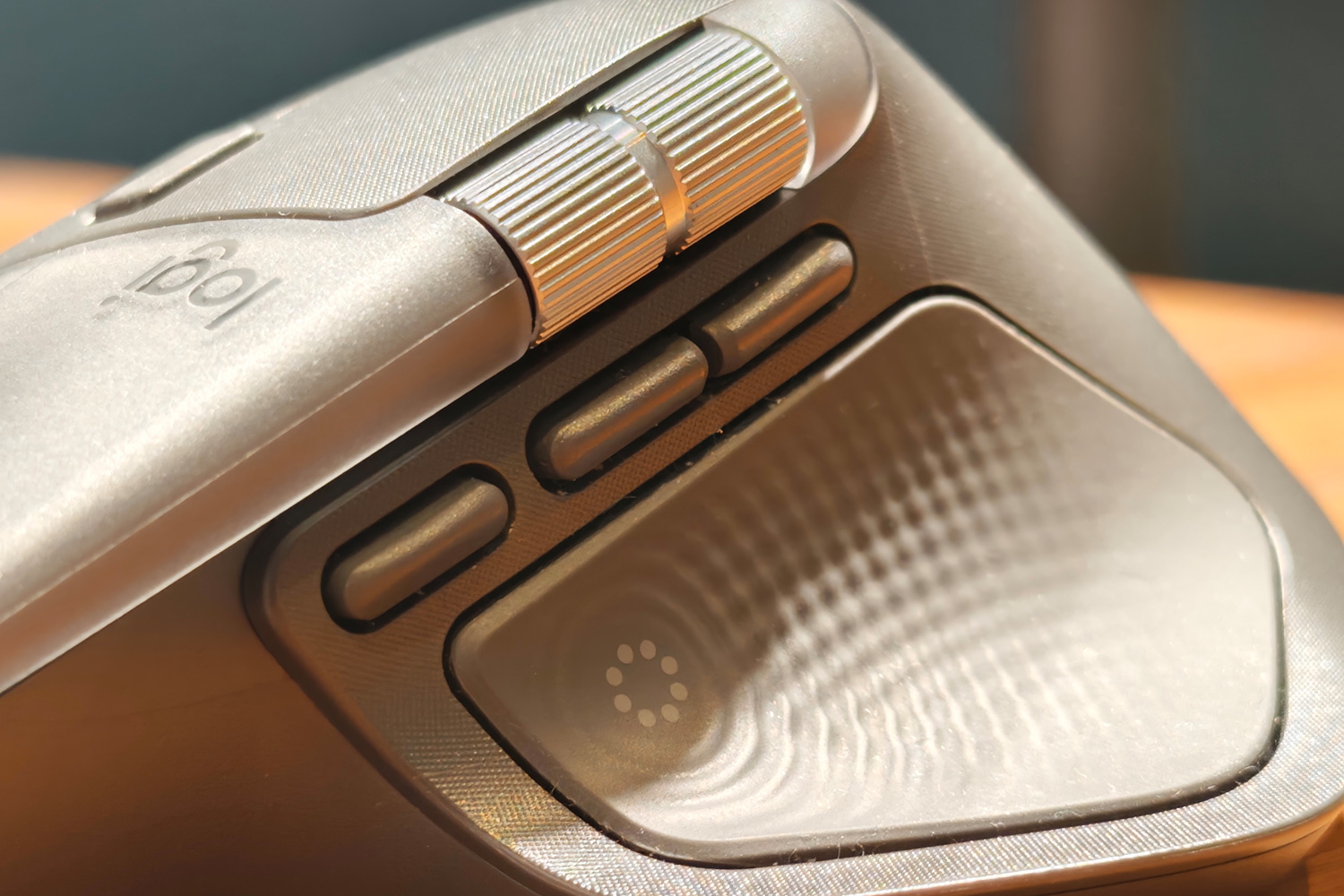
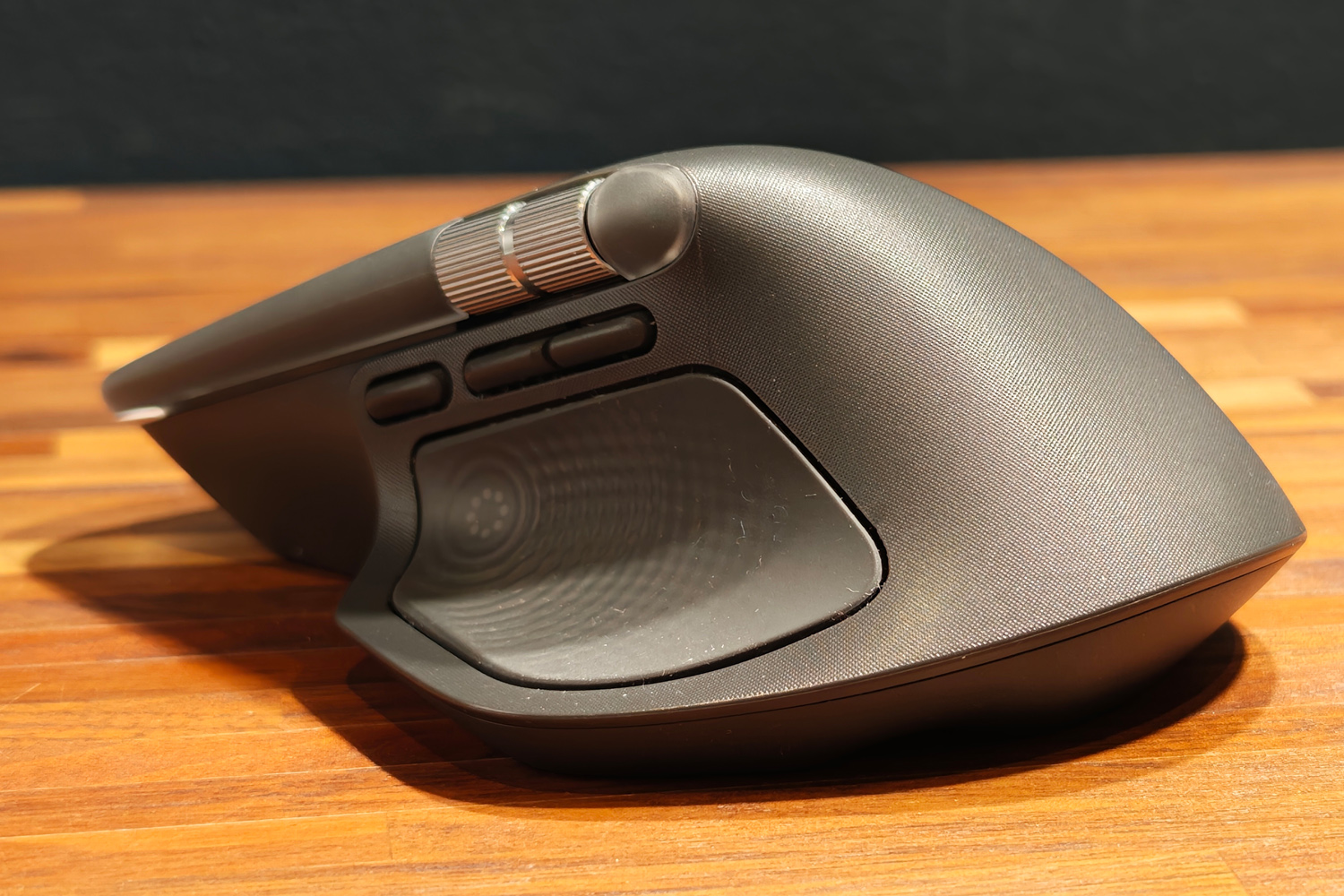
The headline addition, a haptic button built into the thumb rest recess, gives you force feedback a bit like a MacBook’s Force Touch keyboard. As someone who works across multiple monitors I love how it buzzes as my cursor moves from one screen to another, or it snaps to a grid in Photoshop.
Press the button in and the Actions Ring appears. This circle of context-sensitive shortcuts can be a game-changer if you take the time to customise it through Logitech’s Options+ software; I’ve got all my frequently-used tools and actions saved for Photoshop, and a bunch more generic ones I can use everywhere else. Seeing everything appear onscreen means you don’t have to commit the 70 different functions it can store to memory like you do with the the Gestures button, which is a lot more limited.
The one downside is that support for more third-party software remains limited, even months after launch, with Adobe and Zoom being the heaviest hitters. I’d love to see free apps like video editor DaVinci Resolve be fully integrated, rather than need me to spend hours programming the multiple Action Rings by hand. Stick with it, though, and no other productivity mouse comes close.
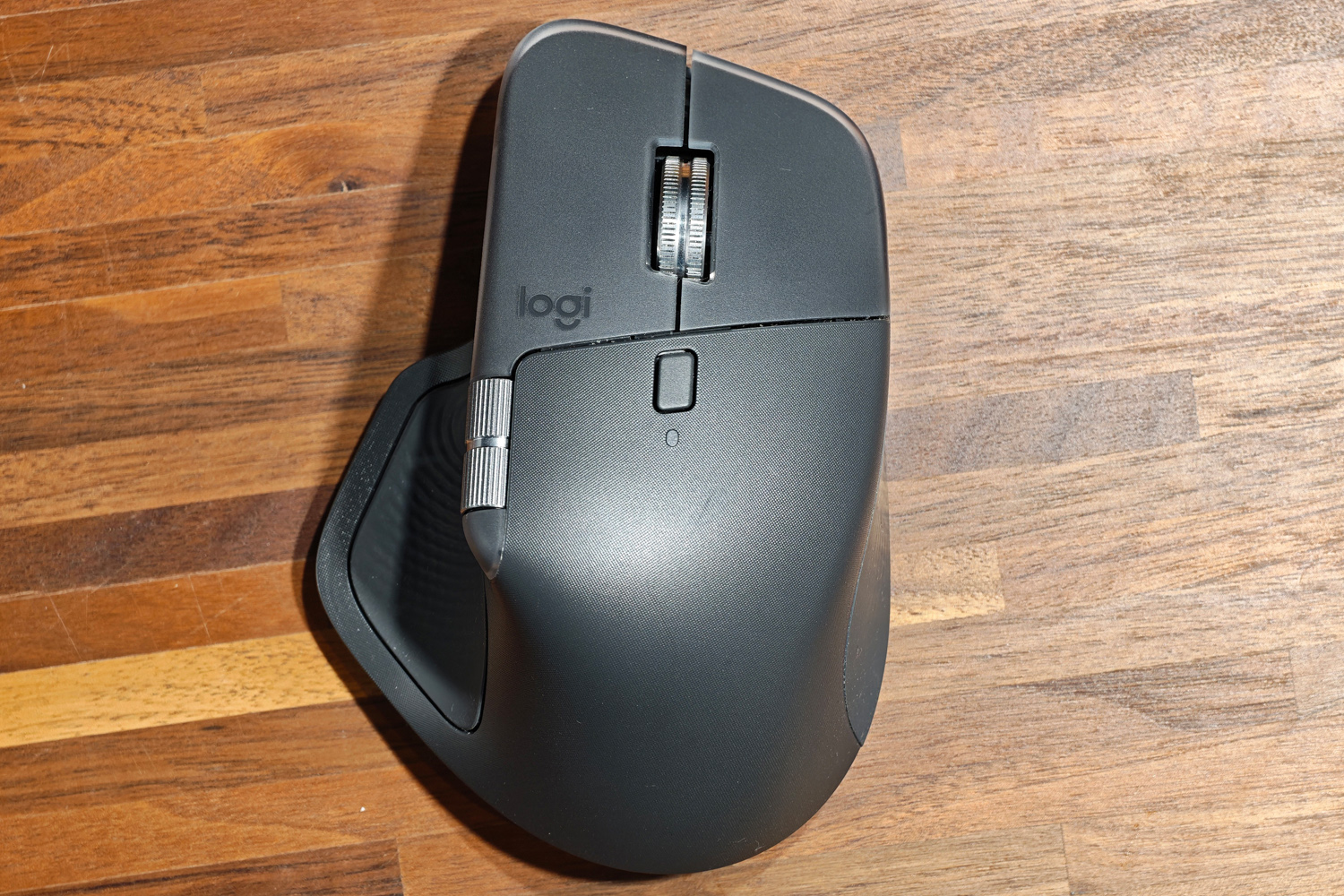
The MX Master series has long been an ergonomic high point, so Logitech sensibly hasn’t changed the shape too much between generations. It’s ever-so-slightly taller and wider, and a few grams heavier, but neither caused any issues with grip or comfort. It’s not like this is trying to pull double duty as a gaming mouse, so the weight isn’t really anything to write home about.
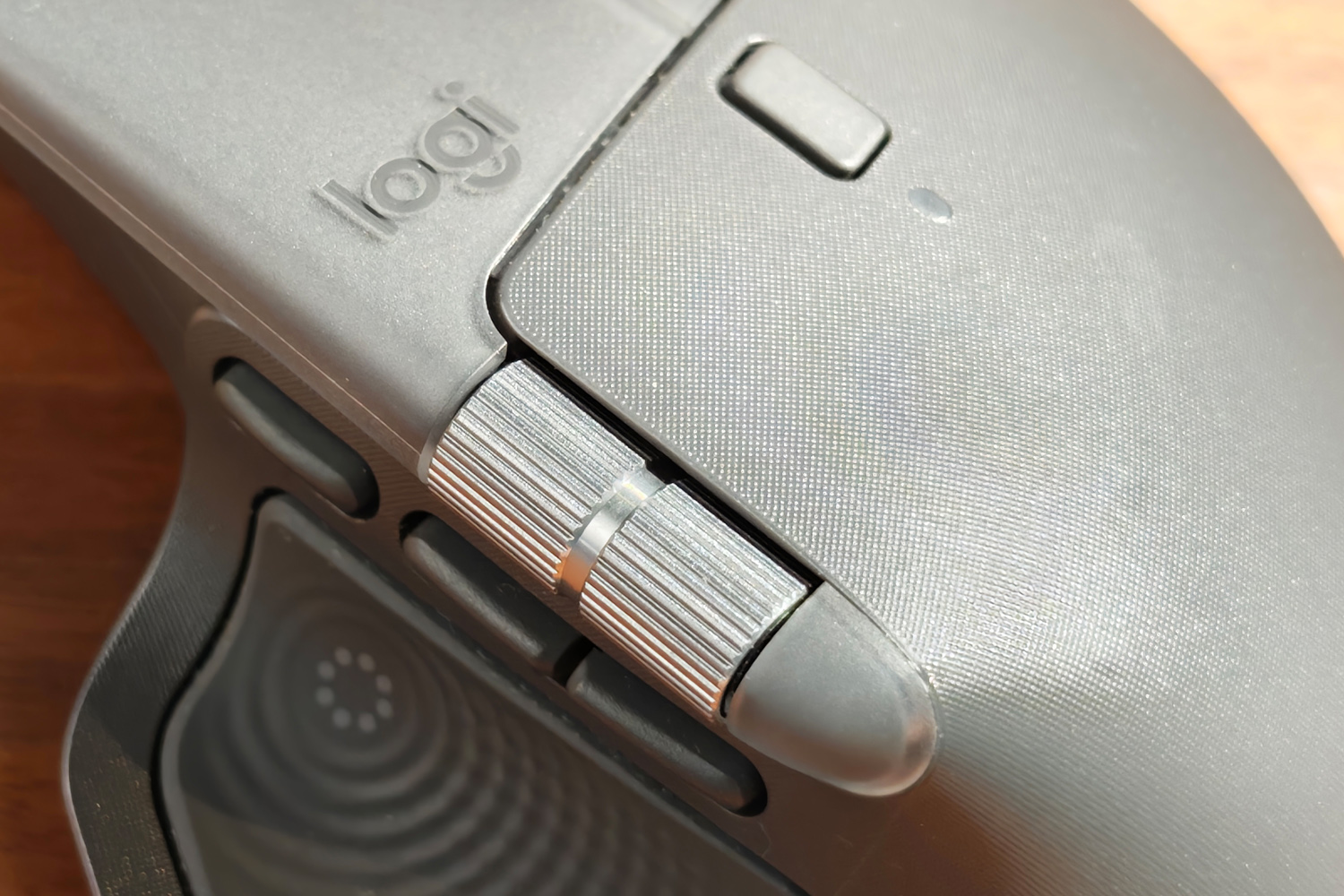
Better news is that the thumb scroll wheel and side buttons have been shifted slightly; I don’t have to stretch my thumb nearly as much now, which makes it more comfortable to use all round.
I’m also very happy to see Logitech use harder wearing materials this time around, as my old MX Master 3S is certainly looking worse for wear after a few years of regular use. Plastic may not feel as premium as rubber, but it won’t fade or become sticky to the touch over time. The micro-etched texture has held up well after several months, looking as fresh as the day my sample arrived for testing.
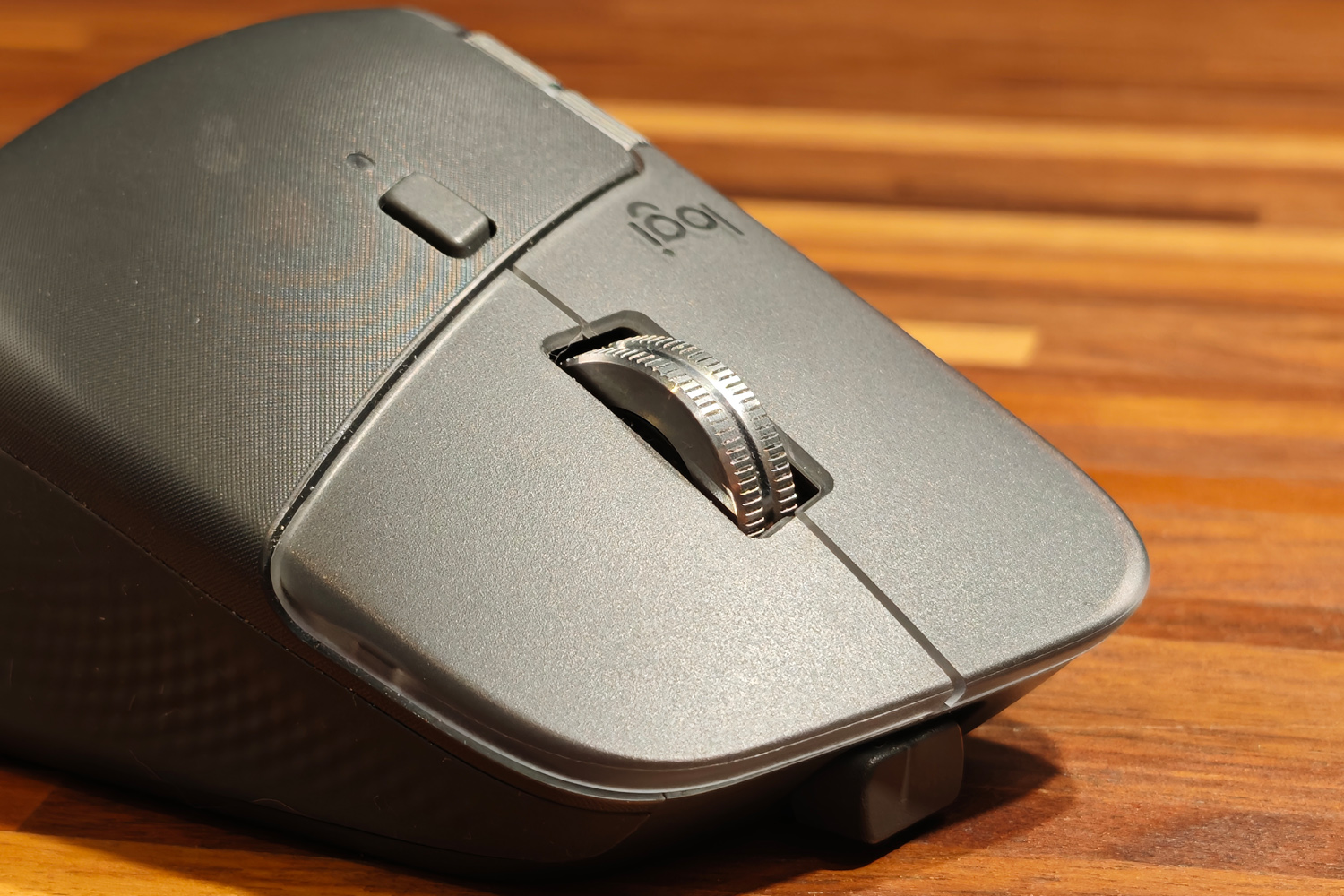
Subtle translucent tips add a little extra personality to the main mouse buttons, which are eerily quiet when clicked but with just enough physical feedback to let you know an input has registered.
I’ve still yet to find another mouse wheel that’s as good as Logitech’s MagSpeed setup for zooming through documents: normally magnets let it ratchet for line-by-line scrolling, but press the button – or just spin the wheel with enough force – and those magnets disengage, covering 1000 lines per second as it spins freely.
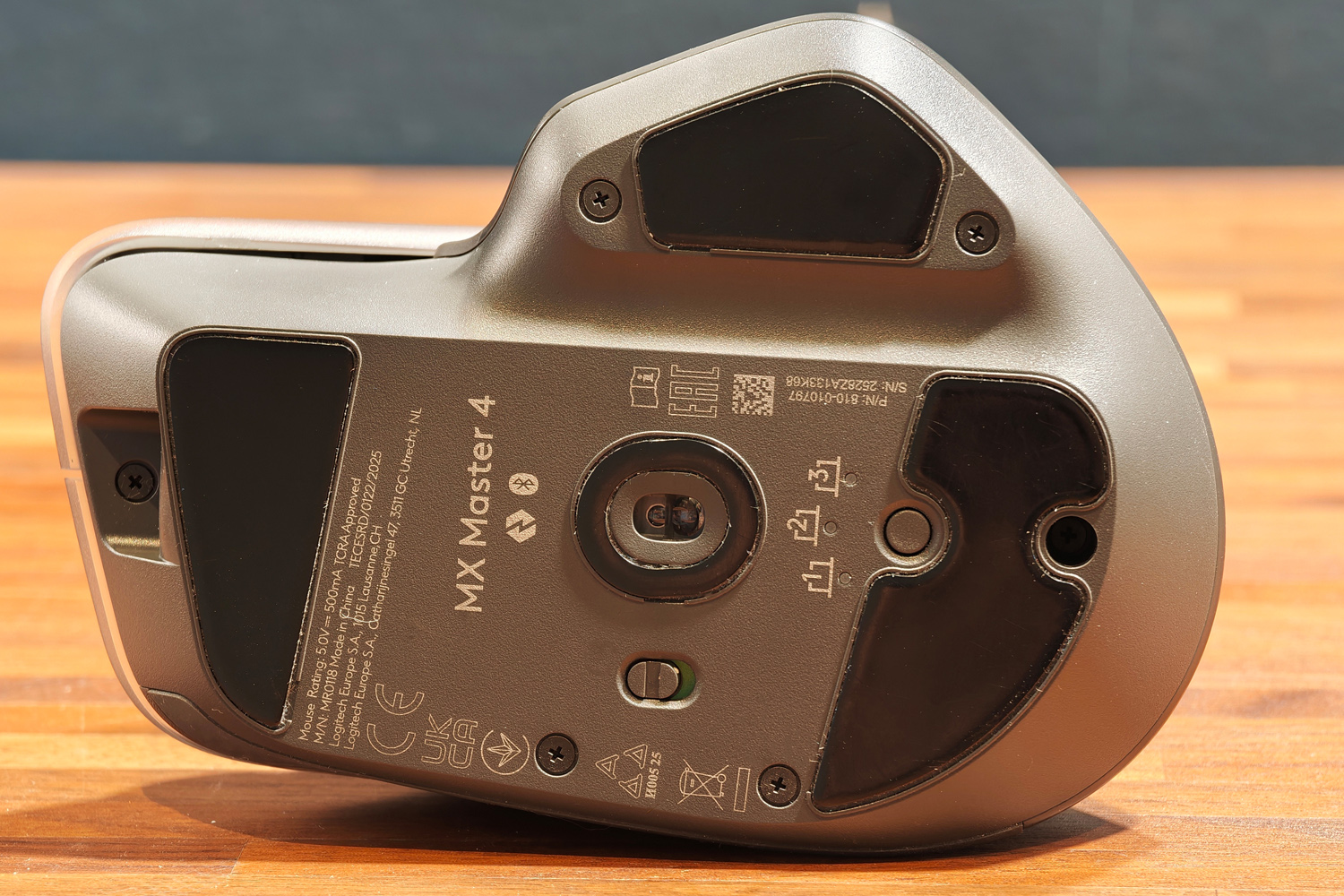
Logitech’s 8K DPI sensor is also tried-and-tested at this point, delivering pinpoint precision and fast motion. It tracks true on pretty much any surface, working just as well on my wooden office desk as it did on a mouse mat. Even my jeans were a usable work surface in a pinch.
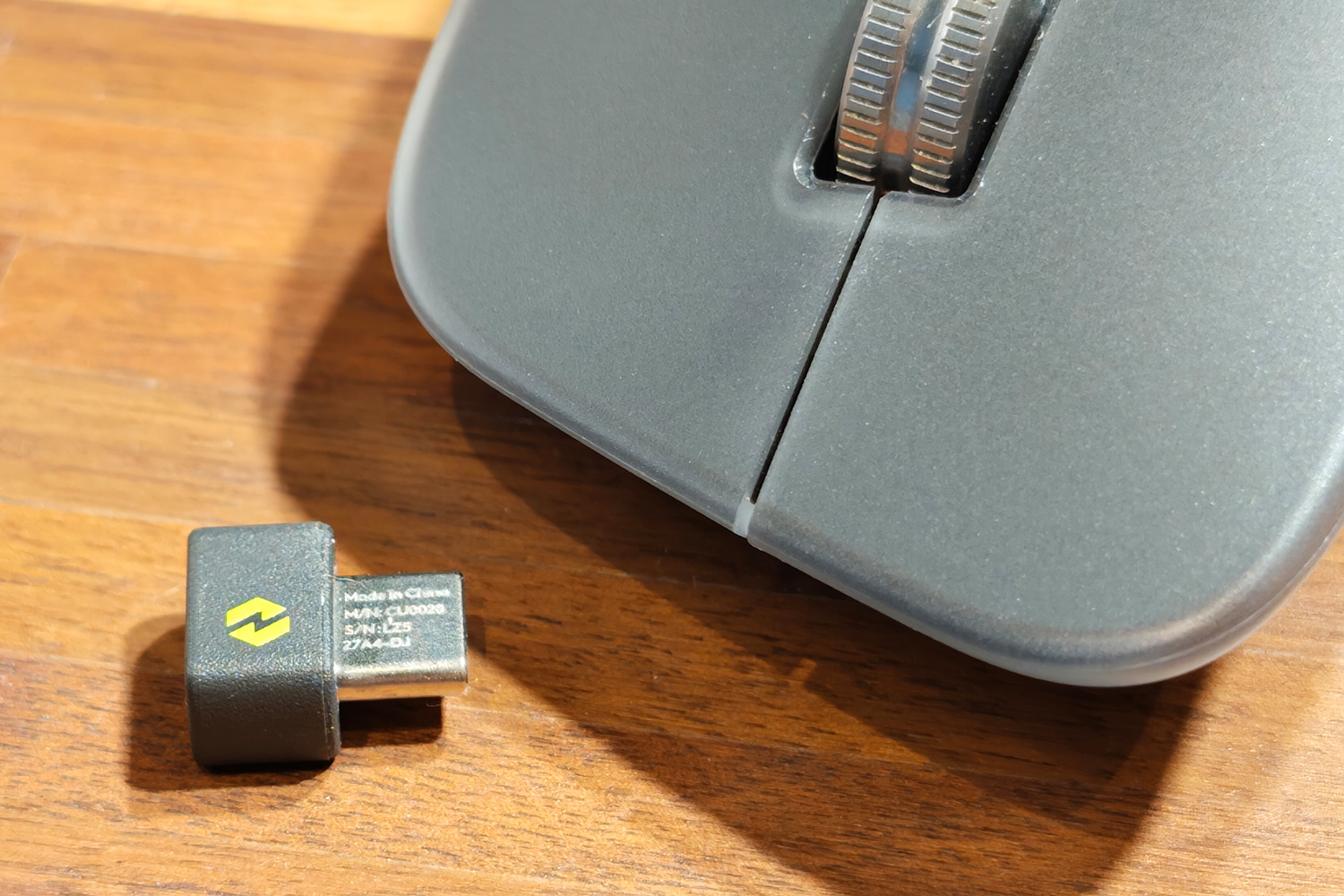
It’s a relief to see Logitech supply a USB-C dongle for the first time, as my work laptop hasn’t had a USB-A port for years at this point. The tiny Bolt wireless receiver has upgraded internals that improve reception over the outgoing model, and worked flawlessly in my testing even from another room. Bluetooth is still on board as well, along with three device switching; a button on the base of the mouse lets you hop between multiple computers pretty much instantly.
About the only grumble I could find on the hardware side is the 70 hours of battery life not being an upgrade over the outgoing MX Master 3S. Those haptics are quite power hungry, it seems. Still, they haven’t actively lowered the total, and I still found this enough to get through an entire working week – and a good chunk of the next – before I needed to plug in.
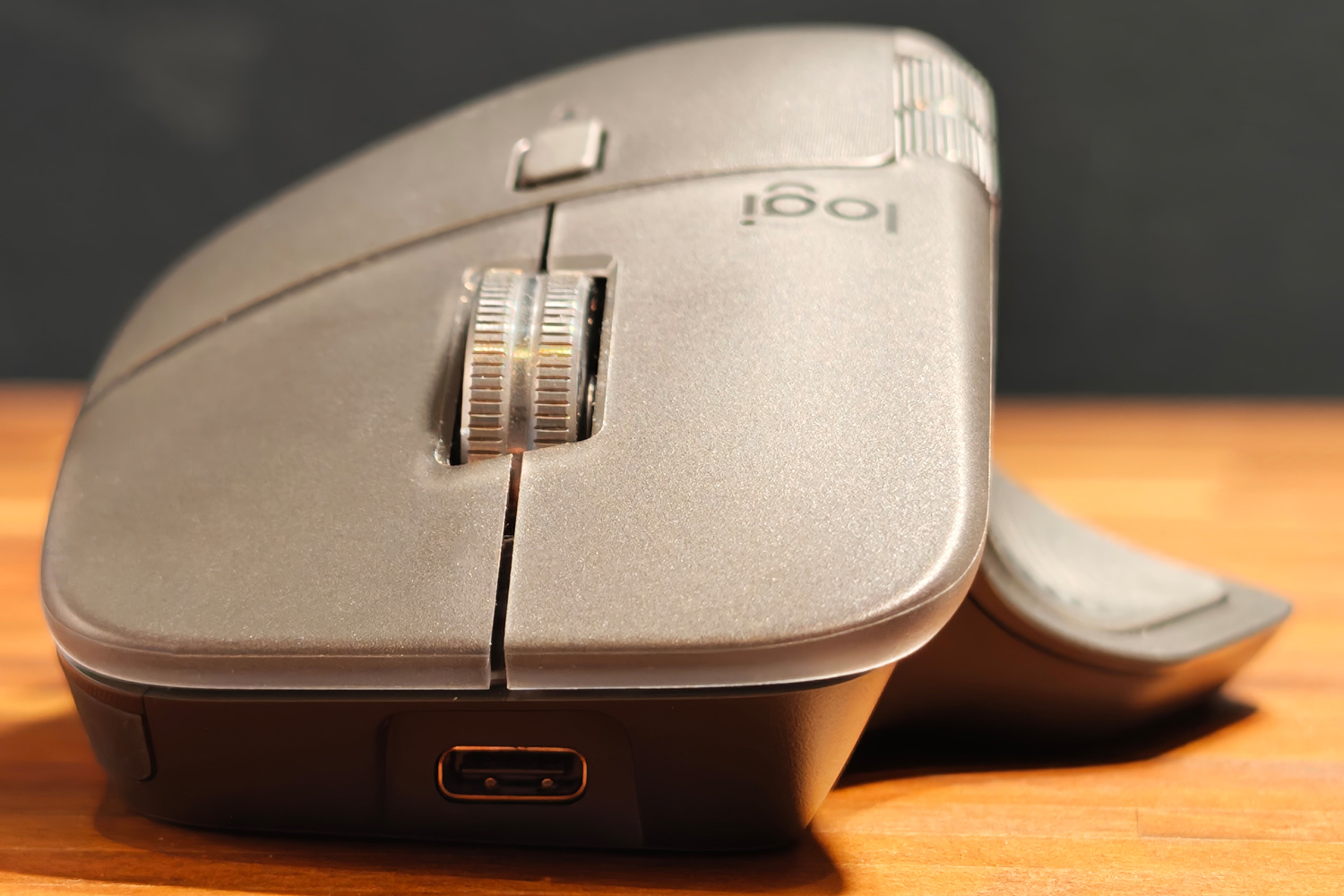
The MX Master 4 improves on Logitech’s previous business best in a bunch of ways. Relocated side buttons make it that much more comfortable to use, the revised materials should be able to withstand years of daily use, and connectivity has finally caught up with the times by swapping to a USB-C dongle. While battery life hasn’t improved year-on-year, it happily hasn’t regressed on account of the new haptic tech.
At $120/£120/€130 it’s one of the most expensive work mice around, but if you eat, sleep and breathe Adobe Premier Pro or Photoshop, you’ll love how the Action Ring can speed up your workflow. Everyone else will have to get their hands dirty in Options+, at least until more developers get on board.
If you just want a comfortable office mouse without all the shortcut smarts, an MX Master 3S is considerably cheaper – but it can’t match the 4’s comfort, durability or repairability.
Stuff Says…
The most creator-friendly mouse money can buy is now even smarter. The MX Master 4’s haptic shortcuts are a productivity superpower – but wider software support would be nice
Pros
Wonderfully ergonomic and very functional
Haptic Action Ring can be a creative boon
Built with long-term use in mind
Cons
Only a handful of apps properly support the Action Ring
No battery life gains over previous MX Master
Quite the investment
Read the full article here
