


Operating systems don’t stand still. Last year, I rounded up the best iOS 26 tips, best iPadOS 26 tips and best macOS 26 Tahoe tips. Those remain solid starting points. But Apple’s kept tinkering, refining and occasionally surprising us since then.
So here are ten of the best new features to land in iOS 26, iPadOS 26 and macOS 26 over the past couple of months – and how to use them.
Set a Reminders alarm
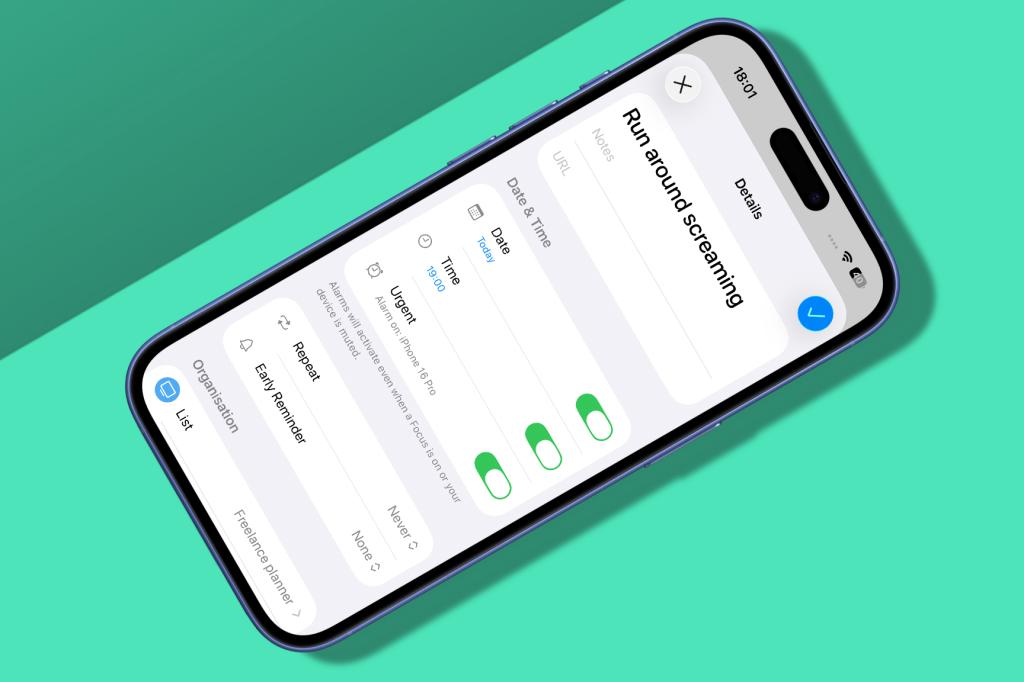
Standard notifications are fine for ‘buy milk’. Less so for an urgent deadline about to fly past your ears. So open Reminders, tap or click a reminder’s info button, then assign the task a time and turn on Urgent. When the moment arrives, you’ll get a proper alarm, complete with snooze and Live Activity functionality you can make use of while scrabbling to complete the task.
That beats a meek banner that vanishes while you’re furiously doomscrolling. But do note the alarm only blares on your primary device, which is probably an iPhone. Make sure that’s the right iPhone by opening Find My on it, heading to the Me tab, and tapping ‘Use This iPhone as My Location’.
Customise Lock Screen glass

Tap-hold your Lock Screen, choose Customise and then tap the clock. In the ‘Font & Colour’ pane, you could already pick a colour and tap Solid if you’ve had enough of translucent chic. But as of iOS 26.2, Apple has provided more nuanced options.
Select Glass and then drag the transparency slider. You get the full range, from “actually that’s not too bad” to “OK, why are you even bothering at this point?” Except on Mac. Because for some reason, Apple doesn’t want you to have clock transparency control on macOS 26.3 Tahoe. Boo/hiss/etc.
Follow podcast links

With varying success, Apple now uses generative AI to transcribe podcasts. You can access transcripts from show notes pages on iPhone or iPad, or via … > Transcript on Mac.
But Apple’s now gone further, embedding links directly into the transcripts, saving you having to note them down for later . The app will also attempt to surface mentioned podcasts, adding handy links to the show notes page, making it even easier to queue yet more shows you absolutely do not have time to listen to.
Save lyrics offline

Download songs to your device in Apple Music and lyrics now come along for the ride. That means you can fire them up when you’re in the middle of nowhere, providing some solace when you’re bored rigid during a flight or horribly lost in the woods. Alas, Apple Sing’s sort-of-karaoke mode refuses to work offline, although that will surely come as a huge relief to any fellow passengers or nearby wildlife.
Flash your display

Your phone might make a noise when an alert arrives. Not great if you’re deaf or hard of hearing – or your ears are otherwise occupied. Previously, you could use an accessibility setting to have notifications make the camera flash blink, thereby ensuring you didn’t miss anything important. Apple now lets you flash the display instead – or as well.
In Settings, open Accessibility and scroll down to Hearing. Under ‘Audio & Visual’, turn on ‘Flash for Alerts’ and set it to Screen or Both. That should be enough to get your attention, short of Apple figuring out how to have your iPhone dance in front of your face when it wants something.
Filter your games

Apple’s Games app hasn’t checked all the boxes it needs to, but at least it’s evolving. Which is more than I can say for Game Centre during most of its life. The latest updates are all about sorting.
OK, that sounds dull. It is dull. But it’s also useful. In Library, you can now view your games by category, what friends are playing, size (except on Mac) and ‘Designed For’ (Mac only). The last of those is handy for spotting iPad games installed on your Mac.
The best pairing is Size and ‘On This iPhone/iPad’ on a mobile device. That’ll quickly show what’s eating storage. Tap-hold any game and then ‘Delete Game’ to nuke it. Although if you want rid of the game but not its data (assuming it doesn’t store progress in the cloud), instead go to General > ‘iPhone/iPad Storage’ in Settings, tap the game, and choose ‘Offload App’.
Note: all sort options can be selected a second time to reverse their sort order. More hidden Apple interface design! ‘Yay’.
Bring back Split View
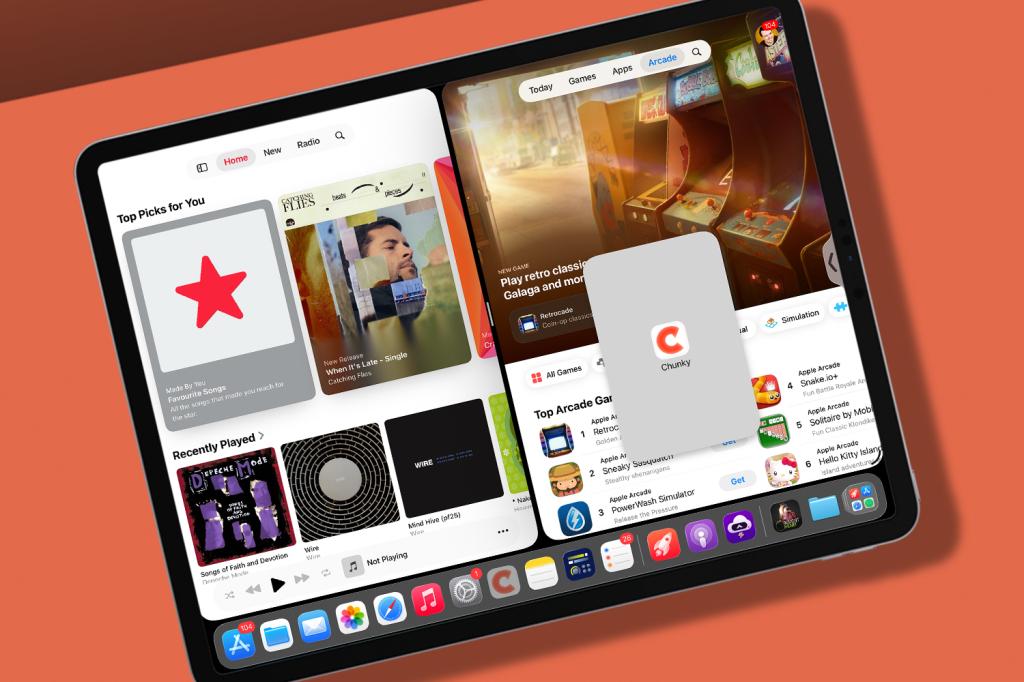
If you miss classic iPad Split View, it’s possible to approximate it in iPadOS 26. You’ll need to be in ‘Windowed Apps’ mode (activated in Control Centre or ‘Multitasking & Gestures’ in Settings) for this to work. Then open two apps, drag down from the top of the screen to reveal the menu bar, and go to Window > ‘Move & Resize’ > ‘Left & Right’. The apps will snap side-by-side with a draggable divider.
Alternatively, grab a single app window’s toolbar and flick the window to a screen edge so it snaps into place. If the Dock isn’t visible, drag (not swipe) it upwards, and drag an app to the other side of the screen. Extra tip the first: drag closer to a screen edge to dump an app in Slide Over. Extra tip the second: drag an app from the Dock to an existing Split View/Slide Over member to replace it.
Temporarily share over AirDrop

You’ve long been able to dictate your AirDrop openness for sharing files. In Settings, you can still go to General > AirDrop and choose your level of privacy: ‘Receiving Off’, ‘Contacts Only’ or ‘Everyone for 10 Minutes’. Alas, there’s never been a ‘But Keep Out The Randos’ setting. Until now, that is.
Well, sort of. If you open up your AirDrop but someone tries to send you something and isn’t in your contacts, you can opt to get an AirDrop Code. If the other party enters the code into their device, the item is squirted across to yours. You’ll be able to find each other for 30 days, unless you go into ‘Manage Known AirDrop Contacts’ in the aforementioned settings pane and delete them. Or hurl their iPhone into a ravine. Definitely one of those.
Fire up a digital ring light

This one’s for when you’re taking a video call in low light but want everyone to more easily see your beautiful visage. During the call, click the app’s menu bar icon and enable ‘Edge Light’. A digital ring light will appear on your display, brightening your face. A bit.
Look, it’s not going to beat a real ring light or, indeed, any other light. But it’s something if you don’t have access to those things or can’t be bothered to move. And it beats sitting there in darkness, going “MWAHAHA!” and then wondering why no one will take your calls.
Switch to Android

You’ve long been able to transfer data to a new iPhone by plonking it next to your old one. Now you can do much the same with Android. To start, have your Android in its setup process and place your iPhone next to it.
In Settings, go to General > ‘Transfer or Reset iPhone’ and tap ‘Transfer to Android’. Use your iPhone to scan the QR code that appears on the Android device, select data categories to send across, twiddle your thumbs for a bit, and then start doing things on your Android device. The first of which should be checking what did and didn’t successfully transfer.
Want to head in the other direction? Apple’s Move to iOS app has, natch, been on Google Play for over a decade.
Read the full article here
