Close Menu
Gadget Guide News
  • Home
  • News
  • Features
  • Reviews
  • Best Stuff
  • Buying Guides
  • Deals
  • More Articles

Subscribe to Updates

Get the latest tech news and updates directly to your inbox.

Trending

Microsoft is selling off four Xbox studios as part of significant gaming cuts

July 6, 2026

I spy

July 6, 2026

How to use your iPhone’s Camera Control button and get more control over your shots

July 6, 2026
Facebook X (Twitter) Instagram
Gadget Guide News
Subscribe
  • Home
  • News
  • Features
  • Reviews
  • Best Stuff
  • Buying Guides
  • Deals
  • More Articles
Gadget Guide News
  • Best Stuff
  • Buying Guides
  • Reviews
  • Deals
  • Features
Home»Features»How to use your iPhone’s Camera Control button and get more control over your shots
Features

How to use your iPhone’s Camera Control button and get more control over your shots

News RoomBy News RoomJuly 6, 2026013 Mins Read
Share Facebook Twitter Pinterest Copy Link LinkedIn Tumblr Email Telegram WhatsApp
Follow Us
Google News Flipboard
Share
Facebook Twitter LinkedIn Pinterest Email Copy Link

One of the most exciting additions to Apple’s iPhone lineup over the last couple of years has been Camera Control. This feature, in the form of a dedicated camera button on the iPhone 16 and iPhone 17 series, merges Apple’s hardware design with advanced software capabilities to make getting the perfect shot that little bit easier.

Here’s everything you need to know about Camera Control:

What is Camera Control?

On the surface, Camera Control is a dedicated camera button, but dig a little deeper and you’ll soon realise there’s a lot more going on that makes Camera Control a genuinely innovative addition to newer iPhones.

The new button integrates a tactile switch for a satisfying click, a high-precision force sensor for light press gestures, and a capacitive sensor for touch interactions. This combination allows users to instantly access the camera, take photos, and start video recording with ease.
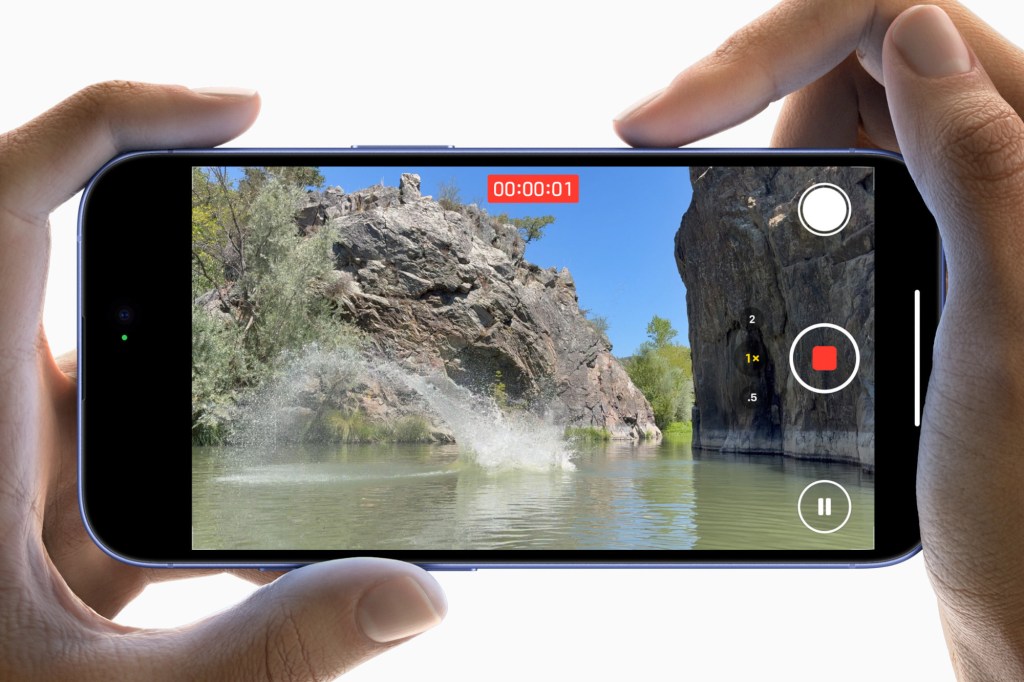
Gone are the days of fumbling to unlock your phone or open the camera app. With Camera Control, you can quickly launch the camera with just a click. It’s similar to double-pressing the power button on an Android phone to bypass the lock screen and automatically open the camera app.

The Camera Control button’s tactile feedback offers a familiar, satisfying feel, while the light press gesture enables users to interact with the camera in new ways.

You see, the Camera Control doesn’t stop at just snapping pictures. A new camera preview feature helps users frame their shots more effectively. By sliding your finger across the Camera Control button, you can adjust various camera settings, such as zoom, exposure, and depth of field.

Does Camera Control work with third-party apps?

The Camera Control button is designed to work with third-party apps, such as Snapchat, allowing developers to tap into this new hardware and create unique camera experiences.
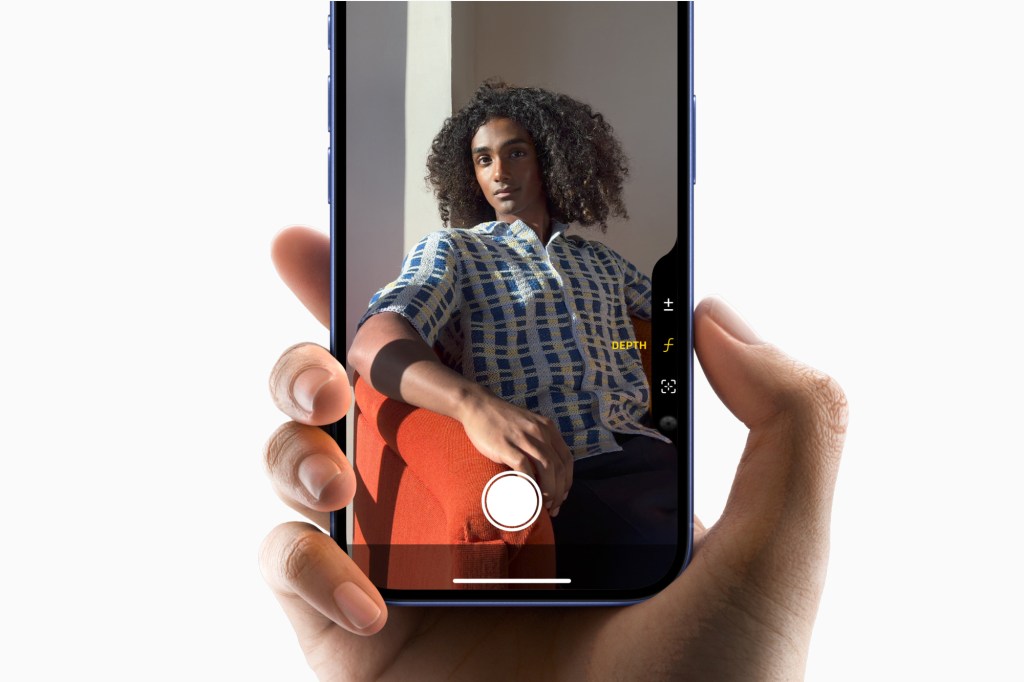
This opens up exciting possibilities for social media platforms and photography apps to enhance their user interfaces and make content creation even more accessible.

Camera Control can also unlock even more powerful features thanks to AI. With a press and hold, you can quickly access information about objects and places.

For example, you could walk past a restaurant, press Camera Control, and instantly pull up its hours, ratings, or reviews. Or maybe scan a flyer to add an event directly to your calendar.

AI-driven object recognition can also allow users to identify dog breeds, plants, landmarks, and more.

Apple is also opening up Camera Control as a gateway to third-party AI/Search tools. Whether you want to search Google for where to buy an item you’ve just snapped a picture of, or get quick problem-solving assistance from ChatGPT.

Liked this? How to customize the iPhone Action Button and make it work better for you

google preferred source

Apple News

Read the full article here

Follow on Google News Follow on Flipboard
Share. Facebook Twitter Pinterest LinkedIn Tumblr Email Copy Link
News Room
  • Website

Related Posts

Best watch winders in 2026 to keep your watches ready

July 6, 2026

This tiny, distraction-free gadget made me feel safer behind the wheel

July 6, 2026

Don’t buy an Apple Watch just yet – here’s why the upcoming Series 12 could be worth the wait

July 6, 2026
Add A Comment
Leave A Reply Cancel Reply

Top Articles

Best Royal Pop models ranked: these are the Swatch x Audemars Piguet collab watches I’d recommend

May 19, 2026

Apple iPhone Air 2: the second version of the super-thin phone will surely fix these two crucial issues

May 14, 2026

Best soundbars in 2026 for every budget reviewed

May 10, 2026
Latest Reviews

I finally got my Trump phone

News RoomJuly 3, 2026

Google Home Speaker review: nice hardware, but Gemini for Home is a work in progress

News RoomJuly 1, 2026

These camera-free smart glasses made me feel like Tony Stark

News RoomJune 29, 2026

Subscribe to Updates

Get the latest tech news and updates directly to your inbox.

Demo
Most Popular

User-replaceable batteries are coming back in a big way

May 31, 2026

Best Royal Pop models ranked: these are the Swatch x Audemars Piguet collab watches I’d recommend

May 19, 2026

Apple iPhone Air 2: the second version of the super-thin phone will surely fix these two crucial issues

May 14, 2026
Our Picks

UTA heads Raina Penchansky, Ali Berman on creators, influencers, and AI

July 6, 2026

What is Partiful selling? | The Verge

July 6, 2026

Best watch winders in 2026 to keep your watches ready

July 6, 2026

Subscribe to Updates

Get the latest tech news and updates directly to your inbox.

Facebook X (Twitter) Instagram Pinterest
  • Home
  • Privacy Policy
  • Terms of use
  • For Advertisers
  • Contact
2026 © Prices.com LLC. All Rights Reserved.

Type above and press Enter to search. Press Esc to cancel.