
Close Menu
Gadget Guide News
  • Home
  • News
  • Features
  • Reviews
  • Best Stuff
  • Buying Guides
  • Deals
  • More Articles

Subscribe to Updates

Get the latest tech news and updates directly to your inbox.

Trending

Male birth control pills are finally being tested on humans – and one is designed to work within hours

August 31, 2026

Right idea, wrong time: 10 brilliant tech ideas that just turned up too early

August 31, 2026

13 unmissable watches launched in August, from a smaller Omega Speedmaster to a fitness tracking Casio

August 31, 2026
Facebook X (Twitter) Instagram
Gadget Guide News
Subscribe
  • Home
  • News
  • Features
  • Reviews
  • Best Stuff
  • Buying Guides
  • Deals
  • More Articles
Gadget Guide News
  • Best Stuff
  • Buying Guides
  • Reviews
  • Deals
  • Features
Home»Features»How to scan a QR code on iPhone and Android
Features

How to scan a QR code on iPhone and Android

News RoomBy News RoomJuly 8, 2026023 Mins Read
Share Facebook Twitter Pinterest Copy Link LinkedIn Tumblr Email Telegram WhatsApp
Follow Us
Google News Flipboard
Share
Facebook Twitter LinkedIn Pinterest Email Copy Link

Let’s cut straight to it — you want to know how to scan a QR code on either your iPhone or Android device. Luckily, you’re in the right place. From restaurant menus to ad campaigns and more, you’ll be scanning those little boxes in no time. And when you’re done brushing up on your QR code scanning skills, feel free to peruse some of our other articles, like the best cheap phones. Or don’t. It’s your call.

How to scan a QR code on iPhone

Good news! iPhones don’t require any extra apps or software to scan QR codes, as they can do it directly using the native camera app. Here’s what do to:

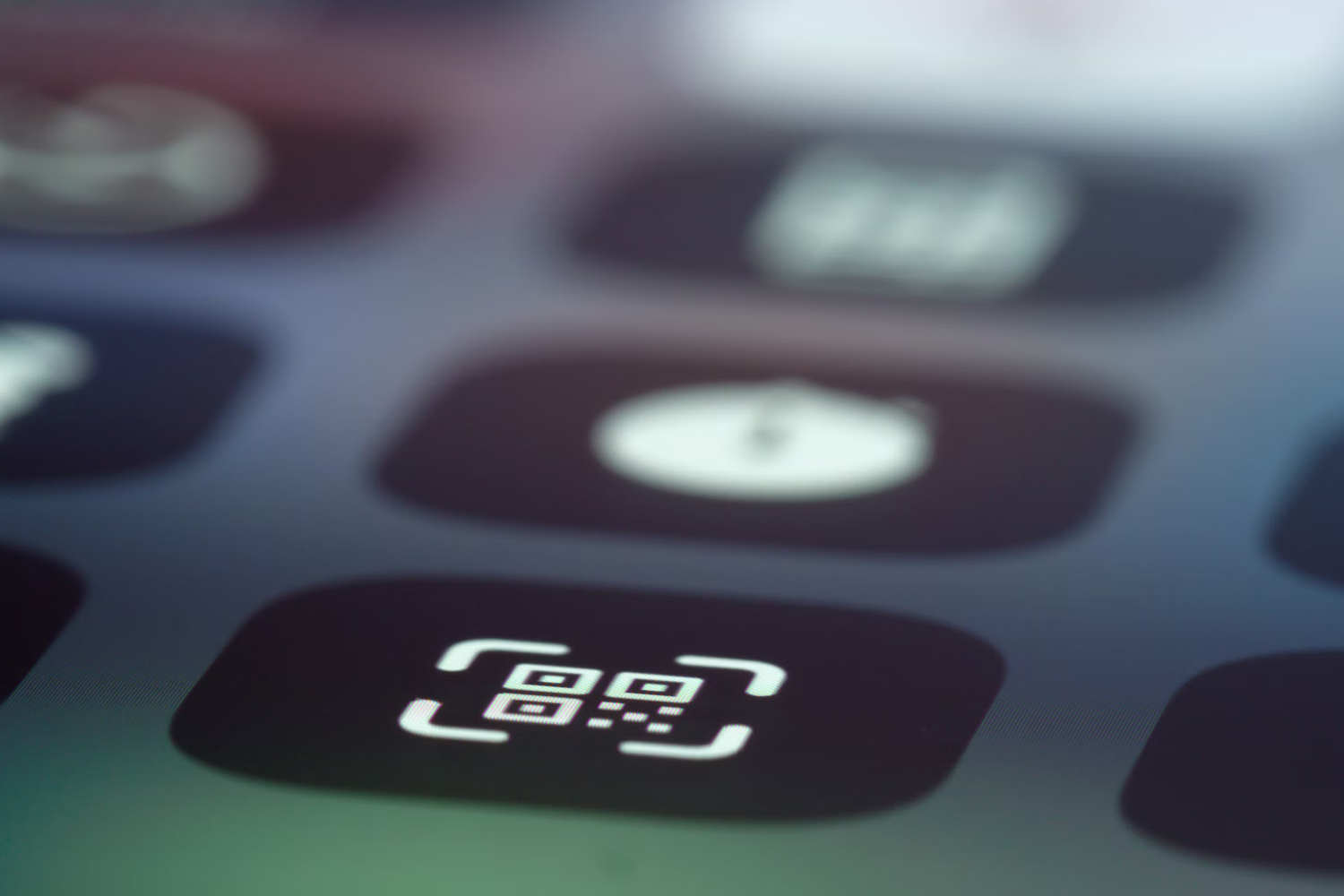
  1. Swipe up from the home screen to bring up the Control Centre. Look for the Code Scanner button — an icon with a picture of a QR code. Tap it.
  2. Once the camera has kicked in, scan the QR code. Make sure that it’s framed in the on-screen guide. You don’t have to be amazingly accurate with it — as long as it’s within the frame, you should be fine.
  3. The link should open up immediately.

Notes

  • You can also open up your camera app and point it directly to a QR code. If you opt for this route, a link will appear at the top of the screen. Press it, and you’re good to go.
  • If you can’t see the Code Scanner icon in your Control Centre, you might need to manually add it. Open your settings, go to Control Centre, and tap the green + icon next to Code Scanner. This will ensure it appears in your Control Centre. 

How to scan a QR code on Android

Most Android phones should be able to scan QR codes directly from the camera app, so give that a go first. If that doesn’t work, you can try a similar method to the iPhone. Pull down from the top of the screen to bring down the notifications menu, then pull down again to access your shortcuts. Look for an icon called ‘Scanner’, or something along those lines. Fire it up, scan the code, and away you go.

As with the iPhone, you might need to manually add the scanner icon to your shortcuts. The precise method for this will vary depending on your phone, but there’ll be an ‘edit’ button of sorts on the screen somewhere in the notification pane (you might have to scroll sideways to get to the last section of shortcuts). Press it, and see if there’s an option to add some kind of scanner to your shortcuts.

Failing all that, you’re welcome to hit up the Google Play Store and download a QR reader. Having said that — just get Google Lens. It’ll scan QR codes and a whole lot more, and is an app from a trusted source. Namely, Google.

Apple News

Read the full article here

Follow on Google News Follow on Flipboard
Share. Facebook Twitter Pinterest LinkedIn Tumblr Email Copy Link
News Room
  • Website

Related Posts

Male birth control pills are finally being tested on humans – and one is designed to work within hours

August 31, 2026

Right idea, wrong time: 10 brilliant tech ideas that just turned up too early

August 31, 2026

13 unmissable watches launched in August, from a smaller Omega Speedmaster to a fitness tracking Casio

August 31, 2026
Add A Comment
Leave A Reply Cancel Reply

Top Articles

What to expect from Apple’s September event: iPhone Fold, iPhone 18 Pro, Apple Watch Ultra 4 and more

July 4, 2026

We’ve reviewed the best tablets in 2026 – including iPad and Android picks for every budget

July 6, 2026

Swatch posts the correct answers to the MoonSwatch Mission to Moon 1969 ESTA quiz – did you pass?

July 23, 2026
Latest Reviews

Even with some limitations, I’m convinced the Dell XPS 13 (2026) has rewritten the rules for affordable Windows laptops

News RoomAugust 28, 2026

The second-generation Bose QuietComfort Headphones are good, but don’t stand out

News RoomAugust 26, 2026

GuliKit’s Switch 2 TV dock gives me one feature I’ve missed when traveling

News RoomAugust 25, 2026

Subscribe to Updates

Get the latest tech news and updates directly to your inbox.

Demo
Most Popular

You can now try Apple’s all-new Siri AI yourself on your iPhone, iPad or Mac – here’s how

July 13, 2026

What to expect from Apple’s September event: iPhone Fold, iPhone 18 Pro, Apple Watch Ultra 4 and more

July 4, 2026

We’ve reviewed the best tablets in 2026 – including iPad and Android picks for every budget

July 6, 2026
Our Picks

China’s robots race ahead | The Verge

August 30, 2026

Chess.com launched a poker site and is planning even more classic games

August 30, 2026

Two new small, powerful Macs

August 30, 2026

Subscribe to Updates

Get the latest tech news and updates directly to your inbox.

Facebook X (Twitter) Instagram Pinterest
  • Home
  • Privacy Policy
  • Terms of use
  • For Advertisers
  • Contact
2026 © Prices.com LLC. All Rights Reserved.

Type above and press Enter to search. Press Esc to cancel.