

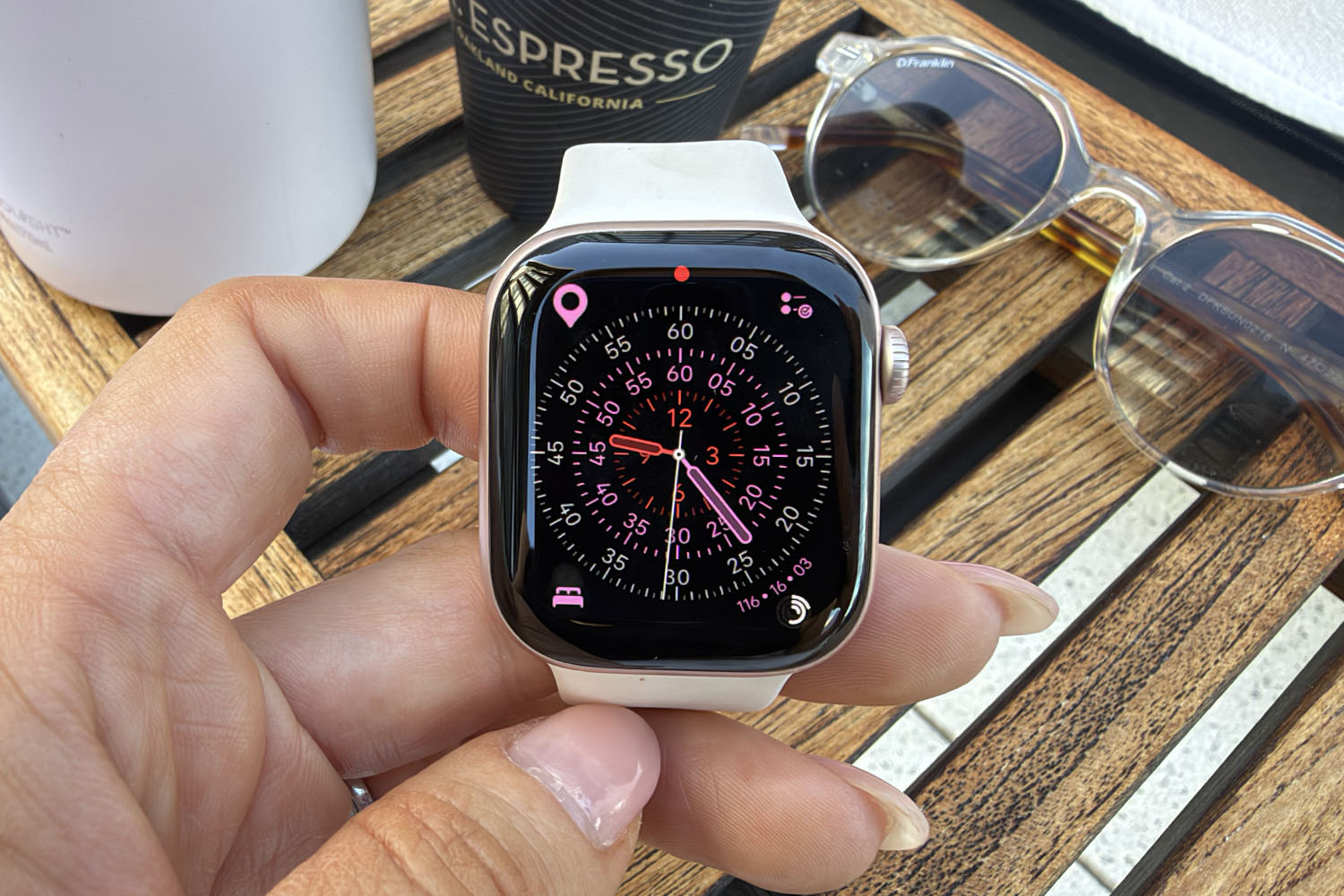
I’ll admit, when it comes to Apple Watch faces, I am a Snoopy girl through and through. Every year Apple launches new faces, and every year I stick with the cute little dog and his red house. The only issue with that decision is that the Snoopy watch face doesn’t allow for any complications. Absolutely none, and that’s a real shame.
Apple Watch complications are small pieces of information that appear around a watch face, from your move, exercise and stand rings to whether it’s about to bucket down with rain while you’re out on your run. Where they appear depends on which watch face you have chosen, with some supporting more complications than others. If you’re using a watch face like Infographic, you can have up to eight complications available to see at a glance; others offer six and four, some two.
So if you’re someone who prefers a face other than Snoopy (we will never be friends), these are the Apple Watch complications worth adding for helpful, easy-access information at a glance.
Camera Remote
Hands down, one of my favourite features of the Apple Watch is its ability to trigger your iPhone’s camera shutter from across the room. It’s perfect for group photos, where some poor sod always has to try to run into the frame. The Camera Remote complication lets you launch a live preview of your iPhone’s camera on your Apple Watch screen so you can make sure everyone has their eyes open and a smile on their face, before you tap the Apple Watch screen again to get your shot.
Workout
Apple’s native Workout app lets you track a range of workout types on your Apple Watch, from Pilates to an Outdoor Run. One tap on the Workout complication takes you straight into the Workout app, where your most recent workouts are listed so you can quickly start tracking a cycle, run, or walk to the fridge. If you have the Apple Watch Ultra, you can use the Action Button to launch the Workout app, but if you have the standard Apple Watch Series or Apple Watch SE, this is the next best thing. It’s simple, quick, and it definitely doesn’t know you didn’t stretch.
Oura
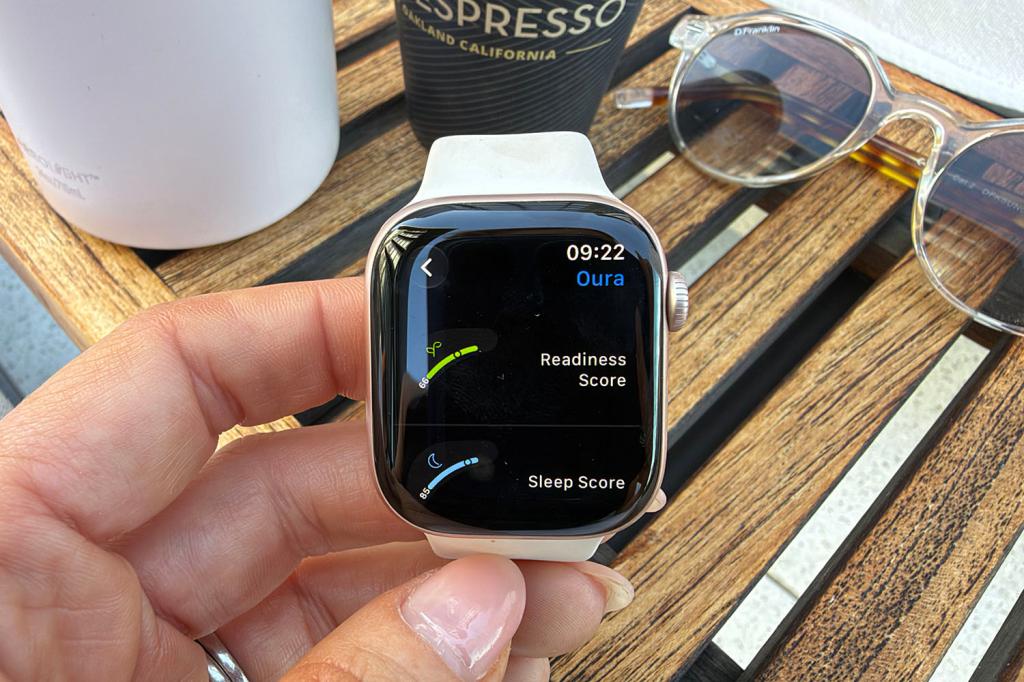
If you, like me, have a smart ring like Oura and an Apple Watch (I maintain there is an argument for both), complications can help them work even better together. Both Oura and Ultrahuman offer Apple Watch complications, with Oura’s letting you choose from several data options to appear on the screen with one tap. You can choose between Readiness Score, Sleep Score, Activity Score, Steps, Active Calorie Burn, Battery Level, or App Shortcut. Battery level is handy, but I like Readiness Score the best – it’s basically a quick way to see how betrayed your body feels about yesterday’s decisions.
Structured
Structured is one of my all-time favourite iPhone apps for organisation and productivity, and its Apple Watch complication gives quick access to various elements of the Apple Watch app. You can choose to show upcoming tasks, open your task inbox, or open your task timeline. As well as never forgetting your 2pm meeting again, it will help you track the rest of your to-do list and it looks good too, even if the tasks can be daunting.
Calculator
If you haven’t bought an Apple Watch just to turn it into a retro Casio Calculator Watch from time to time, you’re really missing out on one of the best nostalgia hits there is. OK, there aren’t any of those tiny buttons to press, but the Calculator complication lets you quickly split the pizza and prosecco bill four ways without having to get your phone out of your pocket or bag. It’s not fancy, but it’s exceptionally helpful, especially when your brain has had a few too many wines for nine times nine.
Calendar
Both Apple’s native Calendar app and Google Calendar can be added as complications, so choose whichever you use for easy access to your schedule or the date. Even non-smartwatches will show you the date, and this is a much cheaper way to see it than shelling out for a new Rolex. For the Apple Calendar complication, you can choose between Your Schedule (so you know what you have coming up), Lunar Date, and Today’s Date. For Google Calendar, it’s what you’ve got next on your agenda and the current date.
Flighty
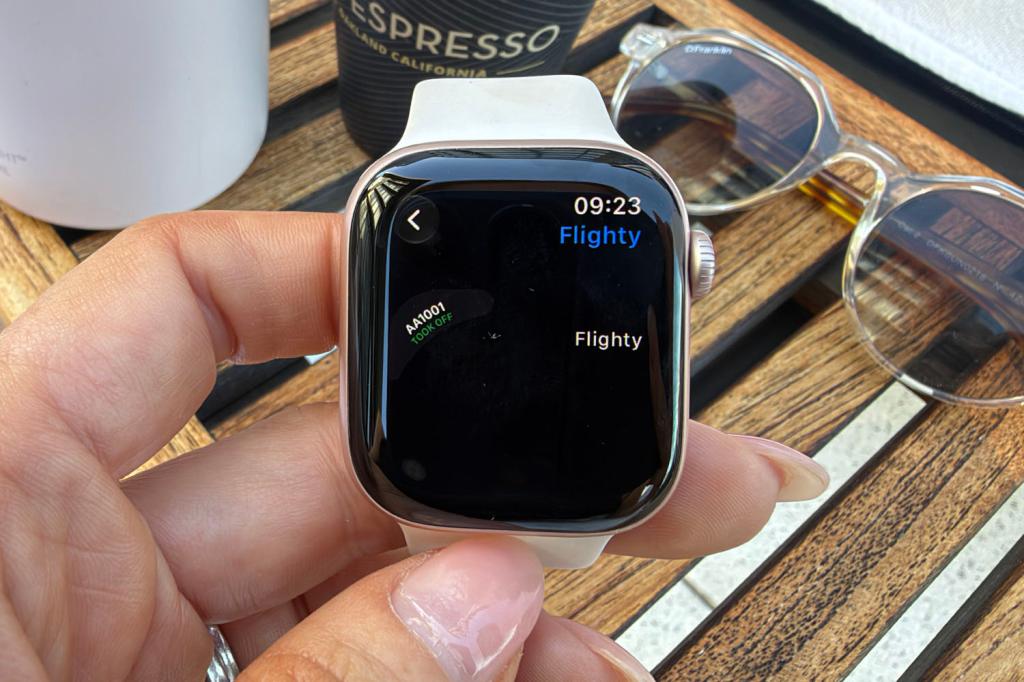
The Flighty complication turns your Apple Watch into a mini departures board. It lets you check your flight status without awkwardly hovering around the airport screens for updates. A quick tap on the Flighty complication opens the Apple Watch app, giving you countdown timers, delay alerts, gate changes and other useful information long before the overhead announcements tell you what’s going on.
WaterMinder
If you want a daily reminder to drink more water, WaterMinder is the complication you need. It sits in the corner of your watch face, reminding you that your four flat whites haven’t counted towards your 2-litre target. You set the target in the WaterMinder Apple Watch app, after which you’ll either see a ring that you’ll need to try to close by the end of the day, or a percentage of your total, depending on how large the complication is.
Sleep
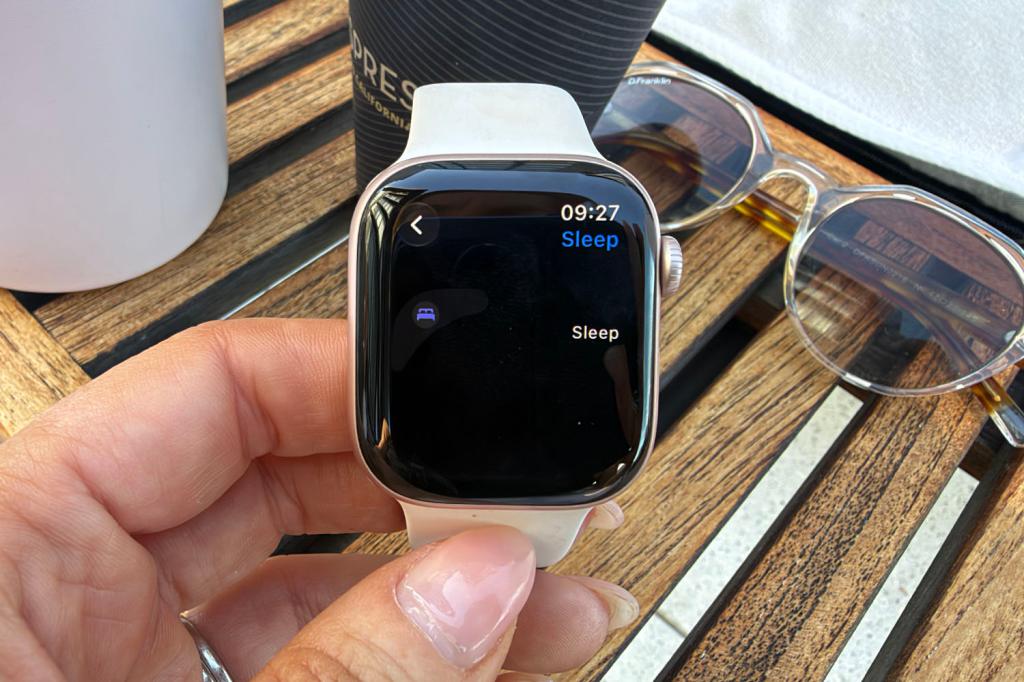
If you use your Apple Watch for sleep tracking, adding the Sleep complication to your watch face can be very handy. It opens the Sleep app, giving you quick access to your Sleep Score, sleep stages, time asleep, and your sleep consistency over the last 14 days. You’ll also be able to access your Sleep Schedule so you can change it easily, while an alarm icon in the top left corner lets you adjust your next wake-up. If you haven’t had the best night’s sleep, though, you might want to avoid tapping this complication until a little later in the day. No one needs to see a bad sleep score before 9am.
CARROT Weather
You could use Apple’s native weather complication to check if it’s about to rain on you, or you could have a little fun with the weather and use the CARROT Weather complication instead. It delivers temperature, UV index, rain chances and plenty of other information about what’s happening outdoors, with a little dose of sarcasm. You can choose from 25 complications to add to your Apple Watch face of choice, so if you have something like Exactograph, you can have up to four quick-tap weather notifications.
Google Maps
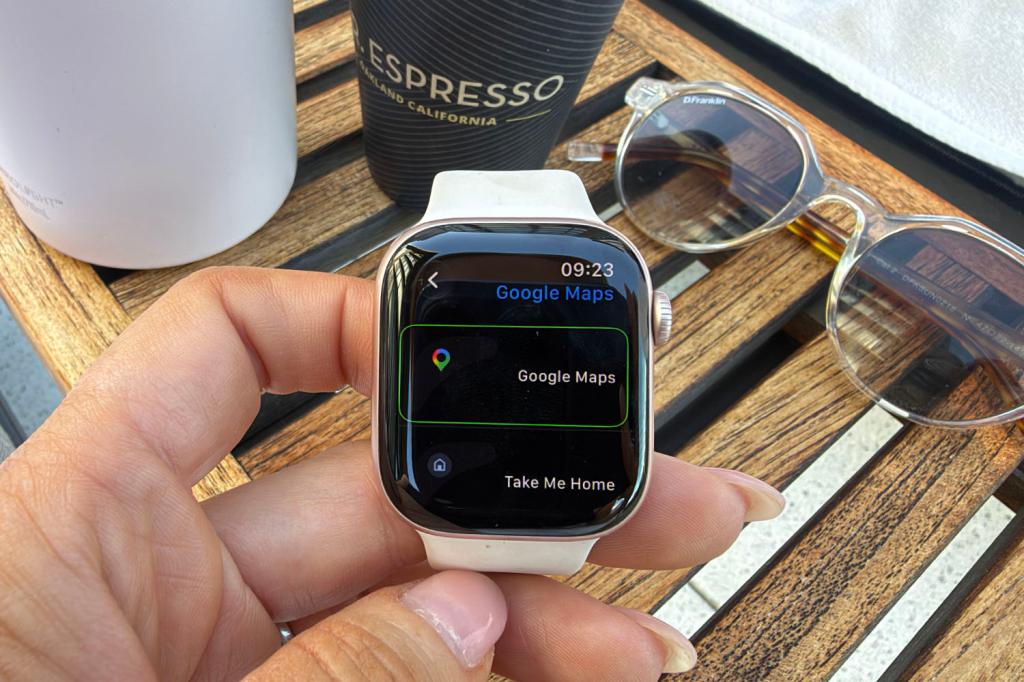
Like the calendar complication, there are complications for Apple Maps and Google Maps too, both of which provide quick access to navigation. For Apple Maps, the complication options are public transport and directions, while Google Maps can open the Google Maps app on Apple Watch or take you straight home. Helpful for the nights you’ve had a few too many, when the most you’re capable of is one tap on a tiny screen.
Pedometer++
Oddly, while there is a native Activity complication available for Apple Watch, there is only the option to see your Ring progress. You can’t opt to see your steps, despite Apple Watch tracking them. While the 10,000 number everyone has been talking about for years is questionable, if you are a step counter, the Pedometer++ complication is a great one. The app counts your steps, with the complication showing you that figure in real time so you know how close to your target you are, whether it’s that 10,000 number or a casual 15,000.
Read more: Best Apple Watch in 2026: all current models reviewed and rated


Read the full article here
