


Whether you think AI stands for ‘Artificial Intelligence’, ‘Apple Intelligence’ or ‘Awesome Invention’ – or just happens to be the first two letters of AIIEEEEE! – it’s not going anywhere. In fact, as of now, there’s a bunch more of it in your iPhone, iPad and Mac – and much more to come. At least there is if you’ve upgraded to iOS 27, iPadOS 27 and macOS 27. Anyway, I’ve been tinkering with the new AI features while trying not to annoy Skynet. These are the new Apple Intelligence and Siri AI tips I think you should try first.
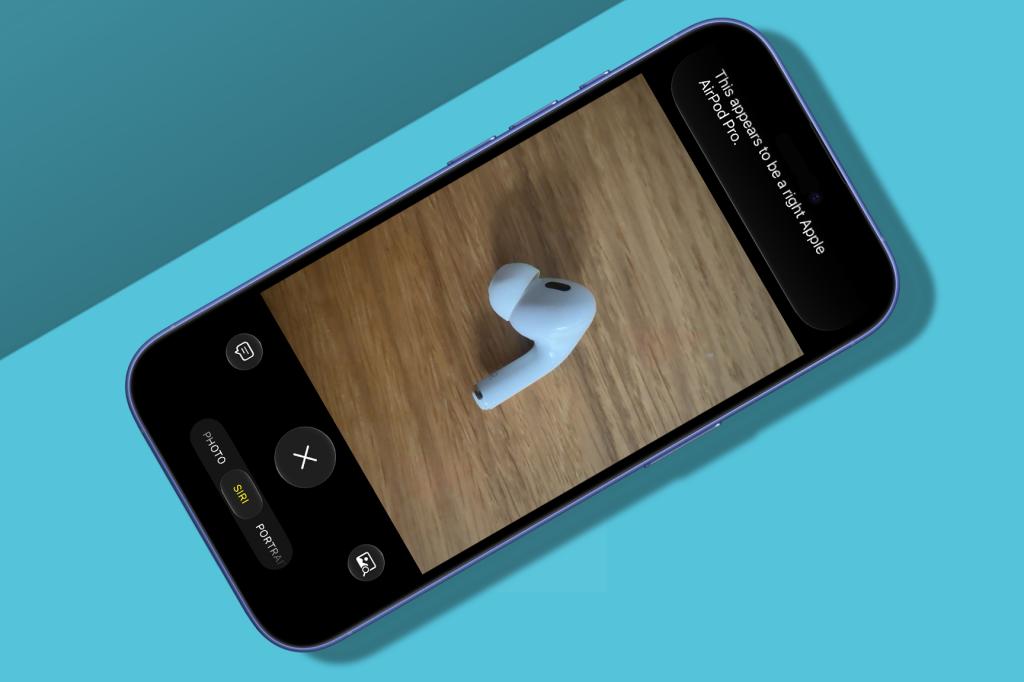
Chat more
Have to-and-fro conversations with Siri, which no longer mostly directs you to the web or ChatGPT for anything complicated. For example, have Siri identify a song, tell you where to buy it, and add a reminder to do so. You can also ask Siri to say what’s on the screen or in front of the Camera and Magnifier apps – though be prepared for inaccuracies.
Use the Siri app
While previously baked into every Apple operating system, Siri now gets a standalone app too. Prior conversations can be viewed as a grid or list, and searched, pinned and deleted. iCloud sync also lets you pick up where you left off on another device.
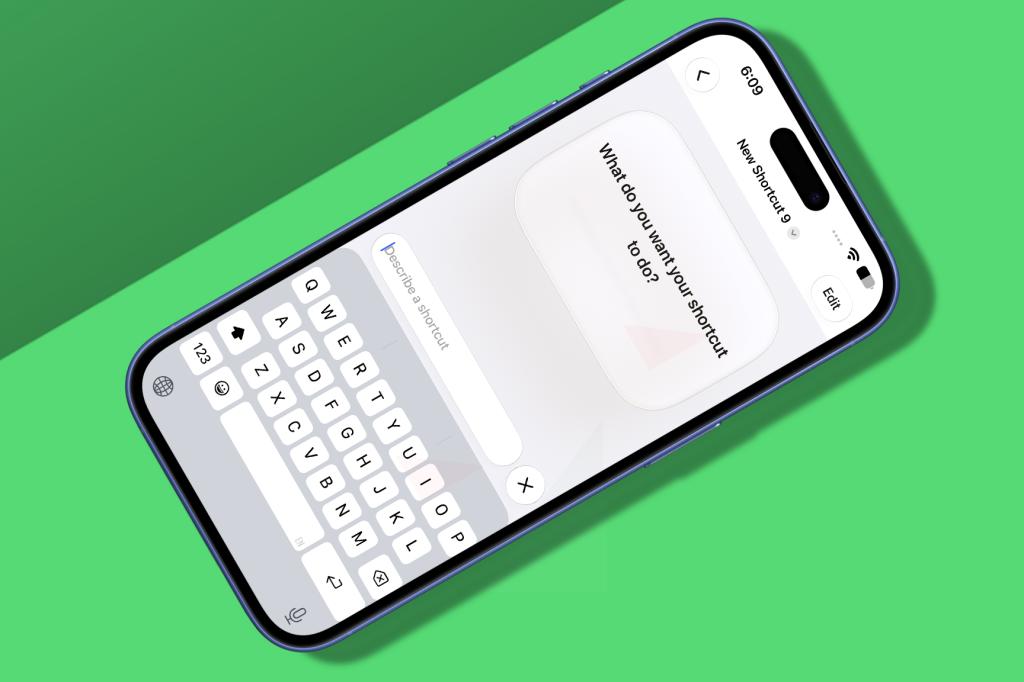
Make a shortcut
Fancy a shortcut to making shortcuts in the Shortcuts app? (Shortcuts!) Open the app on your iPhone, tap ‘+’ and you’ll be invited to describe rather than build it. You can tap Edit to bypass this feature, but the automated flow is a good starting point for newcomers and Shortcuts veterans alike. Just don’t expect Siri AI to help if things go wrong, because it’ll often respond with incorrect ‘fixes’.
Track website changes
In Safari, click/tap the menu icon in the address bar and choose ‘Notify Me’. Then describe what you’d like Safari to look out for, and how often you’d like to be notified, be that daily or – if you love notifications – hourly.

Describe Calendar events
Rather than fiddling about adding dates and other details to new events on Calendar, just write them out in natural language. You’ll see a preview, in case Apple Intelligence messes up. But it can handle the likes of ‘Lunch with Dan 1pm to 3pm on Friday’. (Dan, apparently, wants a very long lunch to end the week.)
Add any card to Wallet
If you’re fed up with physical membership cards cluttering up your life… Well, in all honestly, I’d use the third-party Barcodes app. But! You can now at least add the likes of gym and library cards to Apple’s very own Wallet, by scanning them (or a barcode) in the usual way. Just be aware they are not backwards compatible.
And here’s a final tip you might want to try, but will make creative types angrily gnash their teeth if you do, because reasons:
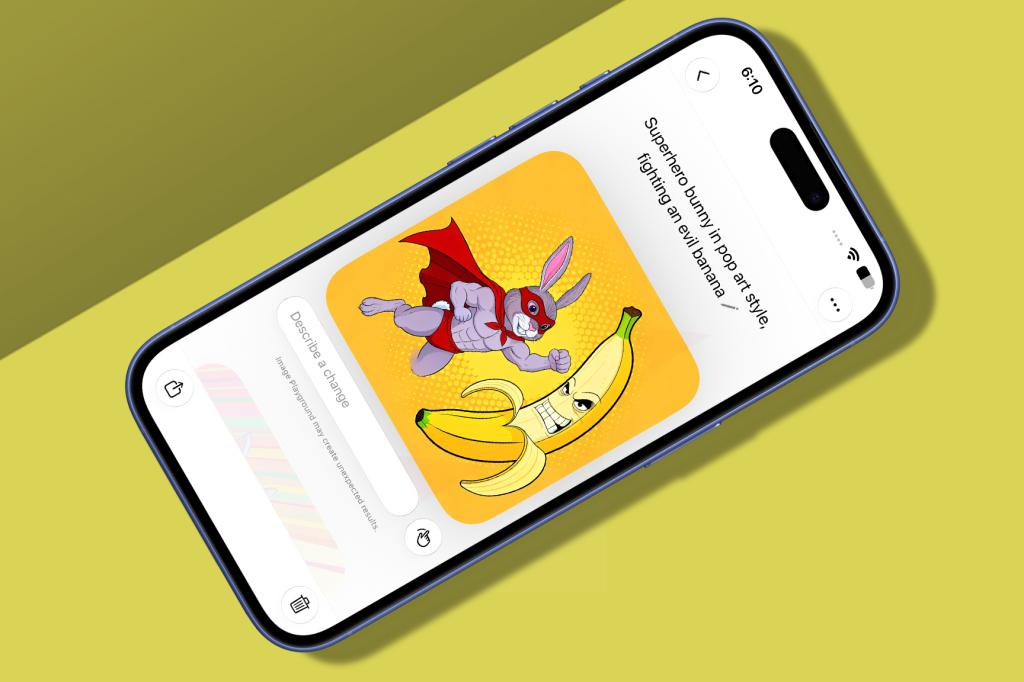
Explore Image Playground
Until now, Image Playground provided basic images and offloaded anything fancy to ChatGPT. Now, it defaults to photo-realistic fare, but can generate almost anything. So try that if you like. Whether you want to use globs of resources to inflict yet more GenAI slop on the world is another matter entirely.


Read the full article here
