

New Apple operating systems klaxon! As ever, Apple‘s provided a bunch of new toys for people who spend their time taking photos, editing photos and quite possibly taking photos of themselves editing photos, like they’re in some kind of Christopher Nolan movie. Anyway! Tips: you want them. I’ve got them. Below are the best tips I’ve found so far for photography in iOS 27, iPadOS 27 and macOS 27.

Use new Camera controls
In Camera for iPhone, swipe the screen left to access Siri mode. Press the shutter and you can ask your iPhone about what it can see. Also, Apple’s moved the tools menu next to the shutter and made it thumbable, improving on its previous placement: a button approximately the size of an atom right at the top of the screen.
There are also lots of lovely new bits for iPhone 18 Pro owners, but I haven’t written about that on account of the iPhone 18 Pro not being out yet and Apple not taking kindly to journalists who sneak into Apple HQ under the cover of darkness to pilfer a new phone to test on.
Try Clean Up
In Photos, edit an image and select Tools. Choose ‘Clean Up’. You still draw over elements you want gone, but there’s now a ‘High Quality’ option that – theoretically – improves the result. (In my experience, it… doesn’t always.) Note: use Clean Up before other AI tools – or ‘intelligent edits’, as Apple calls them!
Extend and reframe a photo
Use the new Extend and Reframe tools to add new content around the frame and adjust a shot’s perspective, respectively, all using standard drag and pinch gestures. I would strongly recommend using these sparingly, though, sticking to subtle changes and adjustments. Otherwise, the results can look horribly fake.

Make a slideshow
Addicted to slideshows or, for that matter, making your nearest and dearest sit through slideshows? Good news (for you): on iPhone and iPad, you can now select any photos from your library and go to ‘…’ > ‘Start Slideshow’. (This was already a thing on Mac via File > ‘Play Slideshow’.) Tap Customise to adjust the transitions and music or go to ‘…’ > Share > ‘Save Video’ to inflict it on anyone not currently nearby.
Save video stills
You know when you capture the perfect moment in a video and then either shoot a screen grab or faff about with editing software to extract a still? Don’t do that anymore. Instead, go to ‘…’ (Image on Mac) > ‘Save Video Frame as Photo’. Handily, the timestamp and location metadata will match the original video.
Turn on video subtitles
Speaking of personal videos, if you’ve ever shot one and wanted to watch it in a very quiet space and/or show it to someone who’s hearing impaired, you can now tap the subtitles button in the playback bar for instant live captions. At least if you’re using US English. Otherwise, you can’t (yet). Boo and hiss, etc.

Sync photos immediately
Until now, iPhones often took their sweet time syncing your latest snaps, grumbling that they were busy ‘optimising system performance’. You can now temporarily override this irritation. In Collections, tap your profile pic and set ‘Sync Immediately’ to ‘For Today’. And then wish there was a ‘For Ever And Ever And Ever’ option.
Rate your snaps
Marking a handful of snaps as favourites isn’t granular enough for some people. If you are ‘some people’, long press a photo in your Library or a collection and choose ‘Set Rating’, or use the dinky star rating menu when viewing a pic. Choose between one and five stars and you can then filter your view by rating. Inexplicably, this feature currently appears to be limited to iPhone.
Add keywords to photos
In an image’s info pane, use ‘Add Keywords’ to make the pic easier to find later. Keywords can’t (yet) be applied to multiple photos at once, but existing keywords do at least quickly appear as you type. On iPhone or iPad, go to Collections, tap your profile and choose ‘Manage Keywords’ to edit keywords or add them to favourites to use as filters. On Mac, use Window > ‘Keyword Manager’.
View a selection
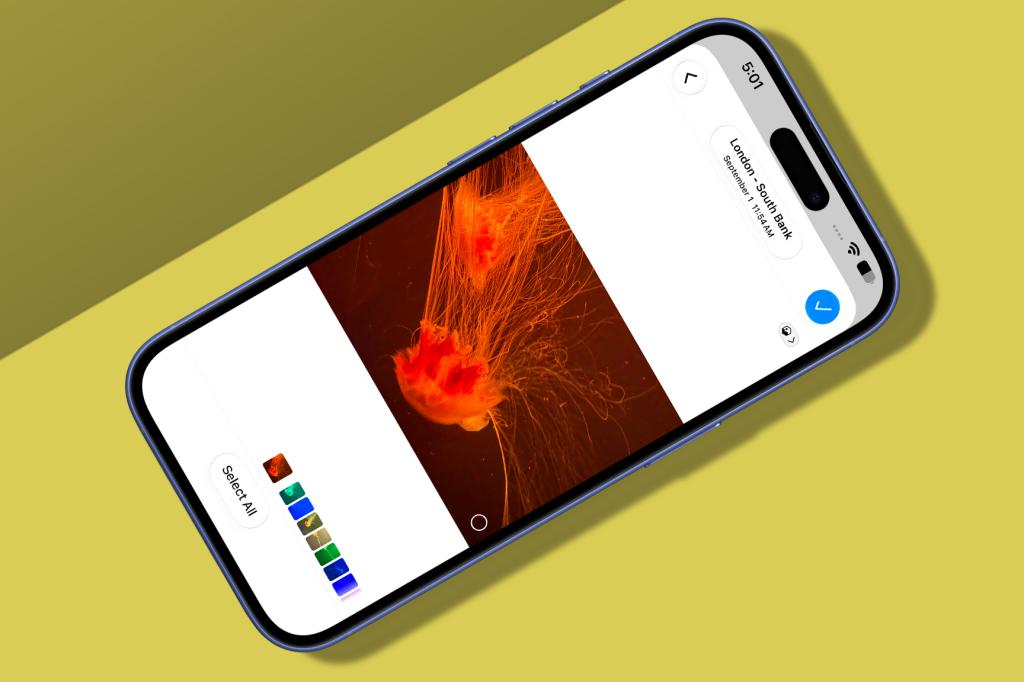
On iPhone or iPad, in your Library or a collection view, tap Select, choose several photos and then tap ‘Show Selected’. You’ll see your images in a pop-up window. Tap the button in the top-left to switch to Gallery view, which lets you swipe through your selection. Tap photos to unselect them, if you want, before returning to the main view to perform an action on whatever’s left, using the ‘…’ menu.
Find identity documents
Again on iPhone or iPad, go to Collections. Select ‘Identity Documents’ from the Utilities section. (On iPad, this can also be found in the sidebar.) Photos will display any matching snaps of documents like passports and driving licences. Or, in my case, a recent car park ticket. Not sure I could use that for an international flight…
Upgrade shared albums
Long-press or Control-click a shared album and choose to upgrade. Edit the shared album and you’ll see new options. You can set a key photo, per-user permissions, whether the album is public, if the album should be temporary (30 days), and whether access requests are allowed. Just be mindful that anyone not running the latest Apple operating systems – or on Android or Windows – must interact with updated albums on iCloud.com.


Read the full article here
