

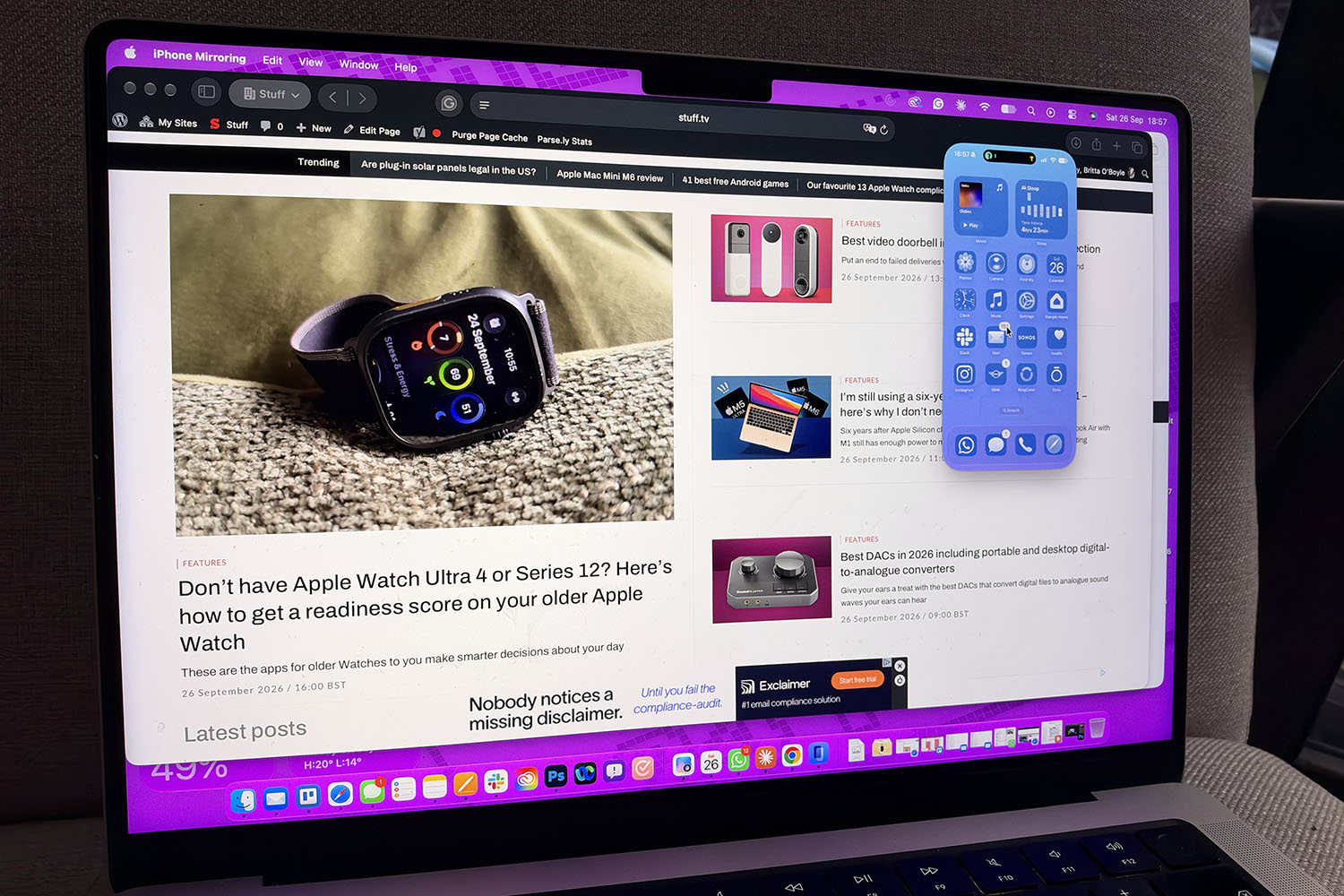
Apple introduced iPhone Mirroring in 2024, when it also first revealed Apple Intelligence. Unsurprisingly, Apple Intelligence was the focus of that WWDC (even though back then we didn’t know we’d have to wait two years for the big Siri promise to be delivered), but iPhone Mirroring was the star. Being able to see what is happening on your iPhone on your Mac screen without having to get your iPhone out means you can see notifications or send a quick reply to a message without losing 25 minutes to Instagram.
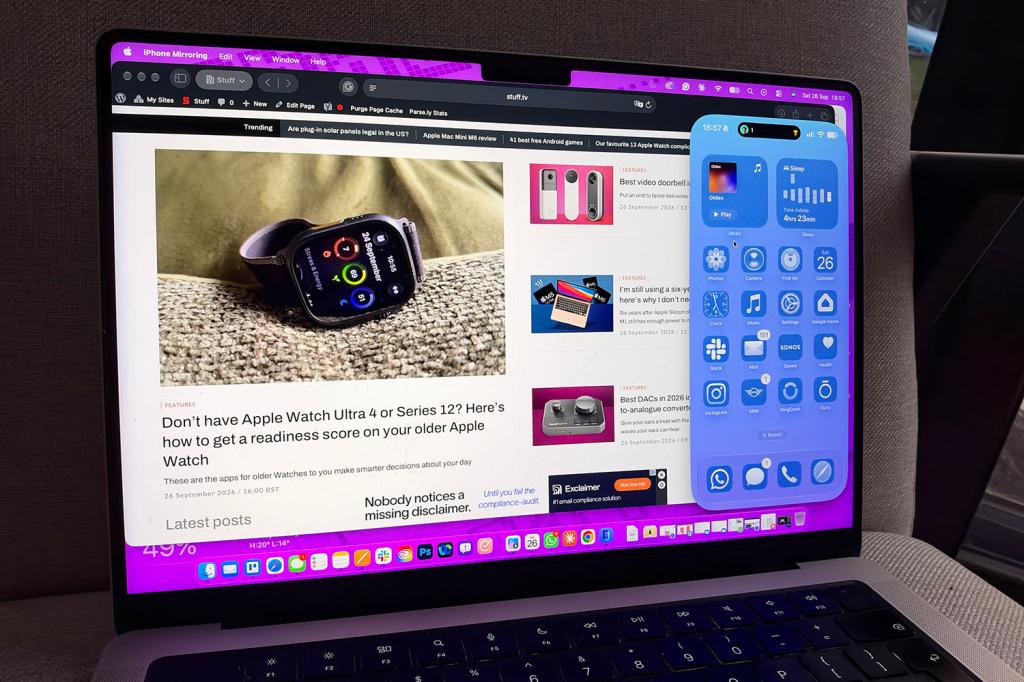
But since its launch, the iPhone Mirroring window has been stuck in the exact shape of an iPhone, and on a 27-inch monitor (or even a 14-inch MacBook Pro), it looks a tad ridiculous – like a lone Post-it note on a very large fridge. Your resizing options were Actual Size, Larger and Smaller, and that was your lot.
That’s changed with iOS 27 and macOS 27 Golden Gate, though, as native apps now have much more flexibility. There are a couple of other useful additions, too, and while resizing is the one you’ll notice day-to-day, here’s what’s new for iPhone Mirroring in iOS 27.
Window resizing
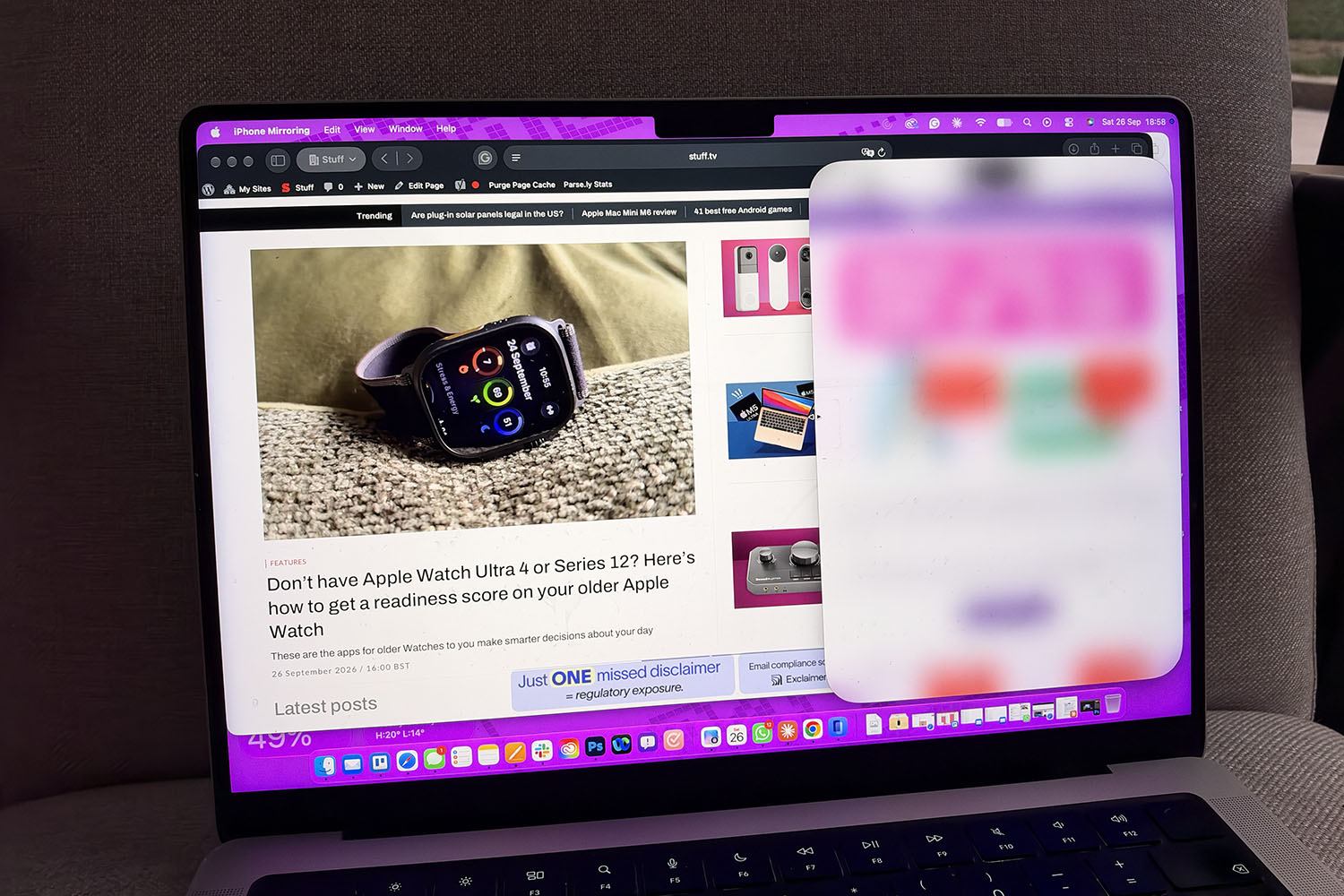
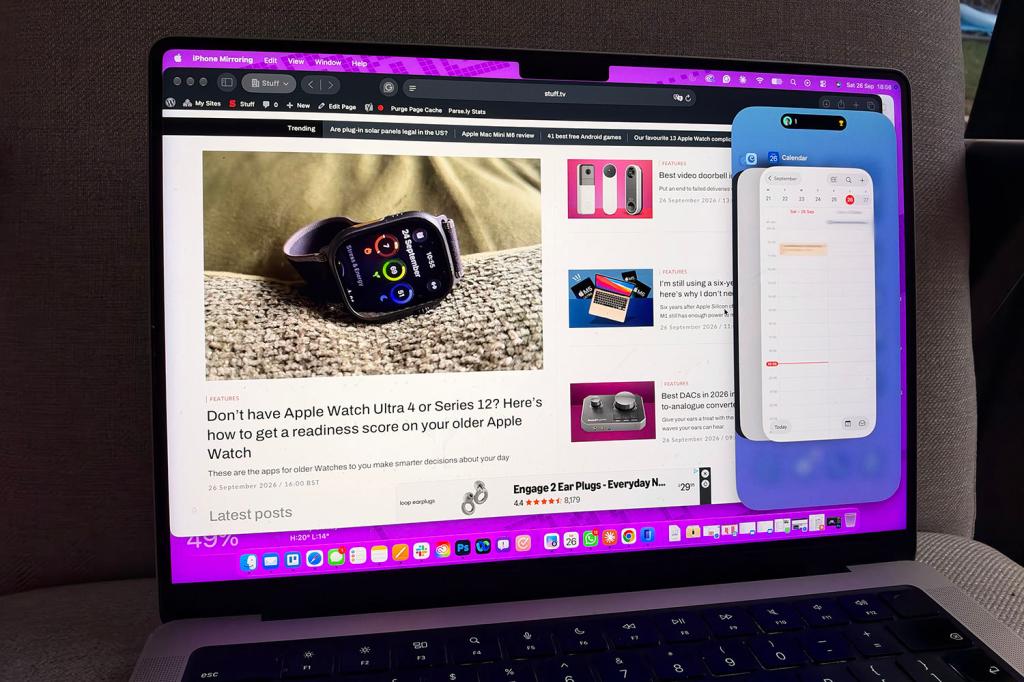
With iOS 27 and macOS 27 Golden Gate, you can now grab a corner of the Mirroring window and drag it to whatever size you like, just as you would with any other Mac window. I know, I know, and it only took three versions. The only caveat is that I’m not talking about resizing the home screen layout, though there is a little more flexibility here for zooming in and out than there was previously. Instead, I mean when you open an app, such as Messages or Mail, within the iPhone Mirroring window.
Apps need updating for iOS 27 before they’ll reflow properly, so while it works great on native Apple apps at the moment, it may be some time before it works well for third-party apps. However, given Apple’s foldable iPhone Duo arrives next month, I’d expect developers to get on it quickly – their apps are going to need to handle different shapes anyway, and surely nobody wants to be the app that looks weird on a $2,000 phone.
Once updated, what makes this resizing feature more exciting than a zoom button is that apps rework their layout to fit the space you expand them into. Depending on the shape you drag it into, you’ll get either a reshuffled iPhone layout or the app’s iPad version. Mail, Messages and Calendar are currently the best examples. Widen the window and Mail shows more of your inbox at once, while Calendar gives you a view of enough of the week to panic about Thursday on Sunday.
If you stretch things too far and end up with a phone the size of a letterbox, you can press Command-9 (or the iPhone-size button in the toolbar) to return it to the original iPhone shape.
Control Centre access
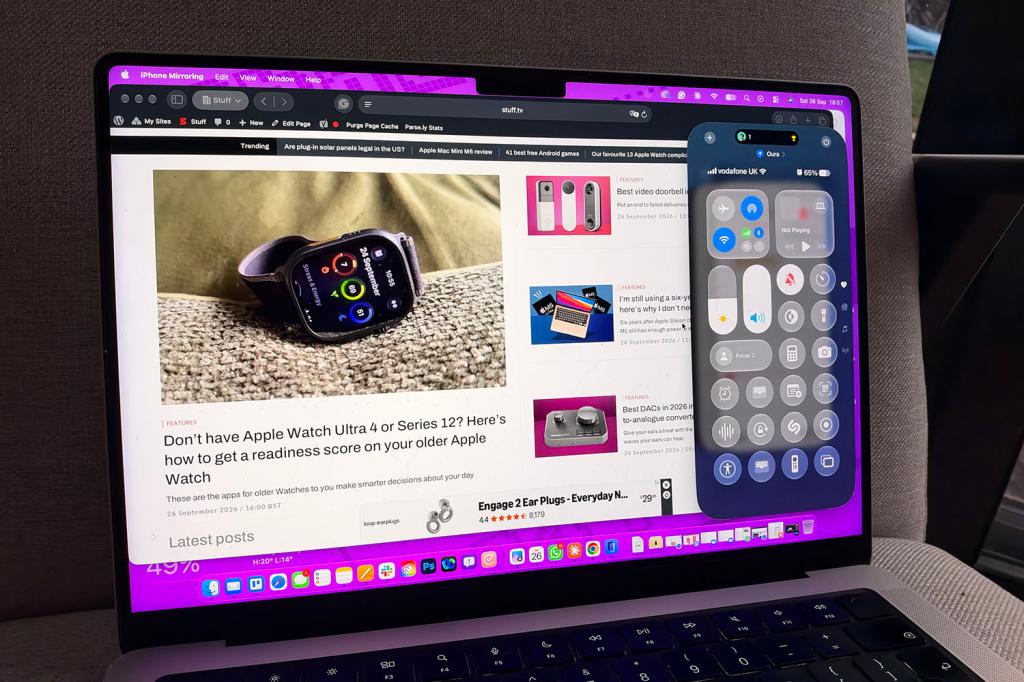
The latest software updates also introduce Control Centre access for iPhone Mirroring. This update might seem minor compared to the window resizing, but it’s been a bugbear for iPhone Mirroring since the feature first arrived.
Until now, you couldn’t open Control Centre via Mirroring at all, so if you wanted to switch on Do Not Disturb or turn on dark mode, for example, you had to pick up your phone, which somewhat defeated the point of Mirroring in the first place. Now, though, you just press Command-4, or find it in the View menu, and it appears in the window.
Streaming video that you can see
Before iOS 27 and macOS 27, if you tried to play something from a streaming app or a film you’d rented using iPhone Mirroring, the Mirroring window would go black. Not ideal if you wanted to watch the damn thing.
With the latest update, DRM-protected video now plays in the window, although streaming services can still decide for themselves what they allow. Will most people use this? Probably not, as your Mac likely already has the same apps and the viewing experience will be significantly better on your Mac. Watching a film in a phone-sized window on a 15-inch screen is like eating soup with a fork. But if there’s one app that’s phone-only, or you’ve downloaded something to your iPhone, it’s handy to have.
A few iPhone Mirroring tips and tricks worth knowing
If you’re new to iPhone Mirroring or haven’t wanted to use it in protest of not being able to expand the Mirroring display beyond its skinny rectangular shape, these tips will help you become a pro. If you’ve used the feature for the past two years, you’ll probably know them all, but a refresher is sometimes helpful.
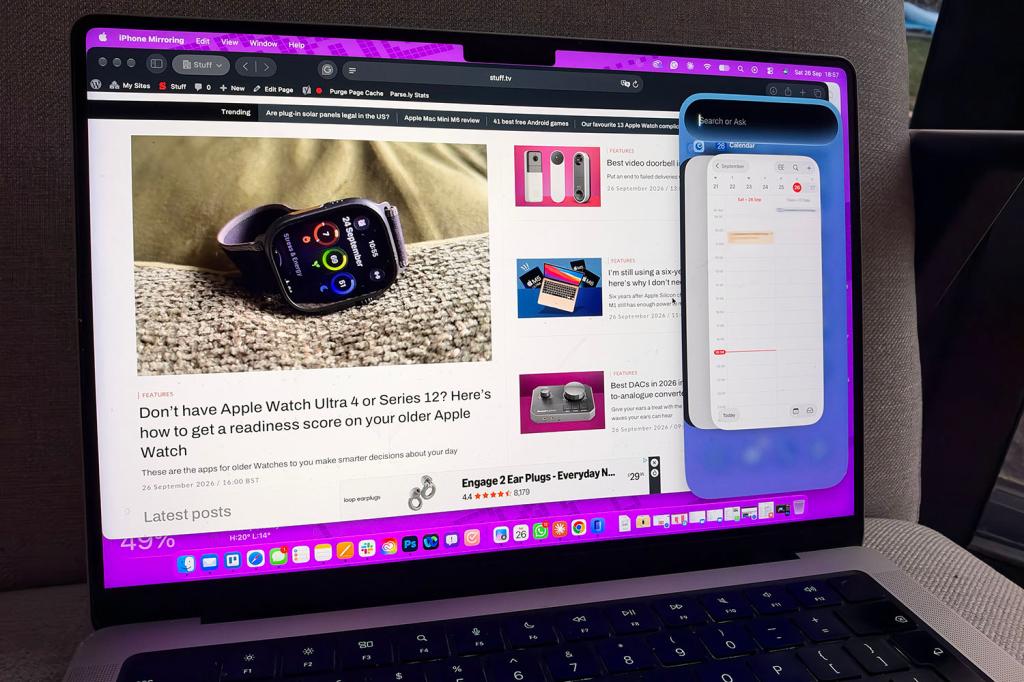
Keyboard shortcuts: Command-1 takes you to the Home Screen, Command-2 opens the App Switcher, Command-3 opens Spotlight, and Command-4 now opens Control Centre. Learn all four, and you’ll be well on your way to looking busy and important.
Preset sizes: Command-Plus, Command-Minus and Command-0 still work for the old fixed sizes. Command-9 resets the window after you’ve dragged it about.
Drag and drop: You can pull photos and videos out of your iPhone’s Photos app onto your Mac desktop, or drop files from your Mac into a message or email on your phone. Just double-check which chat you’re dropping that screenshot into.
Open iPhone apps from your Mac: Turn on iPhone Apps under System Settings > Spotlight and your phone’s apps will show up when you search on your Mac.
Stop it asking you to log in: Open Settings from the iPhone Mirroring menu and choose Authenticate automatically.
If it won’t connect: Check that both devices are on the same Apple Account with two-factor authentication, that Bluetooth and Wi-Fi are on, and that your iPhone is locked and nearby. Your Mac also can’t be using Sidecar, AirPlay or sharing its internet connection. Still not working? Go to Settings, tap Revoke iPhone Access and set it up again from scratch.
iPhone Mirroring system requirements
One more thing: iPhone Mirroring still isn’t available in the EU, so readers over there will have to keep picking up their phones like it’s 2023. Otherwise, if you tick all of the system requirements below, you should be able to enjoy iPhone Mirroring and its new bag of tricks.
- A Mac running macOS Sequoia 15 or later
- A Mac with Apple silicon or Mac with the Apple T2 Security Chip
- An iPhone running iOS 18 or later
- A passcode setup on your iPhone
- Your iPhone and Mac are signed in to the same Apple Account using two-factor authentication
- Your iPhone and Mac have Bluetooth and Wi-Fi turned on
- Your iPhone is locked and near your Mac. It can also be charging and using StandBy
- Your Mac is not sharing its internet connection or using AirPlay or Sidecar
Read more: Who needs iOS 27.1? Every new feature coming to your iPhone in iOS 27.2


Read the full article here
