

GarageBand was one of the few pieces of software to make it into the Stuff top 50 Apple products. Why? Well, from its earliest days, GarageBand was something special: an approachable yet powerful app for making music. Which made it all the more staggering when the app arrived on iPhone. These GarageBand tips help you get started writing your own tunes. Just remember Stuff when you have your fifth top-ten album, eh?
Before you begin, download GarageBand (free) on iPhone or iPad. There’s also a Mac version (free), but its interface and features differ.
GarageBand tips: the basics
Get set
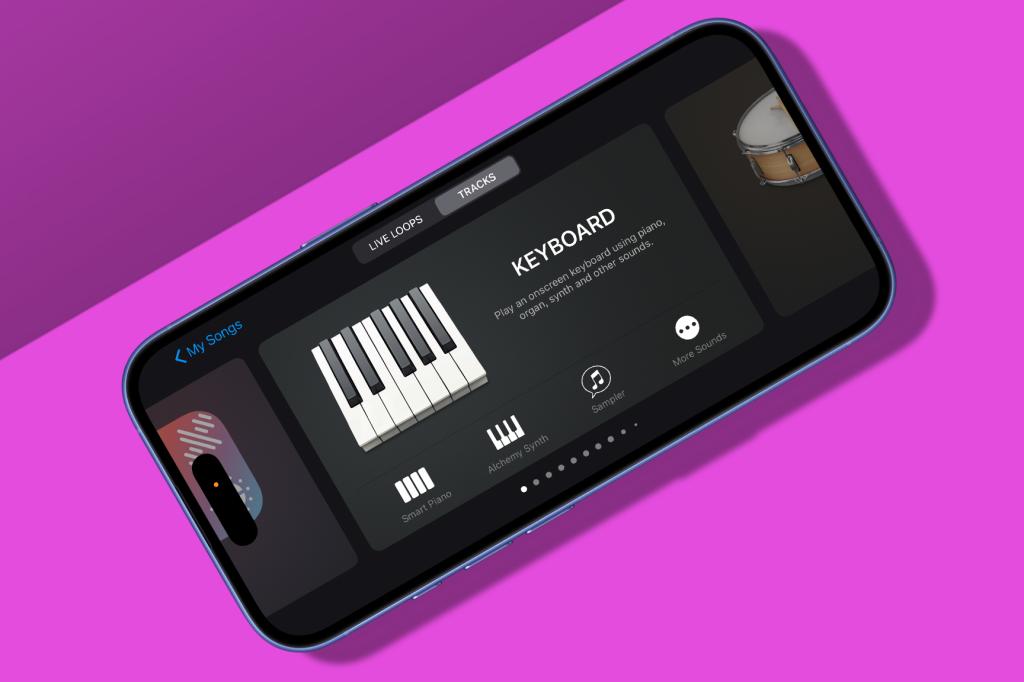
Tap ‘+’ to start a new song. Now select Tracks and choose an instrument from the sound browser; GarageBand will create a project. Adjust tempo and the metronome from settings (the cog button). To later access ‘My Songs’, tap the navigation button on iPhone (the triangle) or the document button at the top-left on iPad. Songs will auto-save.
Take control
Familiarise yourself with the control bar at the top of the screen. The first button pair is for the sound browser and a toggle for Tracks view and the current instrument. The one with sliders is Track Controls. The iPhone app has the Controls button (a dial) to view your instrument controls.
Plug in gear
It is possible to write an entire song just using an iPhone (see iSongs on YouTube for inspiration), but you’re better off adding a USB MIDI keyboard controller. Use an iRig or Apogee Jam as well to plug a guitar into the app’s virtual amps. You can add virtual gear too, via External in the sound browser, bringing in Audio Unit extensions from installed software synths.
Mix it up
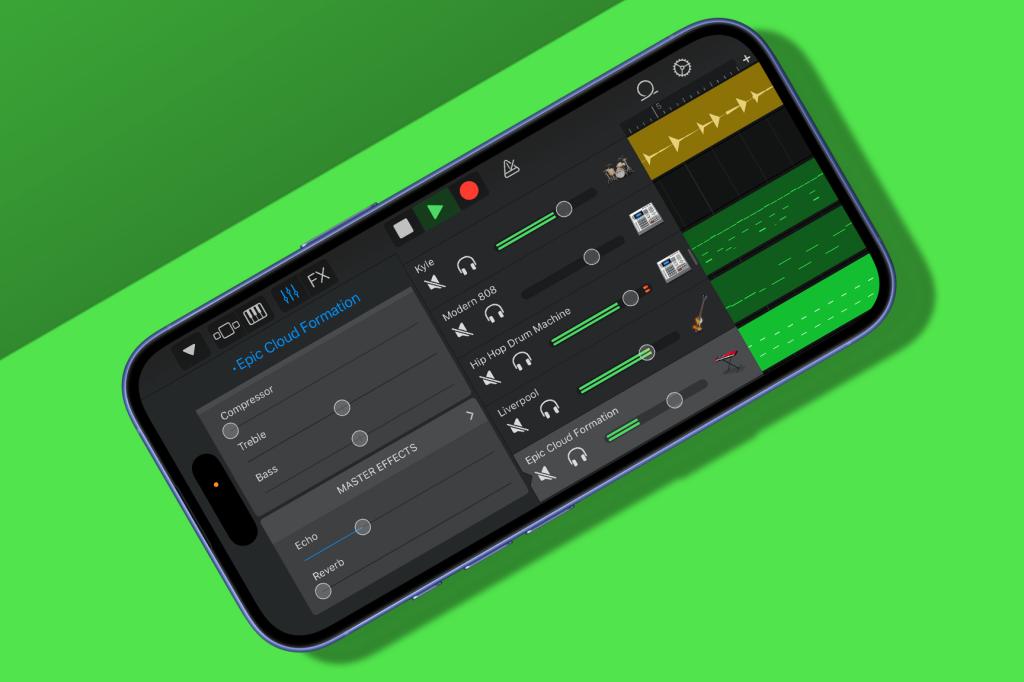
In Tracks view, pull the drag handle right for volume sliders and mute/solo buttons. For ringtones, output must sound good through iPhone speakers. Creating a radio smash? Check the mix using a range of different speakers and headphones.
Save versions
If you nail a melody then decide to change it slightly, but later realise you’ve overwritten your magic with something that sounds like an old man hitting a dustbin with a stick, that can be quite frustrating. So periodically duplicate songs, giving you older versions to revert or refer to.
Be a super looper
Fancy performing rather than writing? Try Live Loops, pick a genre, and tap to trigger cells or columns. Customise cells by editing loops or adding your own.
Drop a beat
Build the basics
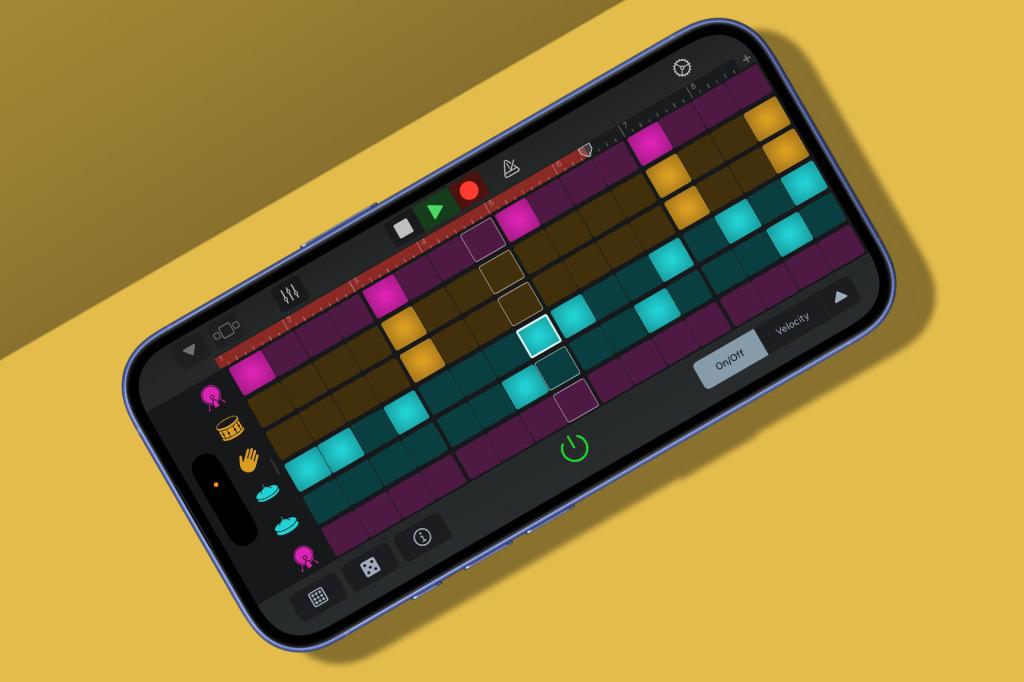
In a new song, select ‘Beat Sequencer’ from Drums. Tap the kit name (bottom-left on iPad; via navigation button on iPhone) and select ‘Big Room’. Tap the Patterns button and choose ‘New Pattern’. Put a bass drum on each beat.
Add variation
Add snares on off-beats and hi-hats to taste. Tap Record. You’ll get eight bars in total. You can add simple fills while recording, by adding or removing snares on the last beat before the playhead passes over.
Bring the bass
Automate playback
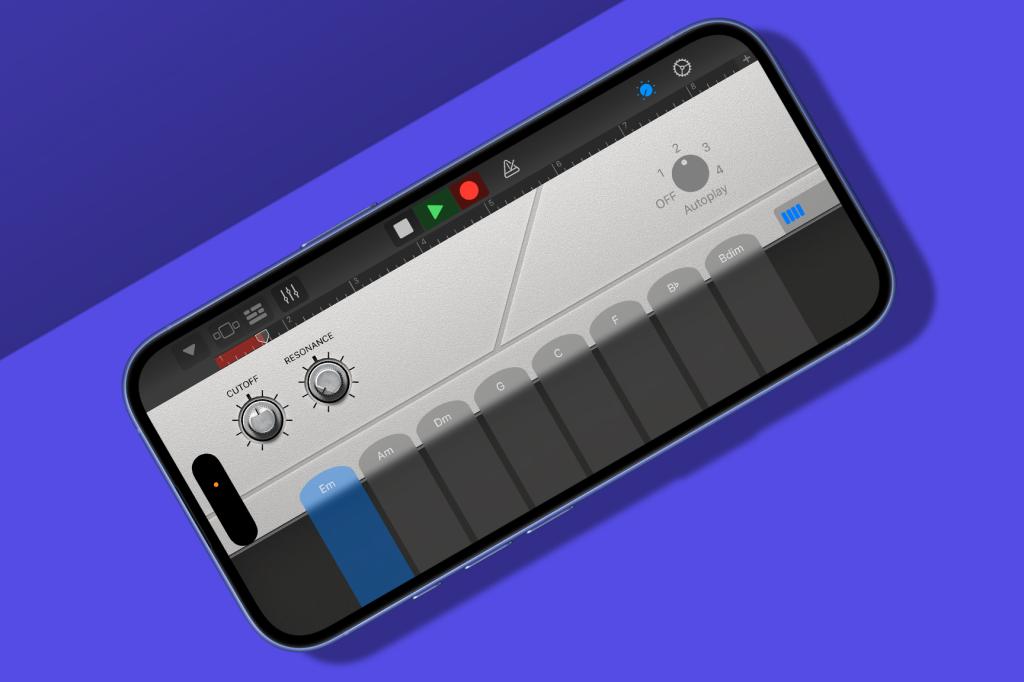
From the sound browser, choose ‘Smart Bass’ from Bass. Smart instruments provide automation to help you quickly build tracks. Choose ‘Light Cycle’ as your instrument and set Autoplay to 2 (via the Controls button on iPhone).
Slow it down
Stop any playback, tap the ‘Go to Beginning’ button, and tap the ‘Em’ key to start the bass. Press record. On bars 3, 5 and 7, tap the Am, Dm and F keys, respectively. If your timing’s off, try again or reduce the tempo.
Write a hook
Play around
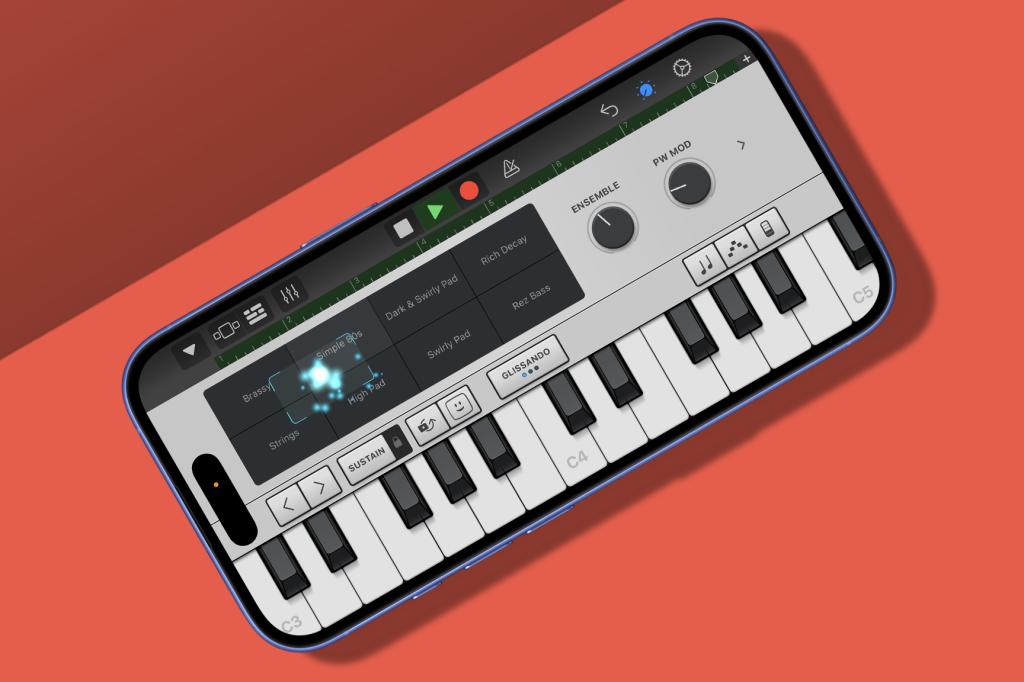
Choose ‘Alchemy Synth’ from Keyboard in the sound browser. Select ‘Airy Synth Lead’ from the instrument picker’s Leads category. Use pads and dials in Controls to tweak the sound, and then record a melody.
Correct errors
If your timing is shaky, tap the ‘Track Controls’ button and select Quantisation from ‘Track Settings’. Use Straight and the timing option that works best. (For wrong notes, open Tracks view, select a region, tap Edit, and move notes on the piano roll.)
Add effects
Scroll to ‘Master Effects’ and raise the Echo slider to add interest – but don’t muddy the sound. Tap ‘>’ for more effects to play with.
Share the love
Save a song
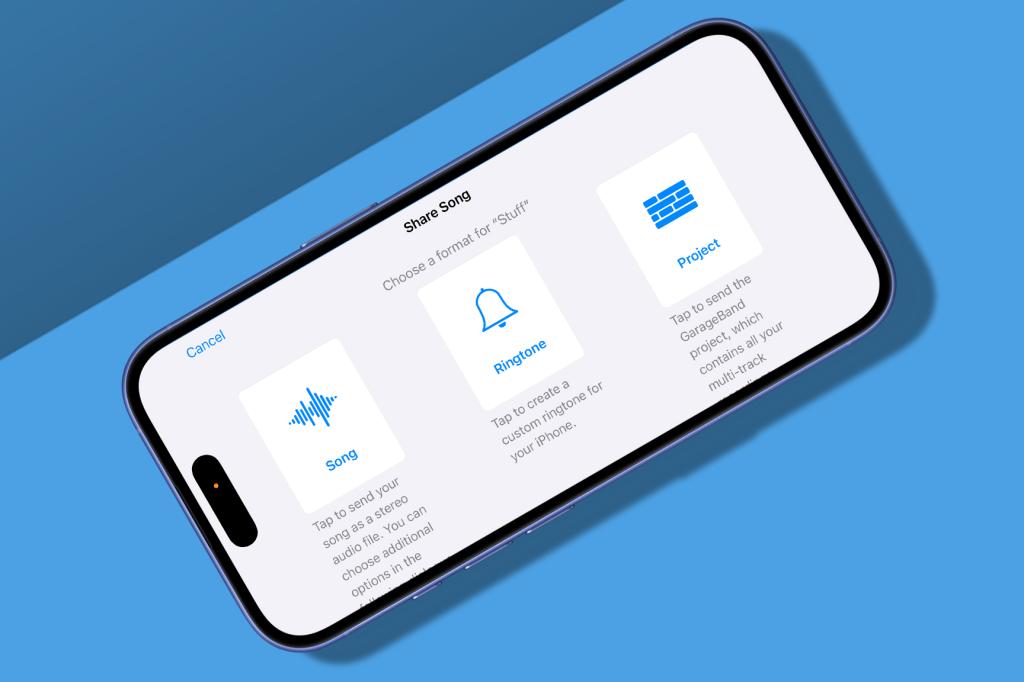
In ‘My Songs’, tap-hold your song. From the menu, duplicate, rename or share it. Choose Share to export a mixed-down stereo file, a project to import into Logic Pro (see below) or a ringtone.
Set your ringtone
In ‘Use sound as…’, apply your ringtone or assign it to a contact. Or do this later in the Settings app’s ‘Sounds & Haptics’ section. Because this is your own creation, you’ll never confuse it with someone else’s phone when it goes off.
Or try these…
Logic Pro
GarageBand is really a cut-down Logic Pro, so the latter app is where you’ll naturally head if you outgrow the former. The iPad version has parity with the desktop edition in terms of features.
Get Logic Pro for iPad ($129/£129 per year as part of Apple Creator Studio)
Korg Gadget 3
Rather than working with a regular timeline, Gadget has you build tracks from repeating loops organised into scenes. It’s a great way to quickly sketch out ideas or even create full songs… and it also has lots of top instruments.
Get Korg Gadget 3 for iPhone and iPad ($39.99/£39.99)
Cubasis 3
This one has even more candles on its cake than Logic, the original Cubase having come out in 1989… on the Atari ST. The hugely capable contemporary Cubasis mobile app is packed with quality features and effects.
Get Cubasis 3 for Android ($29.99/£26.99) or iOS ($49.99/£49.99)


Read the full article here
