




Apple Watch logs your sleep stages, monitors your heart rate through the night, and even keeps track of your skin temperature. But almost none of that works out of the box.
Spend 10 minutes in the right menus, though, and the Apple Watch will become a much better sleep companion to you. Here are the first settings I think are worth changing.
1. Set up your schedule
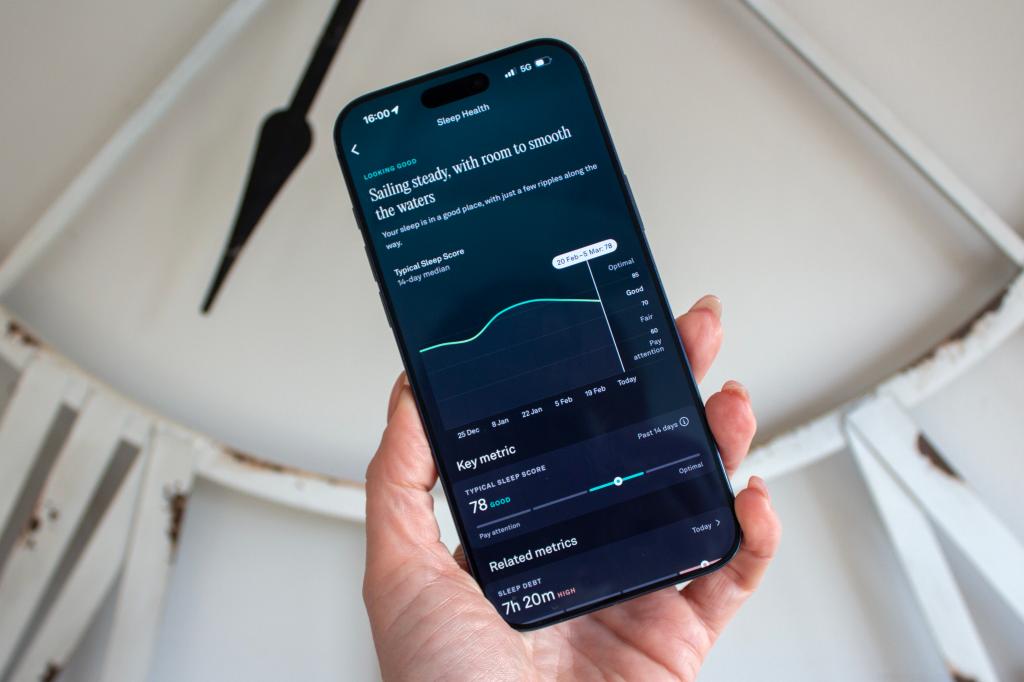
Once sleep tracking is turned on (Apple Watch doesn’t actually track your sleep unless you tell it to), build a sleep schedule. In the Sleep section of the Health app, tap Full Schedule and set your target bedtime and wake-up time for each day of the week. It’s worth setting each day individually if your Wednesday looks different to your Friday, or you enjoy a lie-in on the weekend (don’t we all).
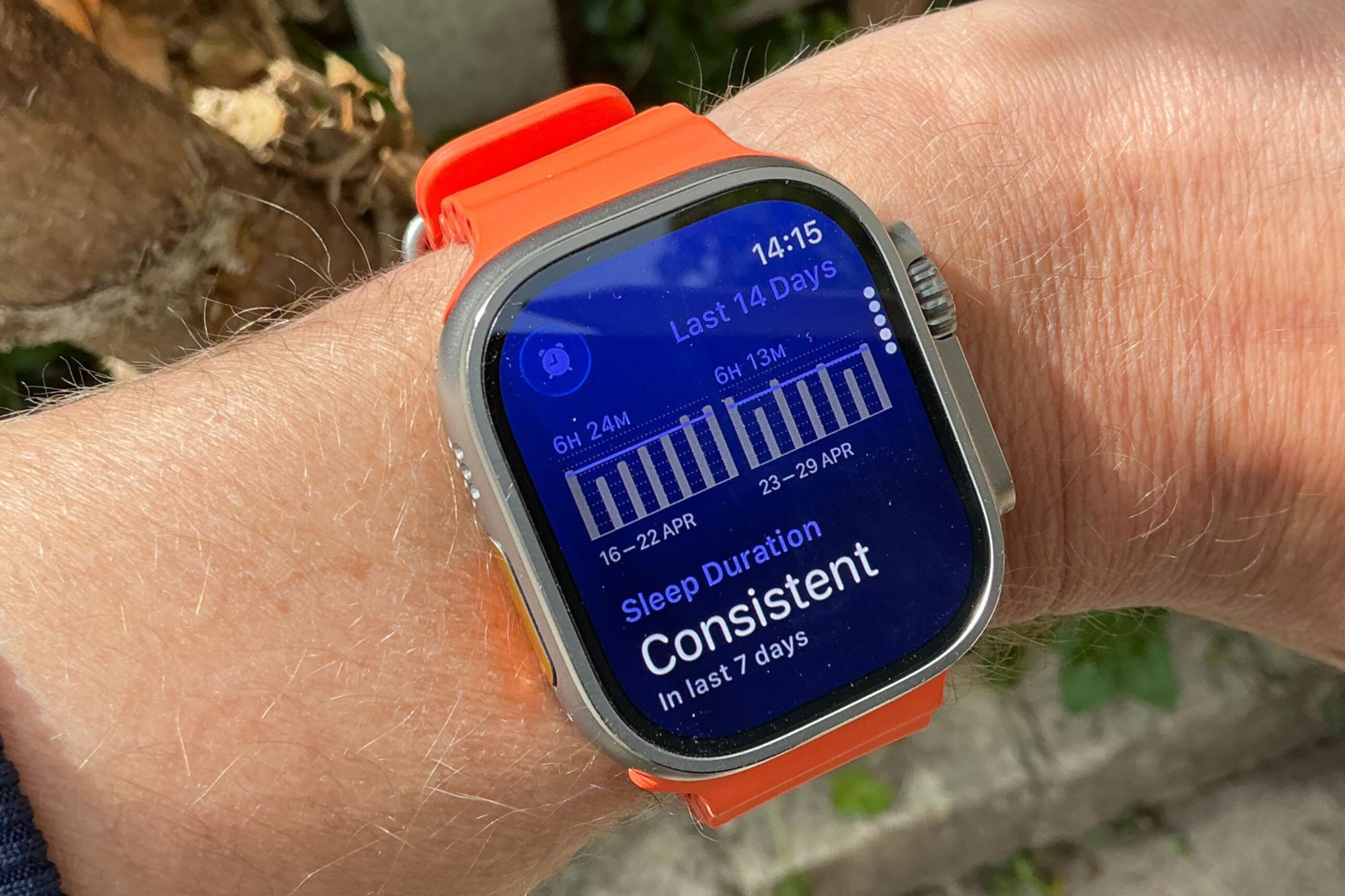
Apple Watch uses the schedule you set to contextualise your sleep data, comparing actual sleep to your targets and building up a picture of your habits over time (however bad they may be).
While you’re here, it’s also worth setting a sleep goal of at least seven hours because even if you struggle to get anywhere near that, it’s the threshold most sleep research suggests for adults, and Apple Watch will use it to nudge you in the right direction.

2. Fiddle with Sleep Focus
Sleep Focus is the mode that makes Apple Watch sleep tracking work – if you’re not in it, you aren’t going to be tracking your sleep. Set it up in a certain way, though, and it will kick in automatically based on your schedule (all these things tie together).
In the Sleep Focus mode, notifications will be silenced, the screen dimmed, and your watch will stop doing anything that might interrupt your sleep. There are a few extra settings you can implement here too, though, such as allowing certain contacts or apps to break through the focus and always be able to contact you.
Head to Settings on iPhone, scroll down to Focus and then tap on Sleep Focus. Make sure it’s set to turn on automatically by tapping on Schedule and then toggle on Use Schedule for Sleep Focus. You can also activate it manually from the Control Centre if your schedule is more chaotic than planned.
3. Turn on Show Time
With Sleep Focus active, your watch face goes dark, but that’s very unhelpful when you wake at 3am wondering whether you’ve missed your alarm and you’re going to be late for work. The fix is to turn on Show Time, which is buried in the Sleep Focus settings.
In Settings on iPhone, go to Focus, Sleep Focus and tap on Options under Customise Screen. You can toggle on Sleep Screen from here, which will then unlock the Show Time toggle. When on, a gentle tap on the display will show the time and date without blinding you or disabling the Focus.
4. Pick a wind-down period
This is the setting most will probably skip, but it is well worth doing. Wind Down is a buffer period before your scheduled bedtime when Sleep Focus activates early, nudging you away from screens. Think of it as Apple Watch gently tapping you on the shoulder and saying *put the phone down*.
You can set it anywhere from a few minutes to three hours and you’ll find it in the Health app on iPhone within the Sleep section. Tap Full Schedule & Options and scroll down to Wind Down.
5. Turn on charging reminders
Apple Watch’s battery life means it almost certainly can’t track your sleep every single night without a top-up during the day, unless you have the Watch Series 11 or Watch Ultra 3. But even on those, I’d advise activating charging reminders.
On the Watch app on iPhone, scroll down to Sleep and toggle on Charging Reminders. Your watch will alert you before your sleep window if its battery won’t make it through the night. A dead watch at 2am will tell you precisely nothing about your REM cycles, after all.
6. Turn on temperature tracking
If you have a Series 8, original Ultra, or anything newer than those, this setting should be non-negotiable. Wrist temperature sensing gives the Apple Watch a whole new layer to the data it can use – flagging deviations from your baseline that can signal illness, stress, or (for those tracking it) changes in menstrual cycle phase.
You’ll find temperature tracking in the Health app on iPhone under Body Measurements, then Wrist Temperature. It will also appear in the Vitals app as one of the five metrics measured every night. It takes around five nights to establish your baseline, after which the data can be very interesting.
7. Consider Sleep Score notifications
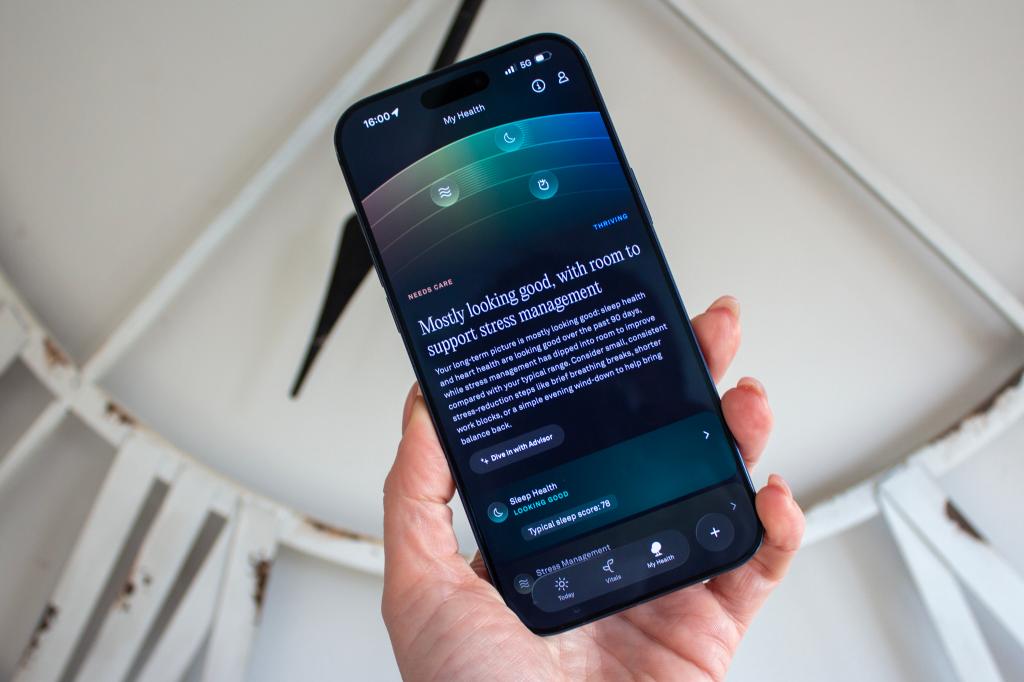
This won’t be a setting for everyone, but it’s worth mentioning that you can turn a notification on if your sleep score falls within a particular level. There are five levels from Very Low (0-40) to Very High (96-100) and you can tick as many or as few of those levels as you want when it comes to being notified.
You might choose to leave the notifications off entirely but if you want to be alerted when you have a slam dunk sleep score of 100, this is where to do that. Open the Watch app on iPhone, head to Sleep and tap on Sleep Score Notifications. You can then decide when you want to be notified about your sleep score.
Liked this? Running with an Apple Watch? These are the settings I change first




Read the full article here


