




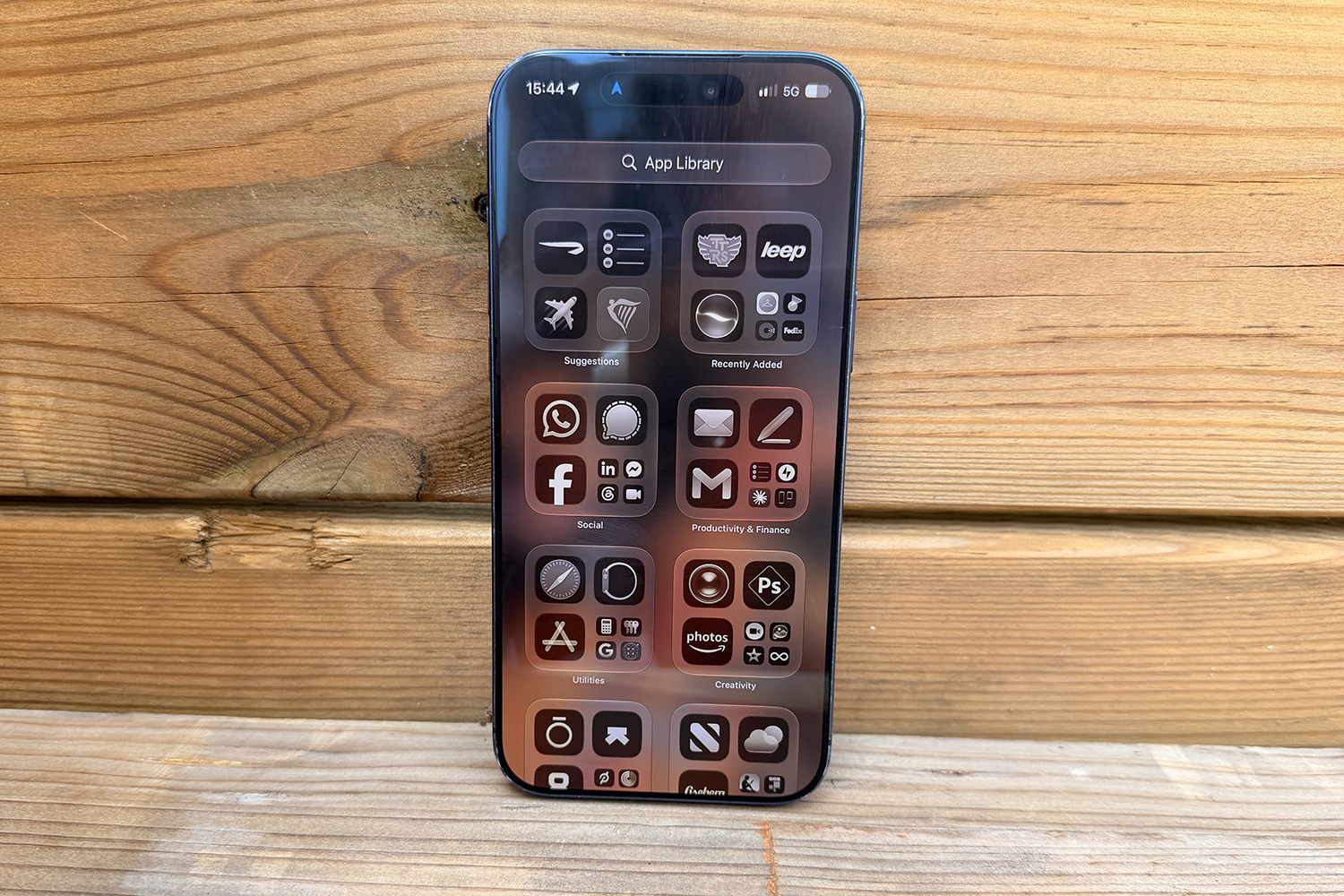
There are hundreds of thousands of apps in the App Store, several hundred of which are currently in my App Library, huddled in folders and opened on average once a month if they are lucky, with a few unlikely ever to grace my iPhone’s screen again. There are, of course, the standard apps that many of us use daily, from social media to banking, possibly a health and fitness app for your morning sleep score, or messaging apps like WhatsApp for the latest on whether anyone has found Timmy’s jumper.
But they aren’t the ones I’m talking about here. Instead, the five apps below are the ones I will prioritise downloading whenever I switch to a new phone for testing, usually before I set up my email. They are the ones that sit outside a folder, the VIP section of my home screen, if you will, and the ones that get used every day but not for life admin, like keeping up with the latest group chat on WhatsApp or firing off emails. These are the ones everyone should use because they are excellent.
Apple Reminders

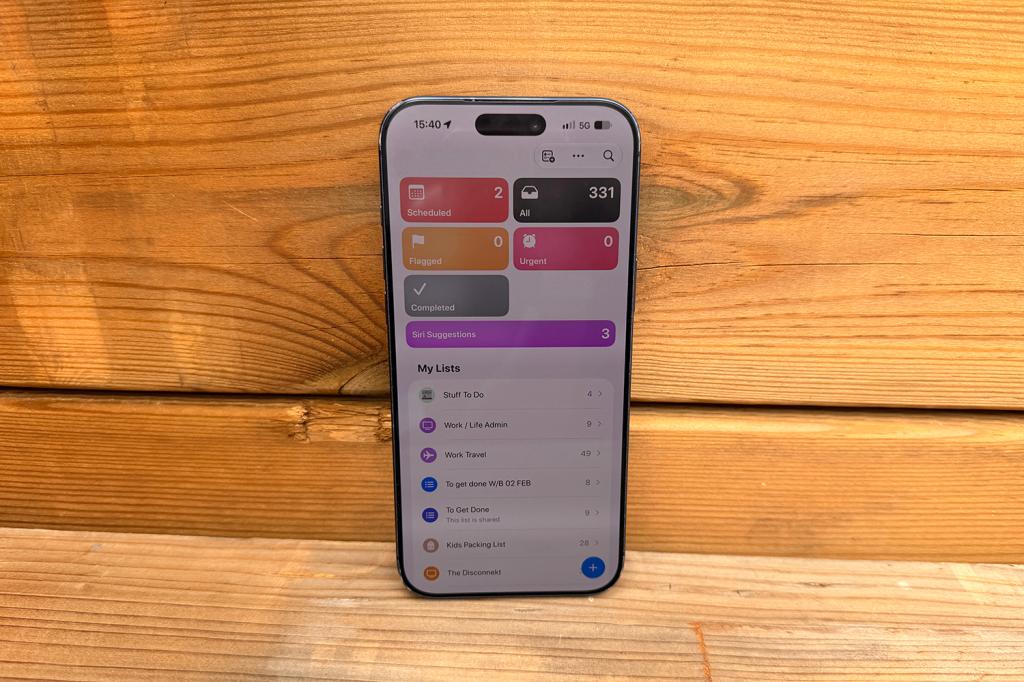
I love Apple’s Reminders app. Sure, other productivity apps do more – Structured, which is also on this list, is one of them – but the Reminders app is so simple to use and brilliant for keeping a to-do list in check. I use it for everything from travel packing lists – I have a work travel one that is wonderfully organised into about 10 columns because apparently my subconscious wants to work in spreadsheets – to a shared list with my husband of all the odd jobs that need doing in the house (currently 47 items strong).
You can add dates to each Reminder, include hashtags for filtering, and set an urgent flag for anything that needs doing straight away, so you can procrastinate on it for another month, but with the smugness of someone who has at least correctly labelled their procrastination. There are plenty of colours and icons to choose from, too, making it easier to distinguish lists from one another and with iOS 27, you can use natural language to add reminders so you don’t need to fill in each field separately; you can just shout “set a reminder for bins on Thursday”, and it will appear.
NYT Games
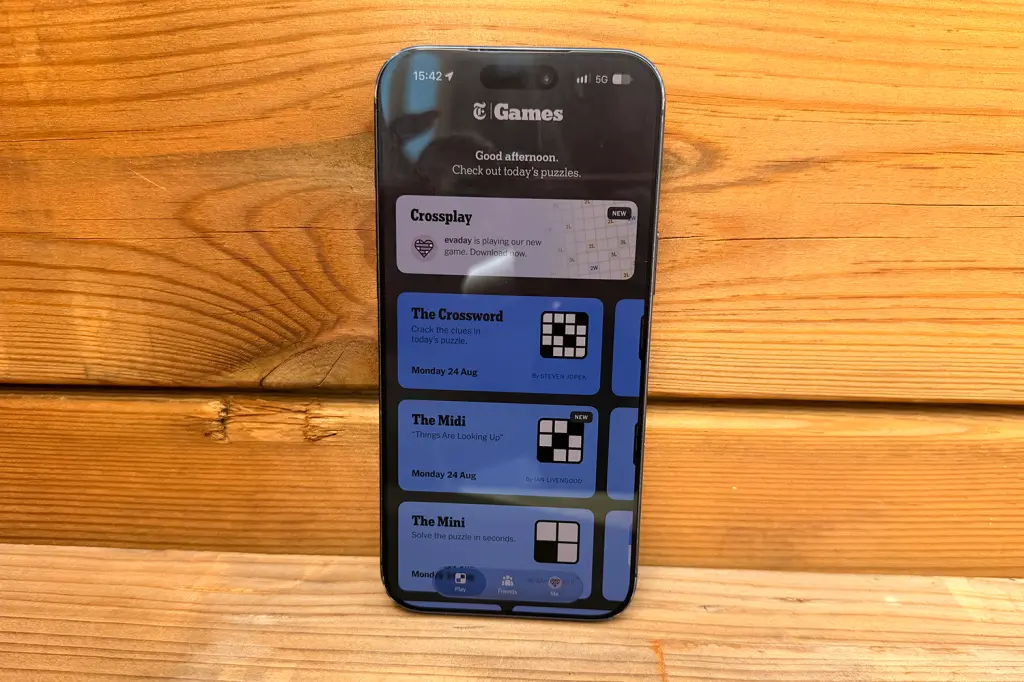
I managed to resist Wordle for years, because I didn’t need anything else to do before 9am – I already have plenty of pre-school drama lined up for that slot. But the New York Times Mini Crossword and its Connections game proved too tempting, and I have now been subscribed to the NYT Games app for the past two years, irritatingly hooked. I still avoid Wordle (it’s too stressful to come up with a different five-letter word every day; there are only so many times you can panic-type ADIEU and hope for the best), but I’m all about Connections, Strands and the Mini Crossword, all of which make the £24.99-a-year subscription worth it for me.
I love that all the games (and plenty more just as addictive) are in one place. The app is an absolute delight to look at, and features like the leaderboards for the Mini Crossword, Connections and Spelling Bee are a great way to find out quite how intelligent some of your friends are. There are also streaks to protect (basically Apple Watch rings all over again), plus win and solve rate percentages depending on the games you play, all of which are wonderful if you have even a flicker of competitiveness.
Citymapper
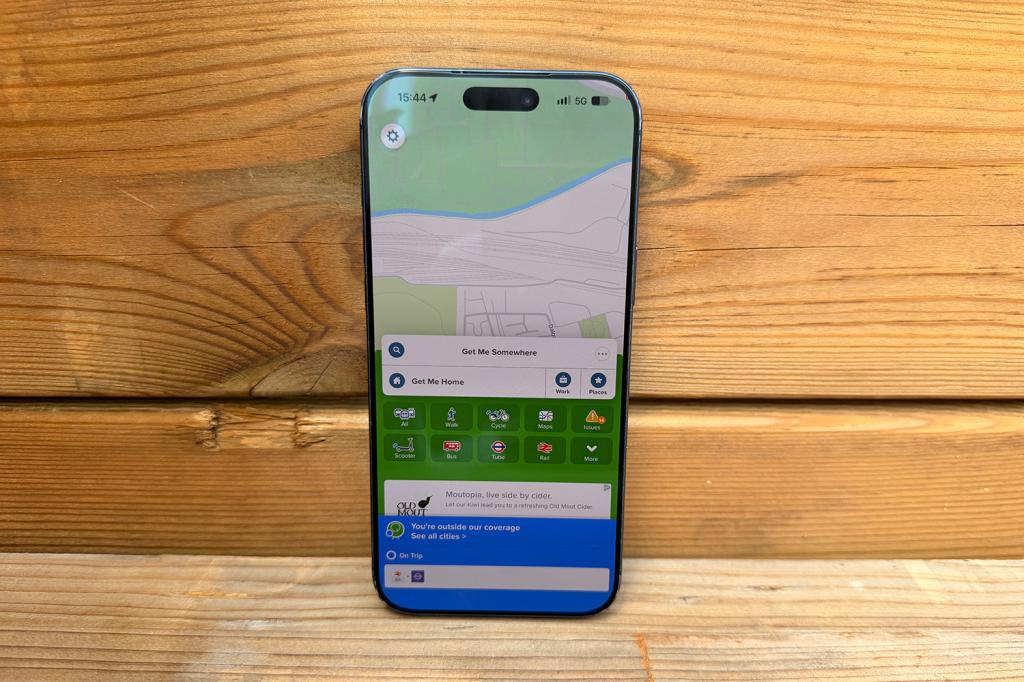
I open Citymapper before I even decide whether I am going to an event. Is it going to take me more than 1.5 hours to get there? If so, it’s a hard no. It plots routes across pretty much every mode of transport available within a city – tube, bus, car, train, bike, walking, tram if it’s an option, and even e-scooters. It doesn’t just tell you how to get somewhere, though; it will tell you which part of the platform to stand on, the best exit to use, and roughly how much each option will cost you.
I use it daily in London, but it’s also fantastic when you’re visiting a city you don’t know, whether that’s New York or Berlin, allowing you to use public transport so you can avoid sitting in traffic or handing your holiday budget straight over to a taxi driver. It’s saved me more times than I’d like to admit, and it’s brilliant for helping you look like you know where you’re going, even when you absolutely do not. I can’t imagine navigating a city without this app now.
Structured
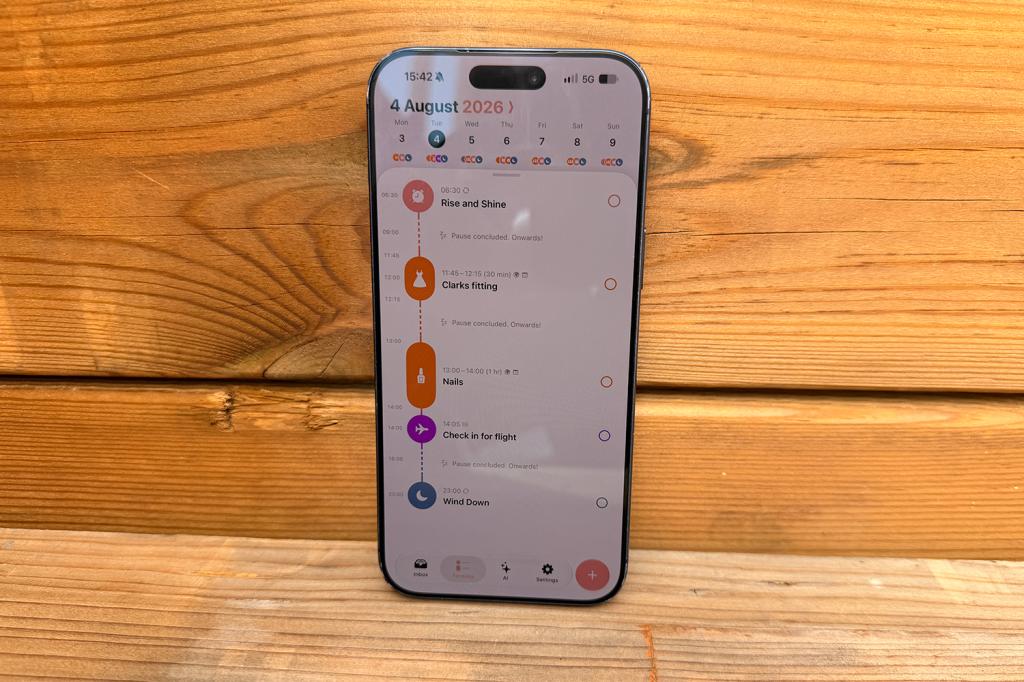
I first learned about Structured at WWDC26 during a Meet the Developers event. At first, I thought it was just another productivity app trying to guilt-trip me into being more organised. After a week of trying it out, though, I signed up for the Pro version. If you love a to-do list but need a little more structure (I see now where the name comes from), Structured turns your day into a visual timeline. It blocks out time for each task, and each block counts down like an egg timer so you know whether you’re on track or slacking.
It syncs with your calendar so meetings appear automatically alongside everything else, offers suggestions based on what’s in your Reminders app if you use it, and syncs across iPhone, Mac and iPad so it’s easy to keep track of whatever platform you’re using. I used Structured mainly to timebox my writing, admin, and other life admin tasks that I’d otherwise let fill an entire afternoon. It doesn’t replace Reminders for me, but the two work together nicely, and this app is brilliant for seeing your day rather than just listing what you’re going to ignore.
Apple News
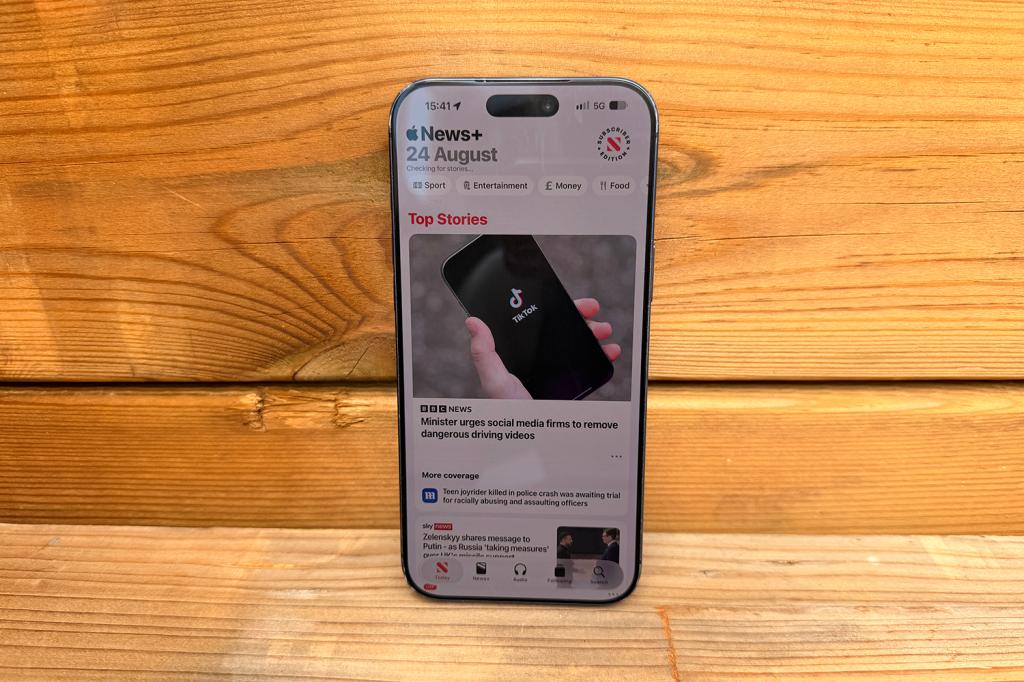
I open Apple News every time I have a few minutes to spare, mostly as a moral shield against doomscrolling on social media, like the broccoli I make myself eat before I can have the chocolate. It pulls together stories from a wide range of publications, learns what you click on so you get recommended stories you’re more likely to be interested in, and allows you to follow specific topics, titles and channels. There’s a great website and magazine worth adding that starts with an S and ends with an F (wink, wink).
Elsewhere, you can search across topics from sport to politics, save stories to indulge in later (a pile that grows faster than you’ll probably ever be able to read), and filter top stories from a general view across all sections down to just the sections you want to see, such as Tech, Sport, Money or Entertainment. Apple News+ throws in magazines and puzzles alongside the news itself, so it’s basically a waiting room in your pocket, minus the two-year-old copy of Take a Break. In general, though, it’s a very calm way to consume news, with none of the chaos of having multiple notifications from six separate newspaper apps all telling you about the same story, like an over-enthusiastic group chat.
Read more: How to make Liquid Glass less distracting on your Mac, iPhone and iPad with this year’s new updates




Read the full article here


