

Your Mac is waggling an upgrade to macOS Golden Gate in front of your face. Should you click Upgrade? Maybe. But should you click the magic button before taking a backup of all your precious data? Absolutely not.
Upgrades can go horribly wrong, turning your Mac into the digital equivalent of a shiny brick. Or maybe your Mac will restart but stare blankly back when you enquire as to the whereabouts of your data. So don’t let that happen.
Do one or more of the things below instead.
The Stuff essential guide to Apple’s latest software updates
1. Just say no
No one is forcing you to upgrade your Mac. Apple CEO John Ternus probably won’t rock up and throw obsolete iPods at your window if you decide against installing Apple’s latest and (it would say) greatest. So just… don’t update. Then sit back and enjoy the fact your Mac still works, basking in the glow of your own smugness.
Also, if you’re rocking an Intel Mac, you can’t update to macOS Golden Gate anyway, because Apple’s binned Intel support. Sorry.
2. Back up your Mac
At some point, you’ll want to upgrade. Maybe you’ll want to experience shiny new macOS features. Perhaps apps will go Golden Gate only. Or you’ll just be sick of John Ternus smashing all your windows. So here are ways to back up your Mac and safeguard your data:
Secure your iCloud data: These days, lots of files lurk in limbo between local and remote storage. So follow Apple’s guide to archiving iCloud files. Do this prior to other backups.
Use Time Machine: Grab an SSD that has capacity larger than your Mac’s internal drive, plug it in, and it’ll start backing up.
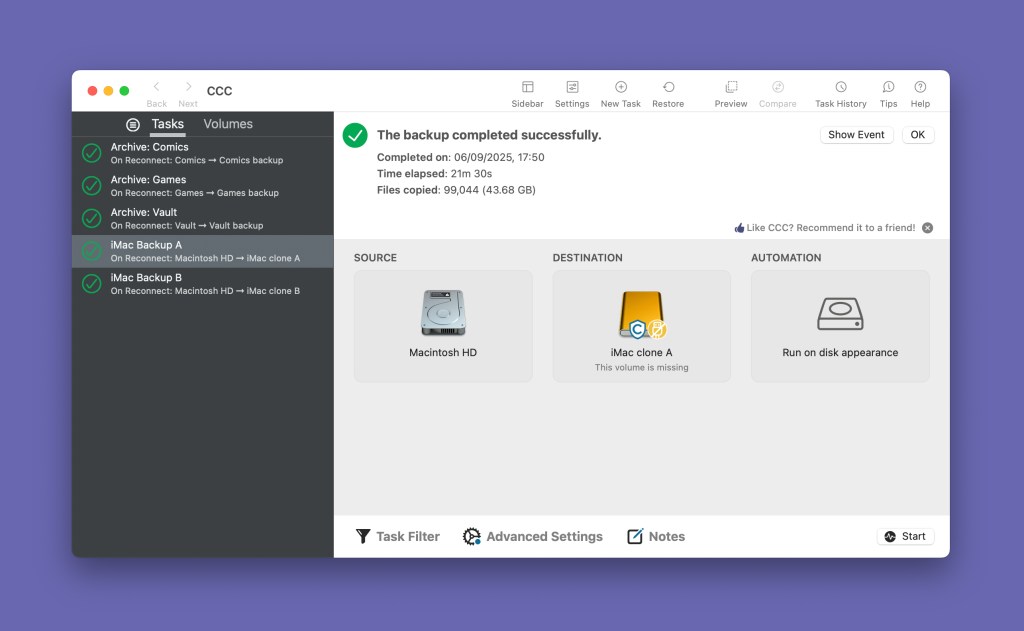
Clone your Mac’s data: Time Machine is designed for data restoration. Finding stuff in the backup can be a pain. Carbon Copy Cloner is our favourite Mac app for creating a browsable external copy of everything on your Mac. And, yes, you’ll need another external disk. Two if you want to secure your cloud files as well. But that’ll be money well spent if the macOS Golden Gate update propels your Mac out of the window and into a ravine.
Take it online: “But what if my house vanishes in an inexplicable wormhole?” you might say. Good point. So consider adding another layer of data protection by way of off-site backup using the likes of Carbonite, Backblaze or Acronis.
3. Twiddle your thumbs
Backing up and cloning can take ages. So take a walk! Drink some tea! Play around with some great new apps and games! Just don’t get impatient and prod Update. Because, you know, RAVINE.
4. Test your backups
Backup apps tend to be reliable. But check your backups work. Poke around a bit. Open some files. If everything looks good and you’ve taken a clone, bung it in a drawer and start afresh with another SSD in your macOS Golden Gate world.
At this point, you can actually install macOS Golden Gate. Even if your Mac isn’t catapulted out of the window and into the heart of the sun, leave your clone alone. You never know when you might happen across a broken or missing piece of data, or find a critical app no longer works.
Oh, and do then keeping backing up. Multiple times. Time Machine will back up constantly. Carbon Copy Cloner will make an incremental update, when you tell it to. Because, as the saying goes, if you don’t have at least three copies of your data, you don’t really care about it. And if it all goes up in digital flames, you’ll only have yourself to blame.


Read the full article here
