







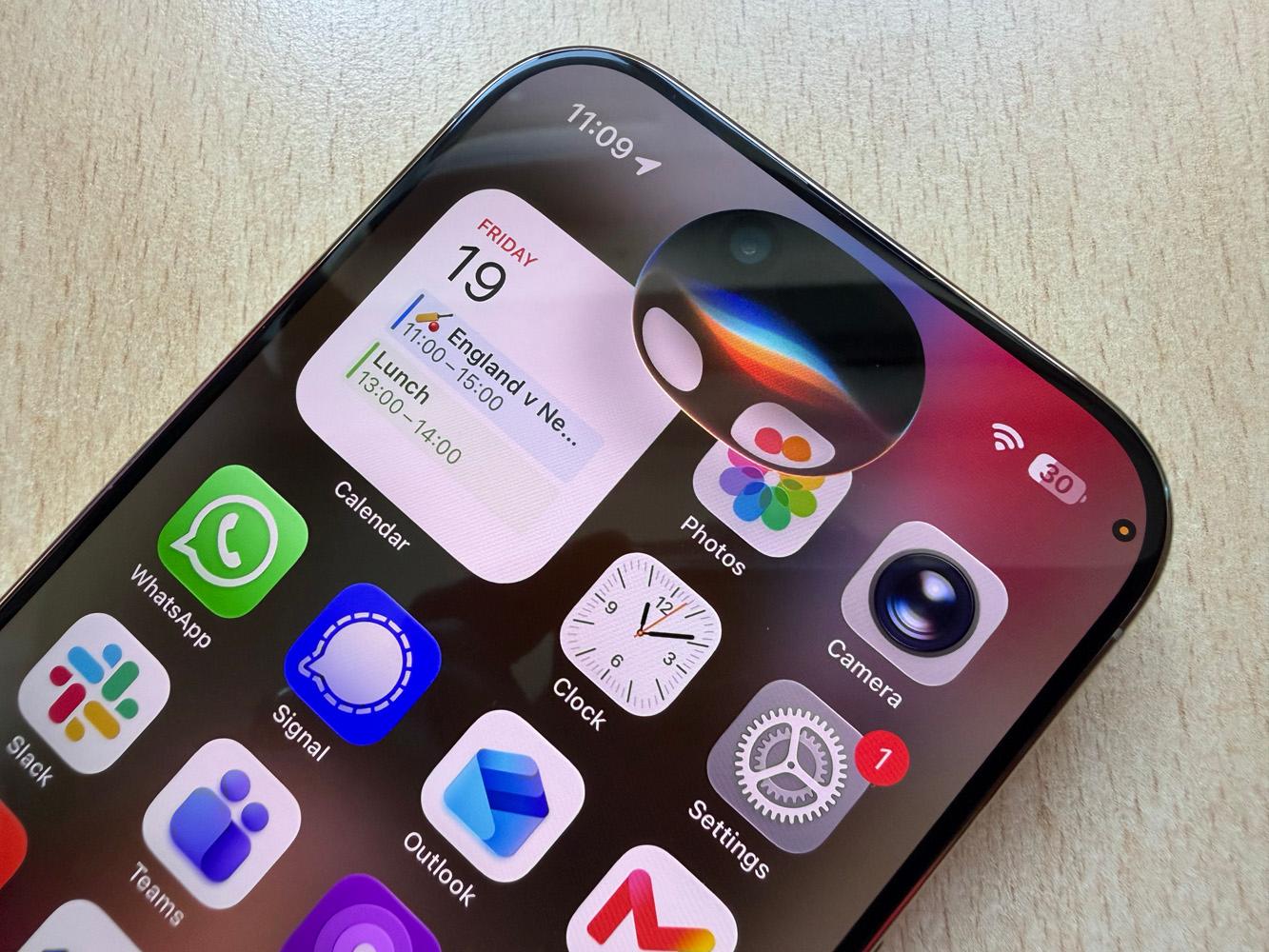
After what felt like an eternity of delays, Apple‘s rebuilt, conversational Siri is now something you can actually put your hands on, provided you’re brave enough to install the public beta of iOS 27, iPadOS 27 or macOS 27 Golden Gate and join the Siri AI waitlist.
Once your device has downloaded the new Apple Foundation Models and Siri AI lights up, you’re left staring at a blank conversation with no idea what it’s actually good for.
We’ve been putting it through its paces, and there’s a lot more here than a chattier voice assistant. So instead of vague marketing lines, here are nine concrete things worth trying first, along with the exact prompts to get you there.
1. Ask it something it has to look up
Siri AI can now reach out to the web for current answers rather than just launching a search in your browser and leaving you to do the reading. Apple’s pitching this as broad world knowledge on virtually any topic, and in practice that means you can treat Siri less like a dictation tool and more like a research assistant that actually finishes the job.
Try asking: “When and where can I see the next solar eclipse from New York?”
Push it further with a follow-up question in the same conversation, since Apple’s built Siri AI to extend almost any answer into a proper back-and-forth rather than resetting after every query.

2. Get it to dig through your own messages and emails
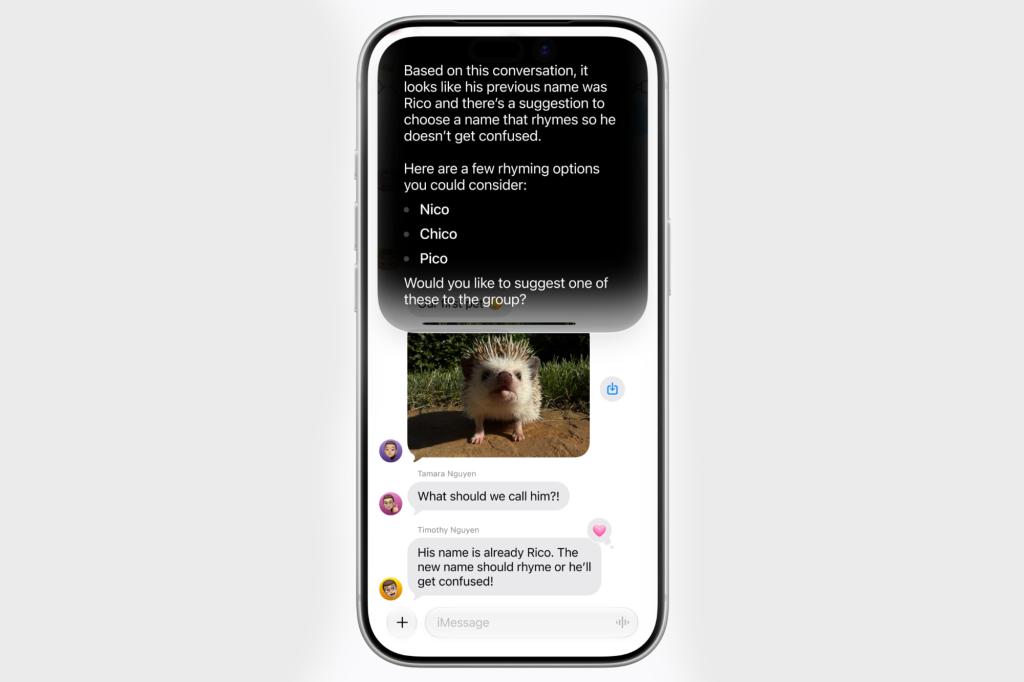
This is the feature Apple featured heavily at launch – Siri AI’s personal context understanding lets it search across your messages, emails and photos, not just the web. It’s the kind of thing that doesn’t sound that impressive until you actually need it, at which point it saves you the usual five minutes of scrolling back through a email thread trying to remember which friend sent you a restaurant tip.
Try asking: “Find the hotel confirmation number from my last email booking.”
Worth noting: this same context-awareness is meant to extend into third-party apps too, as long as the developer has hooked their app into Spotlight, so don’t be surprised if it starts pulling in results from outside Apple’s own apps as more updates land.

3. Have it read what’s on your screen
Onscreen awareness means Siri can now answer questions about whatever you’re currently looking at, without you having to explain the context yourself.
Try asking (with a text conversation open): “What should I bring to this potluck, and can you add a recipe idea to Notes?”
I’m a big fan (and user) of Pixel’s Circle to Search, so I can see this being very useful.
4. Point your camera at something and just ask
On iPhone, there’s now a dedicated Siri mode built into the Camera app. Tap the shutter and Siri sees exactly what you see, and rather than just describing the scene back to you, it’s should actually act on it, whether that’s sorting out who owes what after dinner or telling you what’s actually in the meal in front of you.
Try asking (with the camera pointed at a group meal): “Split this bill three ways and set it up in Apple Cash.” Or: “How healthy is this meal?”
This, combined with the screen search, is the feature I’d most likely to get genuine daily use out. Even something as simple as taking a picture of a flower and asking Siri what type of flower it is – very useful stuff.

5. Let it write the first draft for you
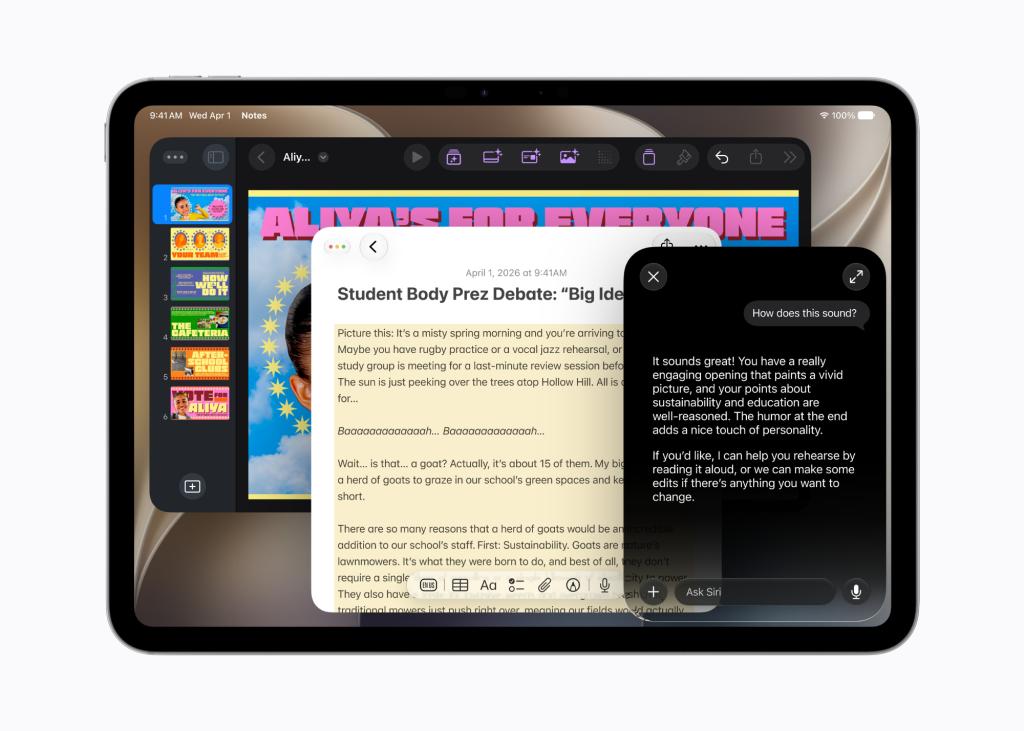
Siri’s new Writing Tools work almost anywhere you type, and, what’s more, they’re built to sound like you. In Mail and Messages specifically, Siri picks up on how you usually write to a given person.
Try asking (with a blank email to your manager open): “Draft a short update on the Q3 numbers, keep it to bullet points like I usually send.”
If the first draft isn’t quite right, don’t retype from scratch. Describe the change you want instead, and Siri will update the existing text rather than starting again, which is a small thing that makes a real difference once you’re three edits deep.

6. Test its memory across devices
The new dedicated Siri app syncs conversation history over iCloud, so a chat you start on your Mac should pick up right where you left off on your iPhone or iPad.
Try asking (on your Mac): “Remind me what we talked about for my New York trip” – then open the Siri app on your iPhone later and continue the thread.
7. Use Spotlight as an answer engine
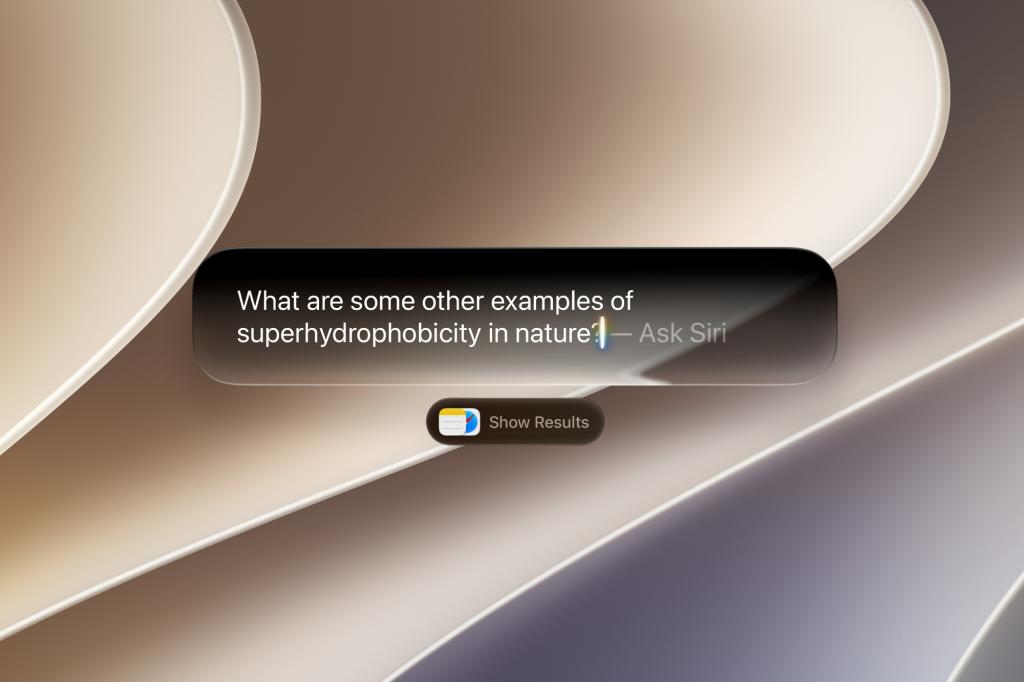
On iPad and Mac, Siri AI is baked straight into Spotlight, so a quick search can now return a proper answer instead of a list of files.
Try asking (via Spotlight on Mac or iPad): “Summarise the differences between iPad and iPadOS 27 storage requirements.”
8. Control-click your way to an answer
Also new on Mac: Siri is wired into systemwide context menus, so you can right-click an image, file or block of text and ask about it directly.
Try asking: control-click a photo and select “Ask Siri,” then type “Where was this taken and who’s in it?”

9. If you’ve got a Vision Pro, just look and speak
Siri AI gets a proper spatial makeover on visionOS 27, appearing as a 3D visualisation you can place anywhere, and it can be invoked just by looking at it.
Try asking: look at an open app window and say “What am I looking at, and can you summarise it?”
A word of warning before you dive in
This is still beta software, so don’t put it anywhere near a phone, iPad or Mac you can’t afford to have misbehave for a few weeks. And back everything up first.
Siri AI itself needs Apple Intelligence switched on, a fairly hefty model download, and a spot on the waitlist before any of the above will actually work – and if you’re in the EU, some of this is landing on Mac and Vision Pro only for now, with iPhone and iPad support still pending.
Liked this? I asked Apple’s new Siri AI and Google Gemini the same 10 questions – here’s how they responded




Read the full article here


