






Email. It’s horrible. There’s far too much of it. But if you’re buried in inbox hell, have no fear, because these Gmail tips should help you clamber out. (Eventually.)
Gmail tips: the basics

Find what matters
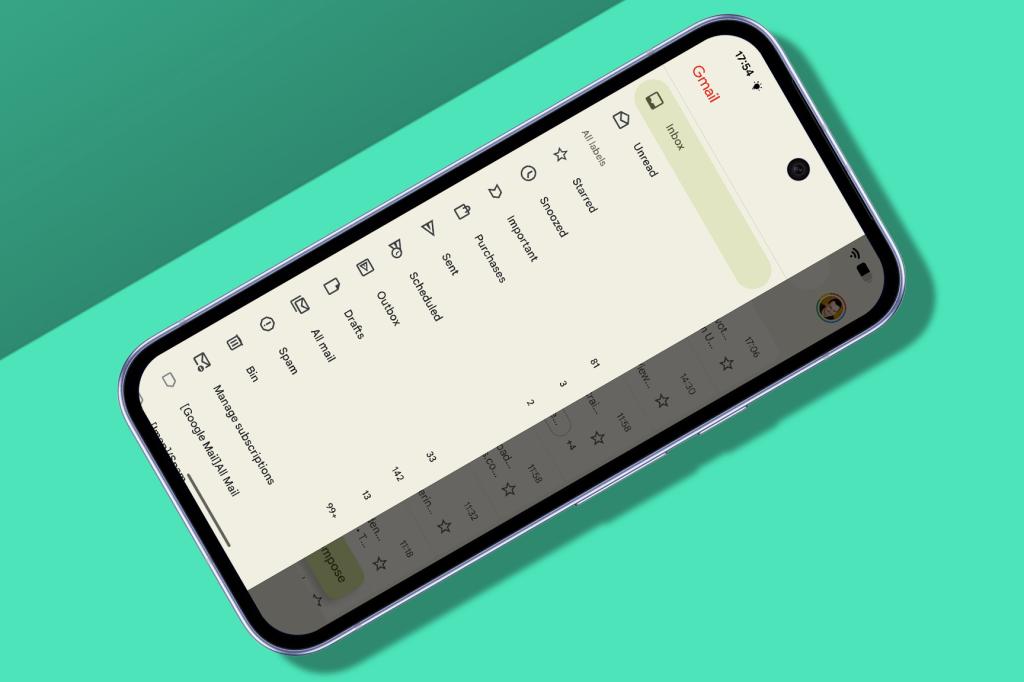
Gmail’s design is typical Google minimalism: an inbox front and centre, a big search bar up top, a sidebar button top-left (where you’ll find Settings) and your profile button top-right. AI is on the way, but for now, go to Settings > [email address if on Android] > ‘Inbox type’ to decide which emails are listed first.
Add labels
Use ‘⋮’ > ‘Label as’ to tag any open email. Messages can wear multiple labels at once, and even ‘Inbox’ is technically just another label. You can also move emails directly ‘into’ labels, which sound like folders until you remember one message can be in several places at the same time.
Type less
Typing on a phone is a chore; Gmail makes things easier. Scroll to the bottom of an email and you’ll often find one-tap reply suggestions. And while you are typing, automatic suggestions may appear – swipe right to accept them.
Secure your email
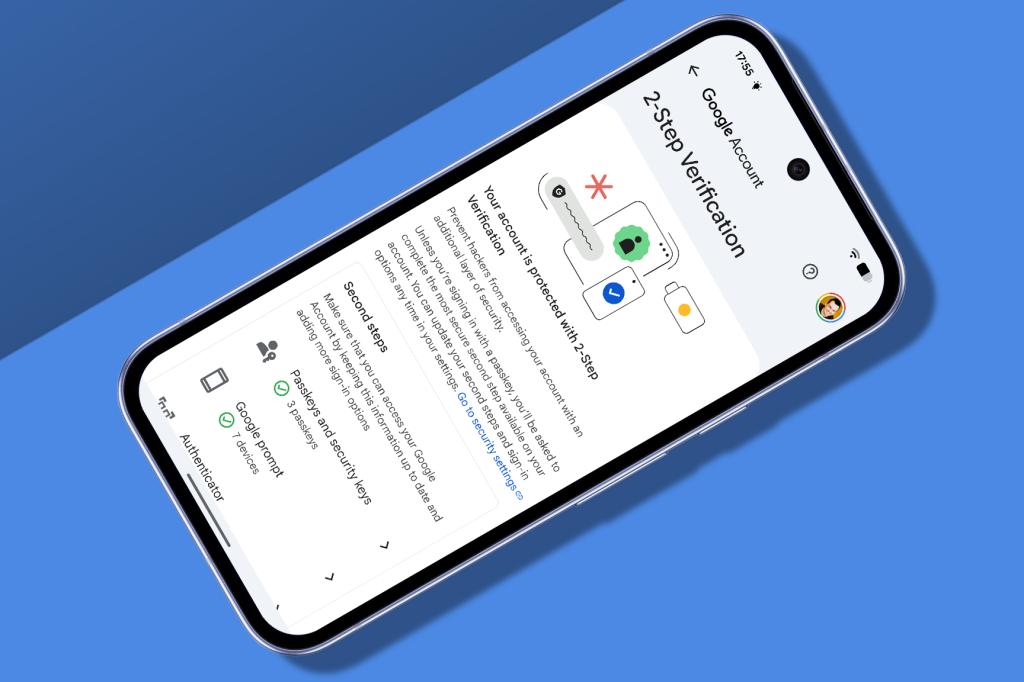
Tap on your profile pic, head to Security and turn on two-factor authentication. This is the best way to make your Google account (and therefore your Gmail) harder to hack. For extra paranoia points, protect yourself from Google one day nuking your account completely: link Gmail to a third-party app like Apple Mail for local copies, and occasionally use takeout.google.com to download a full archive in MBOX format.
Plus it up
When signing up to an online service, add a ‘plus’ to your address to make it specific: ‘[email protected]’ still lands in your usual inbox, but now – in Gmail on desktop – you can create filters that will bin incoming messages when a ‘plus’ address has gone spammy.
Annoy everyone
Rather than tapping Reply or Forward beneath an open email, you can use the emoji icon to send a reaction. Although you really shouldn’t, unless you want everyone you deal with to think you’re incapable of stringing a sentence together. (Hashtag old man shaking fist at sky.)
Blaze through emails
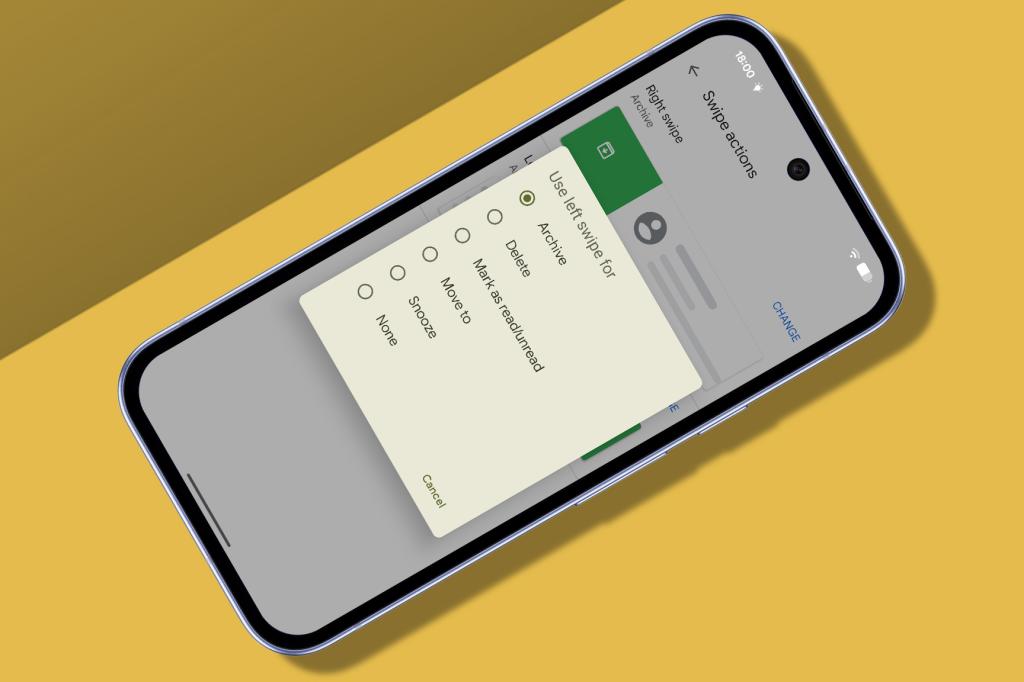
Swipe to wipe
Swipe any email in your inbox to archive it. In Settings > ‘Inbox Customisations’ (iOS) or Settings > ‘General Settings’ > ‘Swipe actions’ (Android), you can change actions for left or right swipes to delete, mark as read, move or snooze.
Move faster
Delete an open email and Gmail returns you to your inbox, which can slow down progress. Speed things up on Android by turning on Auto-advance in those general settings.
Trim the fat
Kill space-hogs
Google gives you 15GB of free storage. Tap your profile pic to see what you’ve used. Want more? You can pay $19.99/£15.99 per year for 100GB… or use searches like ‘larger:2m’ or ‘older_than:1y’ to find redundant emails to delete.
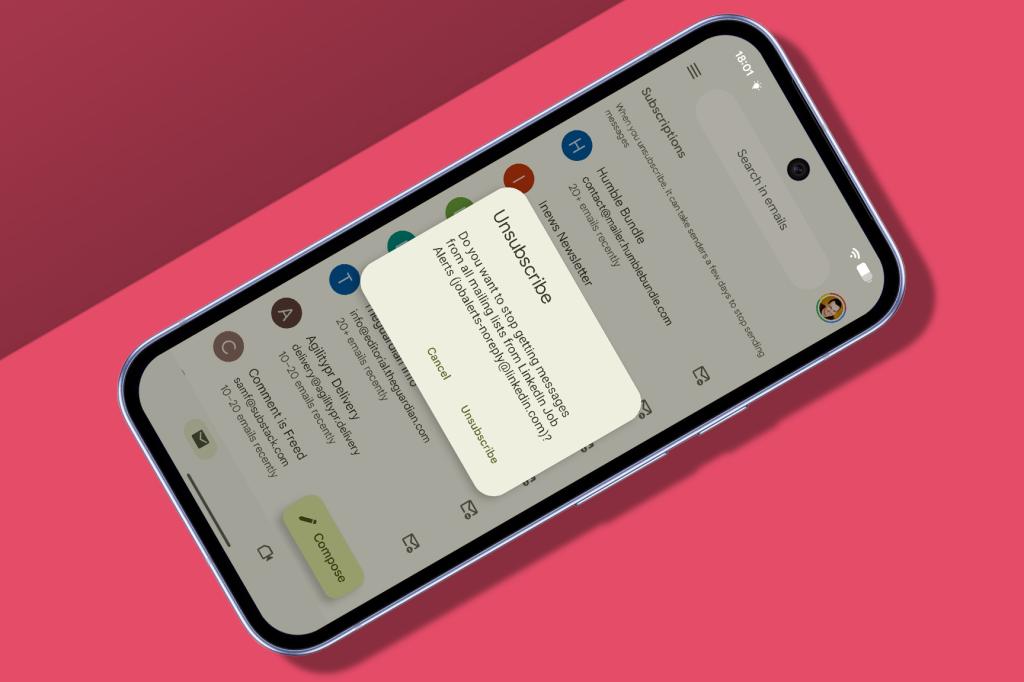
Cull subscriptions
When Gmail spots an email from a mailing list, it offers you the chance to tap Unsubscribe. To annihilate mailing lists, go to ‘Manage subscriptions’ in the sidebar and hit the delete button next to anything unwanted.
Travel in time
Sort it later
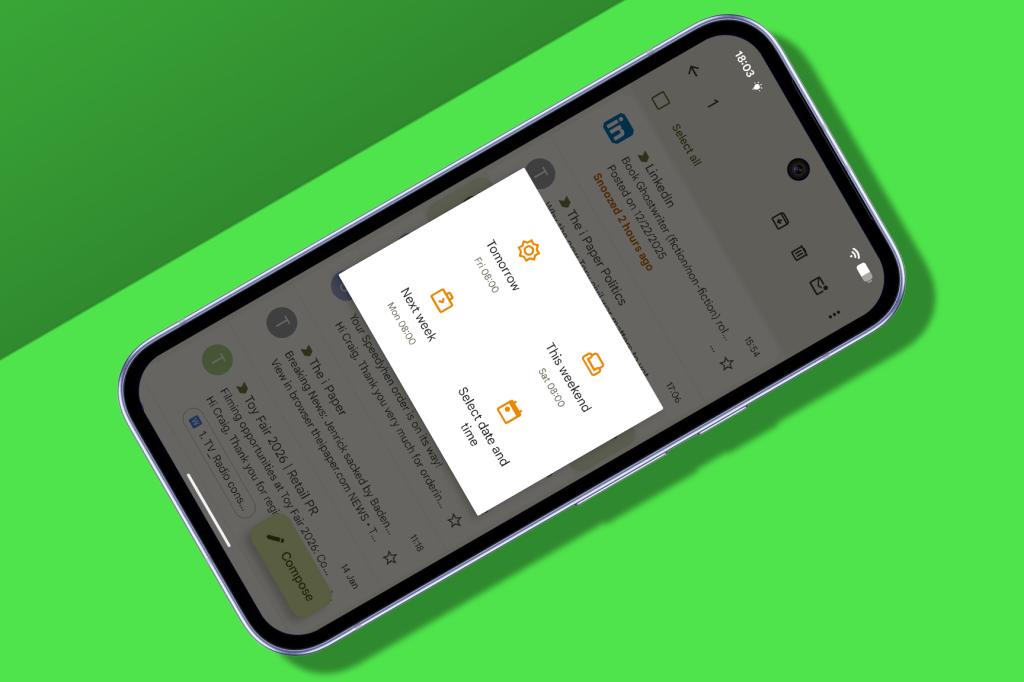
Can’t be dealing with an email right now? Use ‘⋮’ > Snooze to punt it into the future. It won’t be deleted forever – rather, it’ll just lurk in the sidebar’s Snoozed area.
Pick your moment
If you’re being absurdly productive and organised, you can write emails and decide when best to send them. Instead of tapping the send button, go to ‘⋮’ > ‘Schedule send’, pick a time and feel mildly smug.
Hit the brakes
What if you send by mistake? Arrrgh! Plans ruined! Except no, because Gmail gives you a five-second window to hit Undo. Need a longer delay? Use Gmail in a web browser after tweaking ‘Undo Send’ in Settings > General.
Check your spam
Rescue email
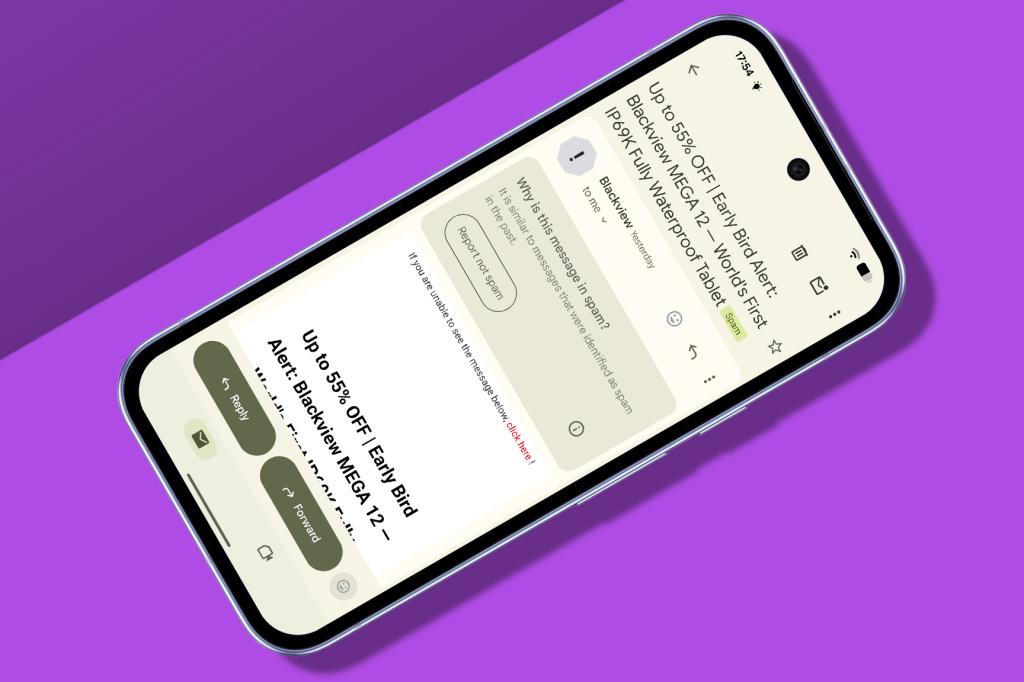
Google does a reasonable job of keeping your inbox free from cruft, but do periodically visit the Spam sidebar label to check for false positives. You can easily move good emails out into your inbox.
Fix misfires
Tap the ‘Report as not spam’ button within any emails that you’re OK with, and subsequent messages from that sender should be sent to your inbox. That doesn’t always work, mind, so do continue to check.
Other options for email

Proton Mail
Google’s reputation on privacy is not stellar. If that’s a key concern for you, Proton is a good alternative. It blocks trackers, offers end-to-end encryption, lacks ads and has loads of fancy features.
Get Proton Mail ( from free)
Spark
Spark’s been banging the AI drum under the guise of getting you to what’s important more rapidly. It attempts to highlight key emails and people (and block garbage) so you can focus better and refine your workflow.
Get Spark (from free)
Shortwave
Ever wondered what a bunch of ex-Google engineers would do with email given the chance? Shortwave is the answer. It’s worth checking out for a peek at the AI-drenched, humanity-destroying future of email. £free or $14/m
Get Shortwave (from free)




Read the full article here


