






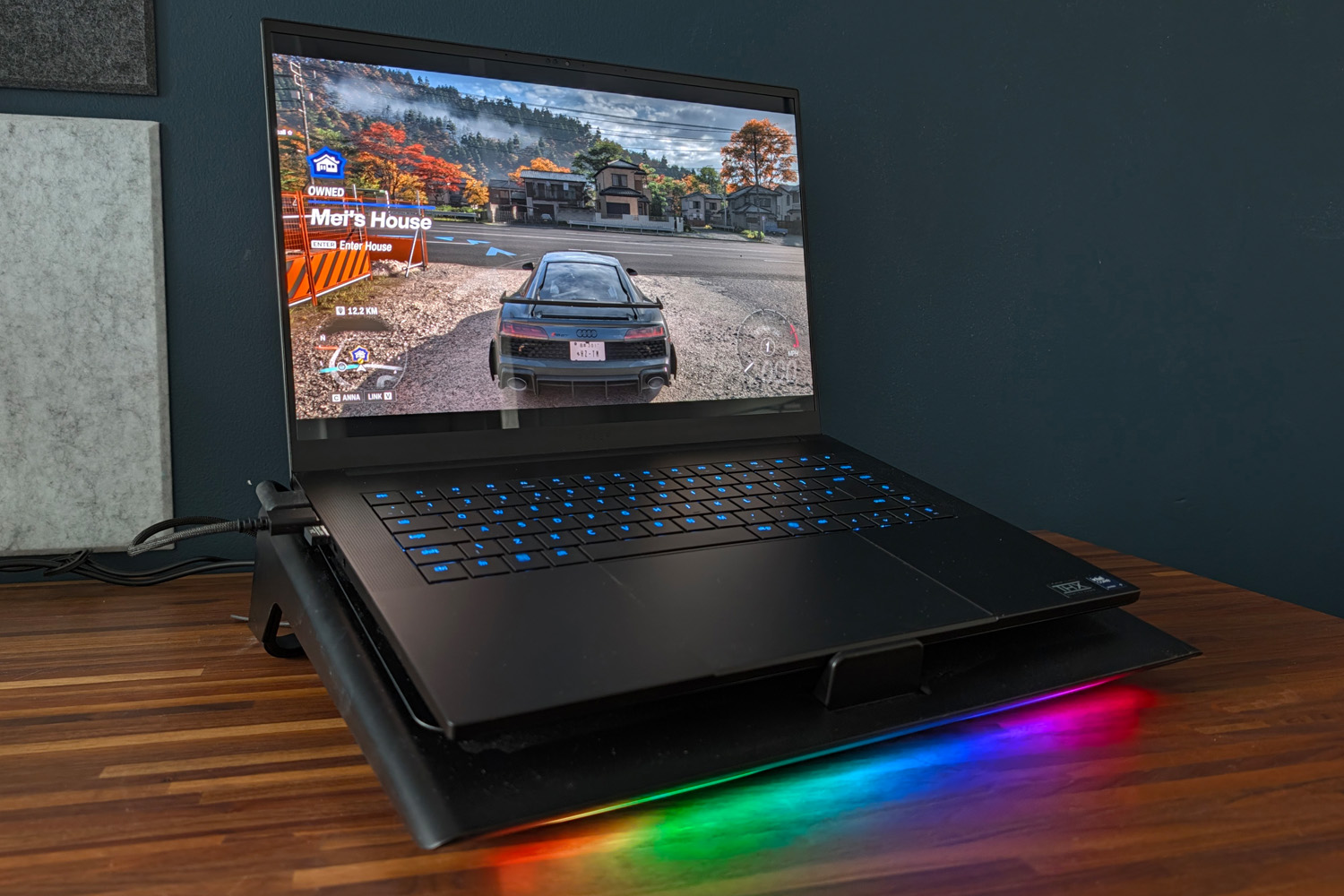
The Razer Blade 16 (2026) is already a powerhouse in top-spec form, squeezing Nvidia’s monstrous RTX 5090 Laptop graphics into a chassis sleek enough to take just about anywhere. But I’d never say no to even a bit more performance – especially when no warranty-busting overclocking or voltage adjustments are required. The firm’s Laptop Cooling Pad promises exactly that.
It’s been out for a while now, but I only recently got hold of one to see what impact a software update (which introduced a clever Hyperboost mode specific to Razer hardware) would have on frame rates as well as temperatures.
The good news? My games absolutely did run better. By enough to justify the $150/£130 asking price, though? That’s a different matter…
The Razer Laptop Cooling Pad at a glance
Laptop stands with active cooling are nothing new, but Razer’s effort is a little more bespoke. The large angled platform props your notebook up at a more ergonomic working angle and clears a path to its air vents, helping cooler air in and warmer air escape more easily. A large 140mm fan then lends a hand.
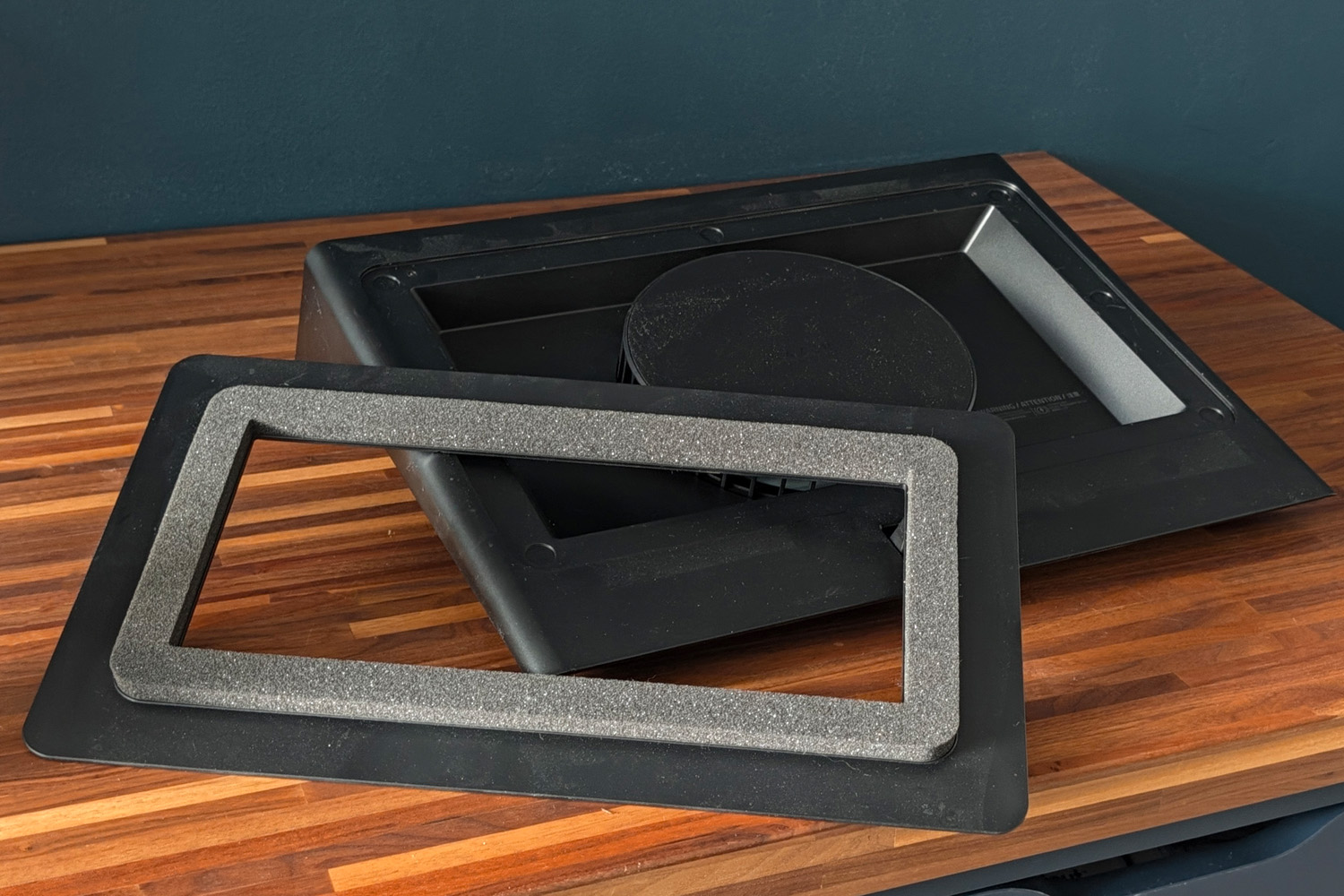
Except here that fan is ‘sealed’ around your notebook’s underside in such a way as to force cool air inside, which in turn forces the hot air out more efficiently than the laptop can on its lonesome. Three included plates have chunky foam padding to suit 14in, 16in or 18in laptops; magnets hold each one in place but make swapping them out a breeze. The foam perfectly surrounded my Blade 16’s underside fan grilles, ensuring maximum airflow to its hot internal components.
You’ll use one of your laptop’s USB-A ports plugging the Cooling Pad in, but there’s a trio of extras at the rear of the pad to make up for it. These came in handy for peripherals I’d never take with me when travelling, like my keyboard and webcam. Of course Razer couldn’t pass up an opportunity to stick RGB illumination somewhere, so there’s also an LED strip at the front of the Pad to give your desk a rainbow underglow.
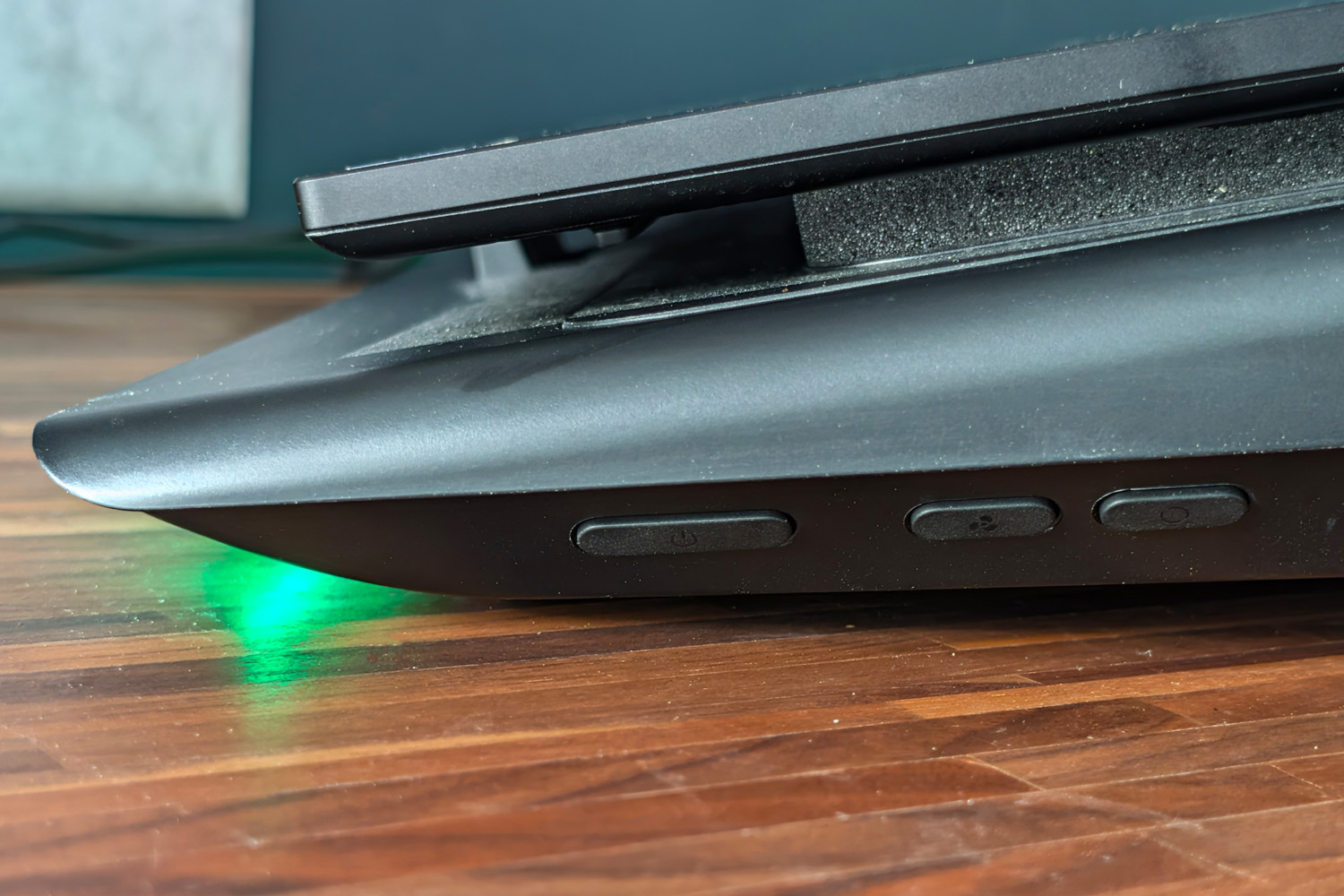
Three buttons at the side control power, lighting and fan speed, but the smart thing to do is to install Razer’s Synapse software. This lets you tie smart fan curves to specific games, so the fan only ramps up when you’re playing. Hyperboost goes even further, letting the Blade 16 push its CPU and GPU power limits that little bit higher than it otherwise might.
What the Razer laptop cooling pad gets right
There’s no question this results in better performance than simply playing on the laptop at a desk on its lonesome. Across all the titles I tried, every one saw frame rate increases. Shadow of the Tomb Raider climbed by 17fps at the Blade 16’s native resolution, an improvement of more than 10%. Cyberpunk 2077 in RT Overdrive mode, meanwhile, only gained 2fps.
Games that aren’t GPU-limited have the most to gain here, while those that are already pushing the silicon hard won’t see much of an improvement. As a one-touch boost that won’t hurt battery life when you take the laptop off of mains power, though? It’s hard to grumble.
| Razer Blade 16 (2026) gaming benchmarks | Laptop only (2560×1600) | Laptop and cooling pad |
| 3DMark Steel Nomad | 6029 (60.29fps) | 6330 (63.3fps) |
| Gears Tactics | 145fps | 152.8fps |
| Shadow of the Tomb Raider (RT on) | 107fps | 129fps |
| Cyberpunk 2077 (Ultra, RT off) | 93.2fps | 99.21fps |
| Cyberpunk 2077 (RT Overdrive, path tracing) | 25.67fps | 27.52fps |
Temperature drops were even more impressive. It varied between games, but on average I saw a 9-10 degrees Celsius difference between gaming without the Cooling Pad and using it. Keeping your components at lower temps will help maintain their life long-term, which will be great news after dropping something in the region of $5000 on a laptop.
Where the Razer laptop cooling pad falls down
This is a fairly big chunk of metal and plastic (mostly plastic) to find room for. My home office was originally set up for two-person working so I’m not short on space, but smaller desks may struggle. That’s especially true if you usually put your laptop off to one side in favour of a dedicated gaming monitor.
Cable management obsessives will be a little irked at needing to have a spare plug socket handy, as the cooling pad only runs when on mains power. This is mainly to power the USB hub at the rear, as a single 140mm fan could absolutely be run off a USB port.
I’ve also noticed the Cooling Pad accumulates dust at a rapid pace. Any gadget with a fan will do the same, but the all-black finish shows up dirt pretty much instantly.
My big issue is how incredibly LOUD this thing gets when running at full speed. At the maximum 3200rpm it’s noisier than my desktop gaming PC, so I absolutely had to use headphones while playing. Without Synapse installed you’ll constantly be reaching for those side buttons to change the fan speed manually when jumping in and out of games. Razer’s software has its detractors, though I’ve found the latest version to be less troublesome than the older v3.
Should you buy the Razer laptop cooling pad in 2026?

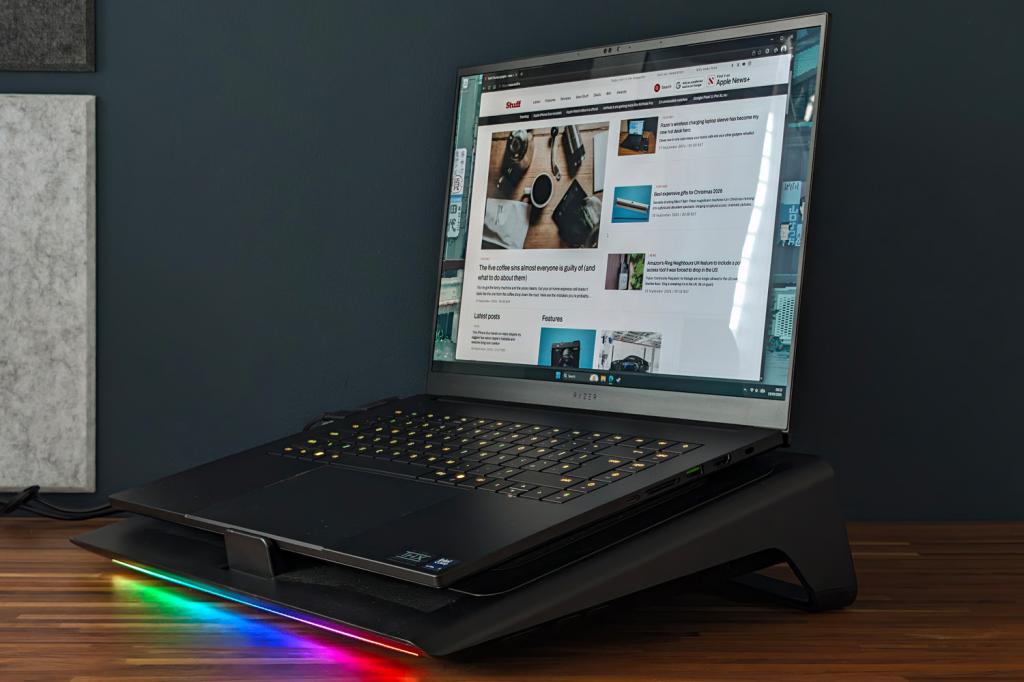
If you’ve got a recent Blade laptop and mainly play at a desk, the Cooling Pad feels like a no-brainer. You’re getting a small performance boost for very little effort, some useful extra connectivity, and a raised viewing angle that’ll do wonders for your neck over time.
Other gaming laptops miss out on Razer’s Hyperboost preset, but given how modern CPUs and GPUs scale based on thermal limits, even rival machines stand to benefit. Taming your notebook’s temps should help it live longer too – a big deal as memory price hikes show no sign of slowing down.
Headphones are almost mandatory once the fan picks up speed, though, and the mostly plastic build doesn’t match the $150/£130 asking price. If you just want basic cooling at a fixed speed – and don’t need extras like RGB or a USB hub – alternatives are out there for half as much cash.




Read the full article here


